
Shortcuts & Faster Workflows
How to Find Any Sheet Fast in Excel
Finding a worksheet is easy in a five-tab workbook and slow in a workbook with dozens of similarly named tabs. A reliable process combines the sheet list, meaningful names, and a quick confirmation step before editing.
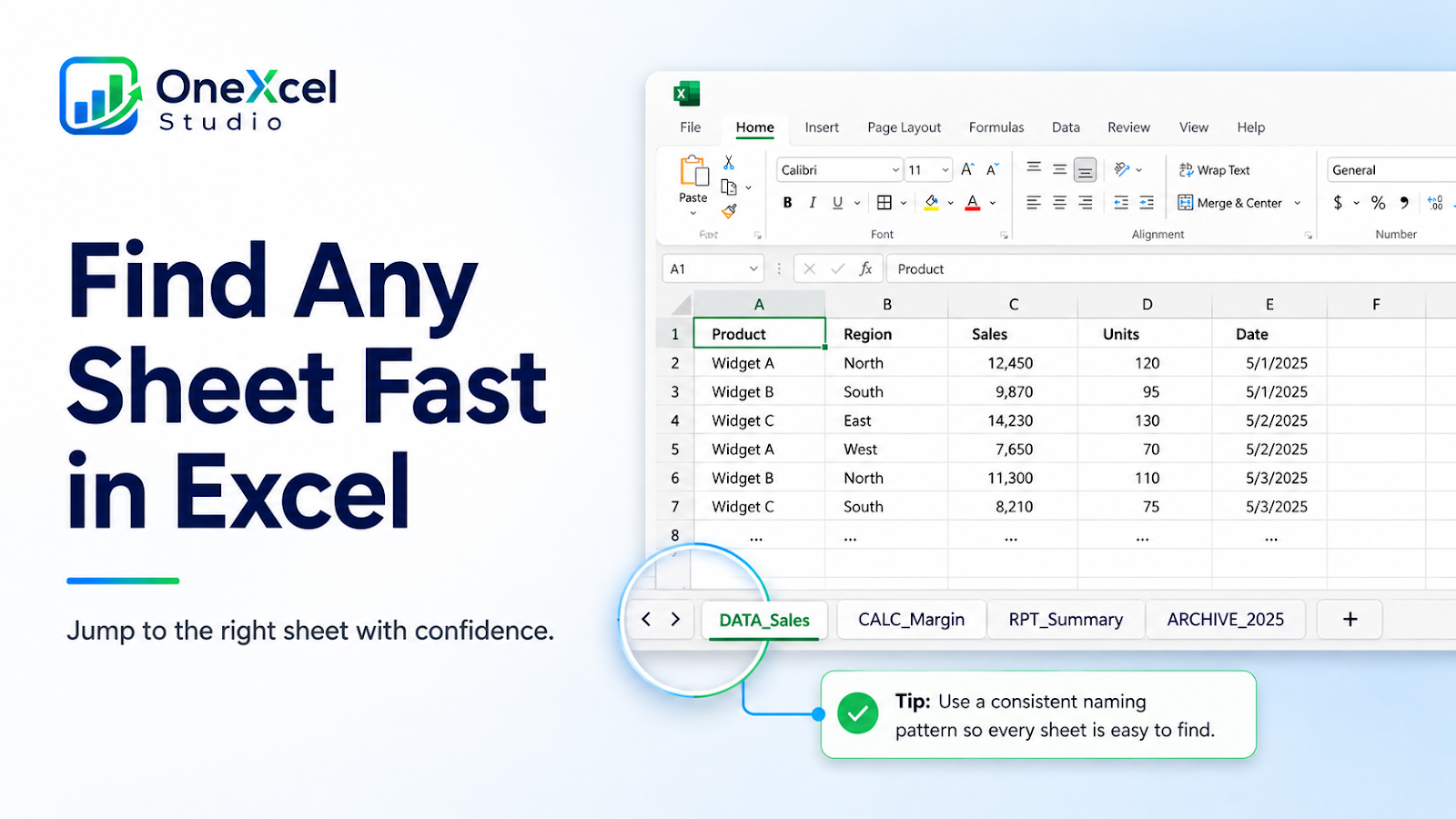
Set up the worksheet before changing it
Make a list of the workbook’s active, hidden, source, calculation, and output sheets. Rename ambiguous tabs with a consistent pattern such as `DATA_`, `CALC_`, `RPT_`, or `ARCHIVE_` when that naming system matches the workbook. Do not rename sheets blindly when formulas, macros, or external links depend on exact names.
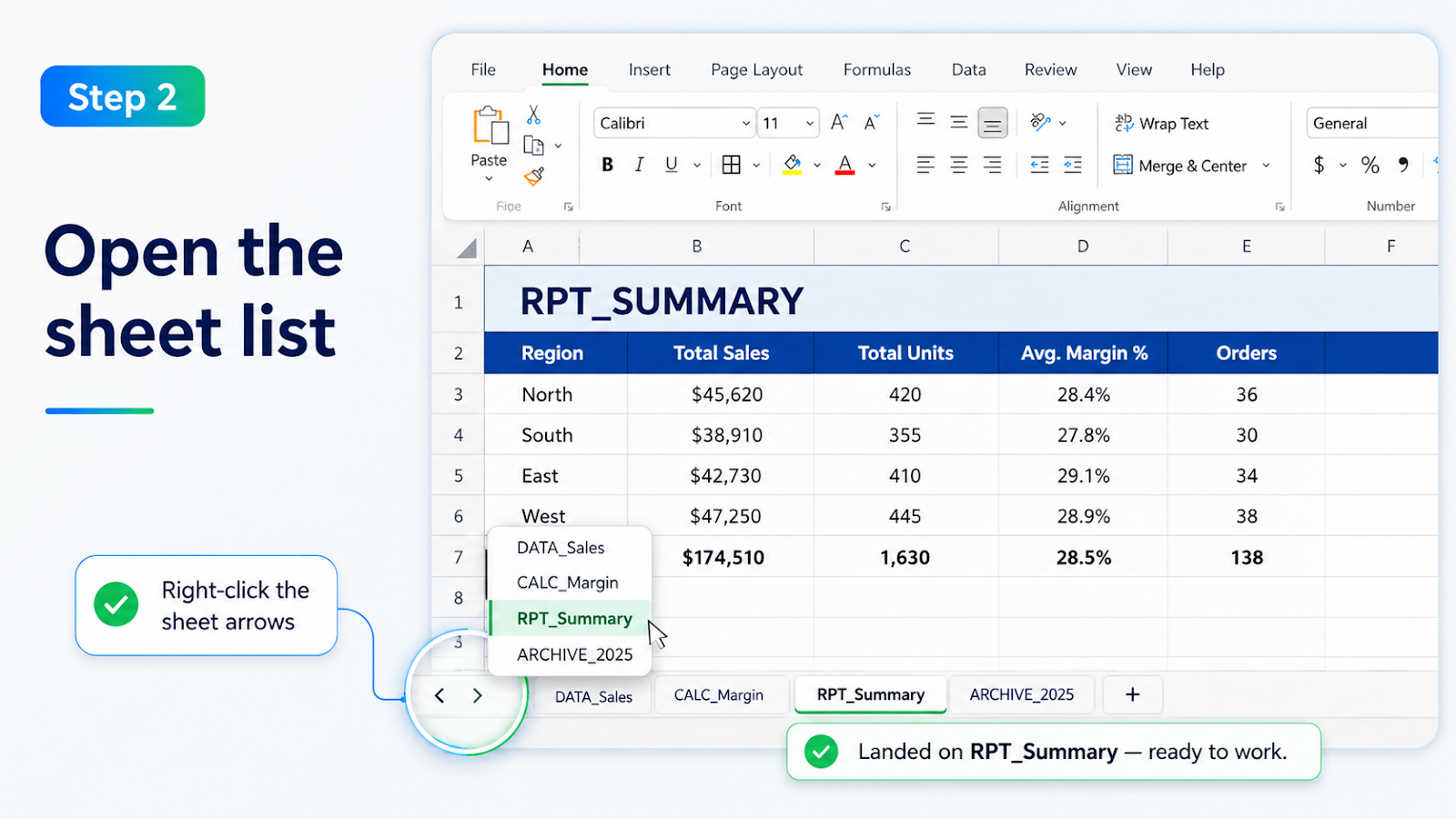
When a workbook has many tabs, the faster sheet-navigation method can reduce the time spent scanning the tab bar.
Apply the method to a real example
Right-click the sheet-navigation arrows at the lower-left of the workbook to open the list of visible sheets, then choose the destination. In newer Excel versions, use the sheet search or navigation surface when available. After landing on the sheet, confirm the tab name, the sheet title, and one identifying header before typing or pasting. If the target is hidden, use Unhide only when the workflow permits it and record which sheet was exposed.
Check one normal case, one edge case, and one result that should not change. This keeps the workflow auditable before it reaches the full report.
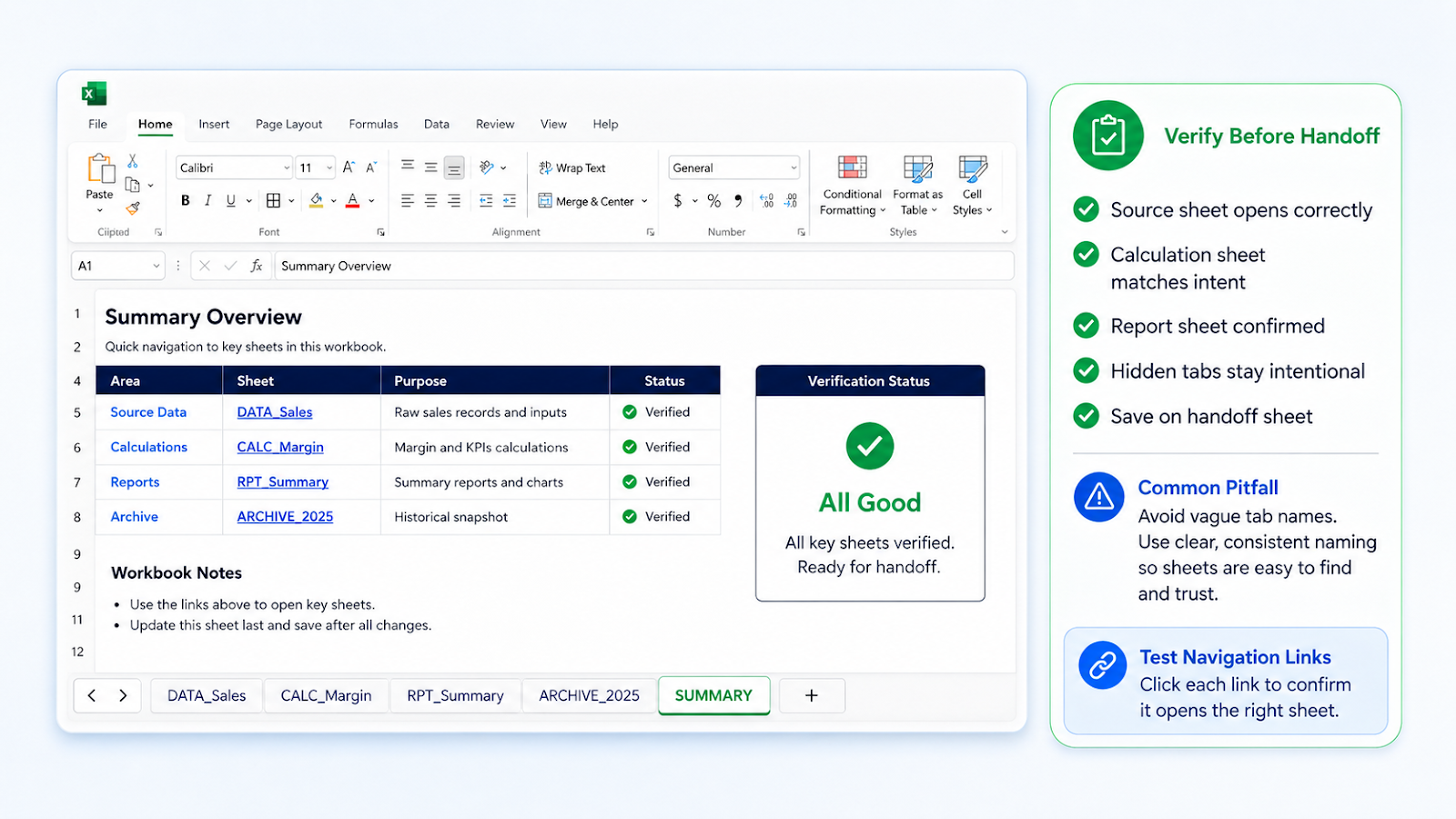
Verify the result before handoff
Search for a source, calculation, and report sheet. Confirm that each opens to the intended content and that hidden tabs remain intentional. Save the workbook on the summary or handoff sheet rather than leaving the user inside a helper sheet. If the workbook uses a navigation page with hyperlinks, test each link after any sheet rename.
When the destination is a report surface, Freeze Panes Like A Pro can keep headers visible while you review the selected sheet.
Common mistakes and corrections
| Mistake | Correction |
|---|---|
| Searching by a vague name | Similar tabs create a high risk of editing the wrong period or department. |
| Renaming without checking dependencies | Formulas, macros, hyperlinks, and external references may use the exact sheet name. |
| Unhiding everything | Helper sheets can confuse readers and expose working data. |
| Skipping destination confirmation | Always check the tab and one header before making changes. |
Frequently asked questions
How do I see a list of sheets?
Use the sheet-navigation controls or the sheet list in the lower-left area.
Can I search hidden sheets?
Hidden sheets usually need to be unhidden or reached through a controlled workbook navigation method.
Should sheet names include dates?
Use a consistent date format when periods must be distinguished, and avoid names that are too long to recognize.
Can hyperlinks navigate to sheets?
Yes. Test the links after sheet renames and protect the navigation page if needed.
Continue with the OneXcel Tutorial Hub and free Excel resources for related workflows.
Use naming as a navigation feature
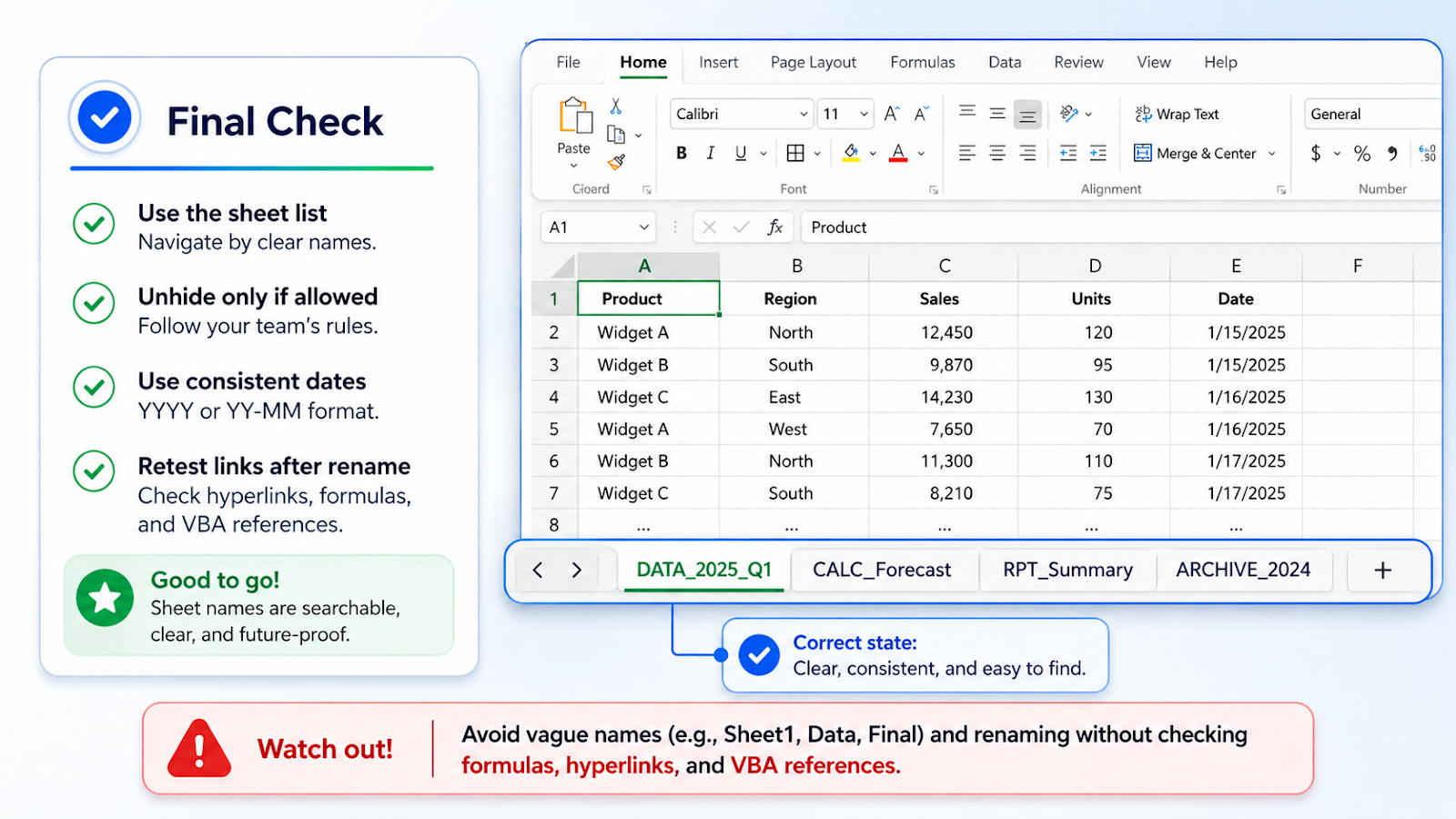
A sheet name should tell the reader what is inside and, when needed, which period or state it represents. Avoid changing names merely to make them shorter if formulas or macros depend on them. When a rename is necessary, search formulas, hyperlinks, and VBA references afterward and test the workbook’s navigation from the summary surface.
Make sheet names safe to search
A sheet name is part of the workbook’s navigation system. Use a consistent pattern for data, calculations, reports, and archives, and include a period only when it helps distinguish versions. Avoid names that are so long they disappear in the tab bar. Keep the full definition in the sheet title or a navigation page.
Before renaming a sheet, search formulas, hyperlinks, and VBA modules for the old name. Excel usually updates ordinary references, but text-based references, external links, and macros require deliberate testing. If a sheet is hidden, document why and make sure the approved workflow explains how to expose it.
After finding the target, confirm the tab name and one identifying header before editing. That second check prevents a fast navigation method from creating a fast data-entry mistake.
Make the result hold up in real work
Finding a sheet is easier when names reveal purpose and dependencies. Use a consistent prefix or ordering for inputs, calculations, reports, and archives, but do not rely on color alone. Search formulas and named ranges before renaming a tab, then test navigation links and chart sources afterward. If several tabs are nearly identical, add a period, owner, or status to distinguish them. Hide technical sheets only when users do not need them, and provide a clear route back to the starting surface. A workbook is maintainable when another person can identify the correct tab from its name without opening every sheet.
Continue building reliable Excel workflows
Browse more lessons in the OneXcel Tutorial Hub or explore free Excel resources.