
Shortcuts & Faster Workflows
Faster Sheet Navigation in Excel
A workbook becomes difficult to use when moving between sheets takes longer than the actual task. A few navigation habits—keyboard movement, the sheet list, and meaningful tab names—reduce errors because the active worksheet is easier to confirm.
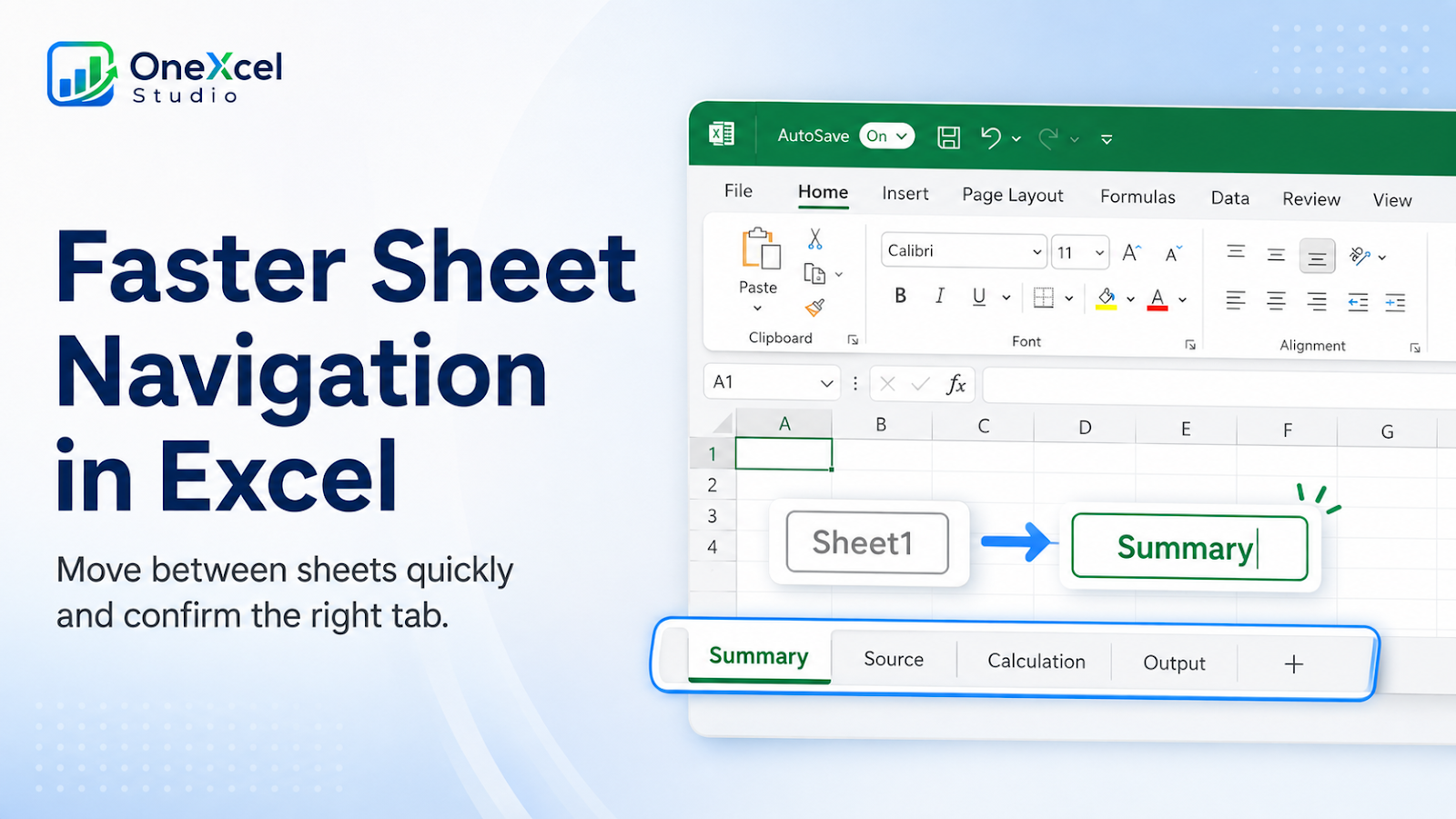
Set up the worksheet before changing it
Open a workbook with several tabs and identify adjacent sheets, distant sheets, and a sheet that is easy to confuse with another. Rename ambiguous tabs before practicing. Keep names short enough to recognize and group related tabs with a consistent prefix when the workbook is large.

Apply the method to a real example
Use Ctrl + Page Up and Ctrl + Page Down to move between adjacent sheets. Right-click or use the sheet-navigation arrows to display a list when the target is far away. Use the workbook’s search or navigation tools when available, then confirm the selected tab and title before entering data. For repeated reporting periods, use a consistent order and a clear Summary tab as the starting surface.
For another keyboard habit that speeds repeated workbook actions, see how to use F4 for references and repeated actions.
Check one normal case, one edge case, and one result that should not change. This keeps the workflow auditable before it reaches the full report.
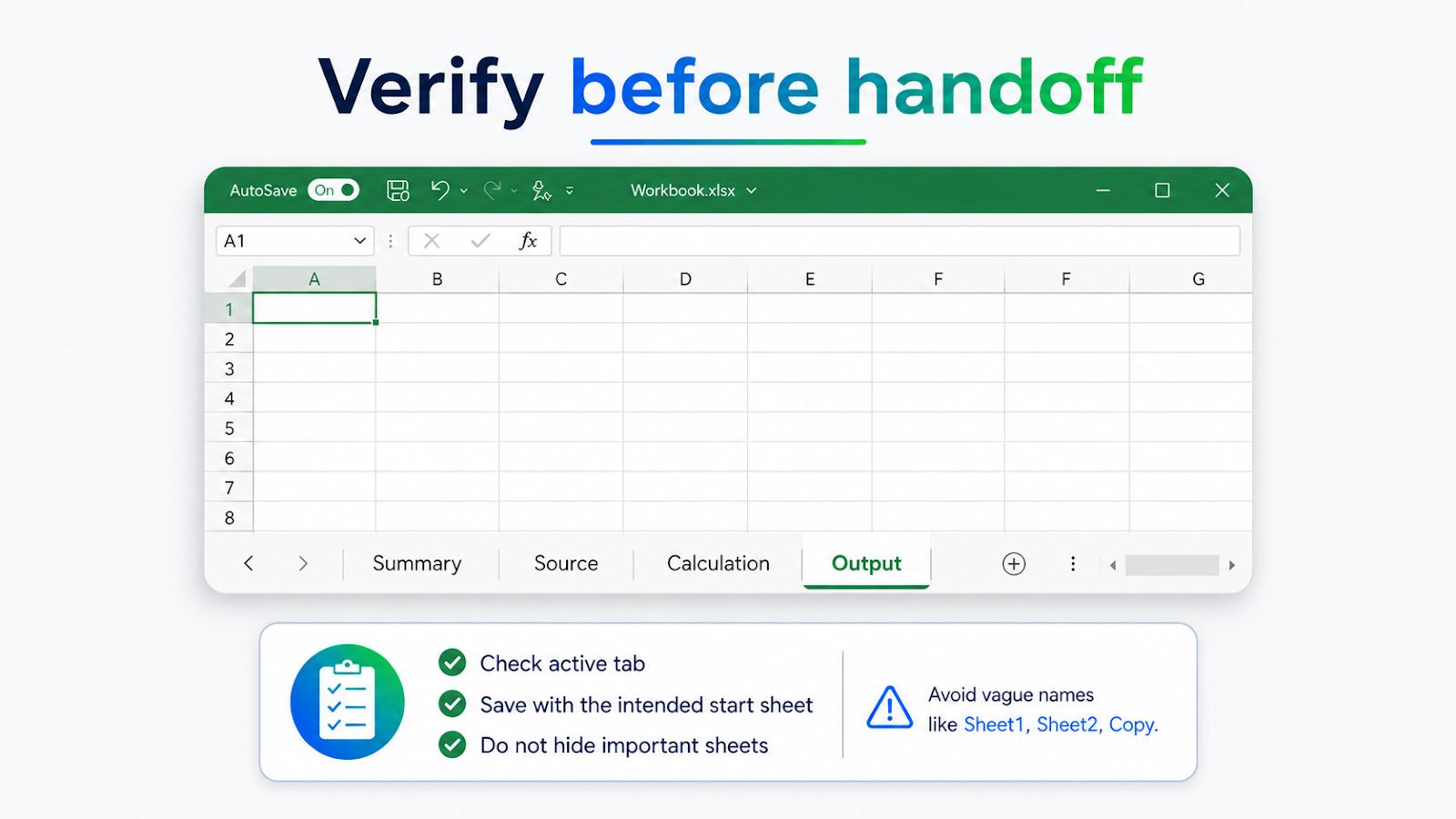
Verify the result before handoff
Move from the summary to a source sheet, calculation sheet, and output sheet without using the mouse tab bar. Check the active tab after each movement. Hide calculation sheets only when the workflow explains how to reach them; hiding too much can make a workbook feel broken. Save the workbook with the intended starting sheet selected and test the navigation on a narrow window.
On larger sheets, Freeze Panes Like A Pro keeps headings visible while you move between areas.
Common mistakes and corrections
| Mistake | Correction |
|---|---|
| Editing before checking the active tab | Fast navigation is only useful when the destination is confirmed. |
| Relying on tab color alone | Names and order are more reliable than color for accessibility and export. |
| Hiding important sheets | Readers may not know where to find the source or calculation. |
| Using vague names | Sheet1, Sheet2, and Copy create avoidable navigation errors. |
Frequently asked questions
What is the shortcut for the next sheet?
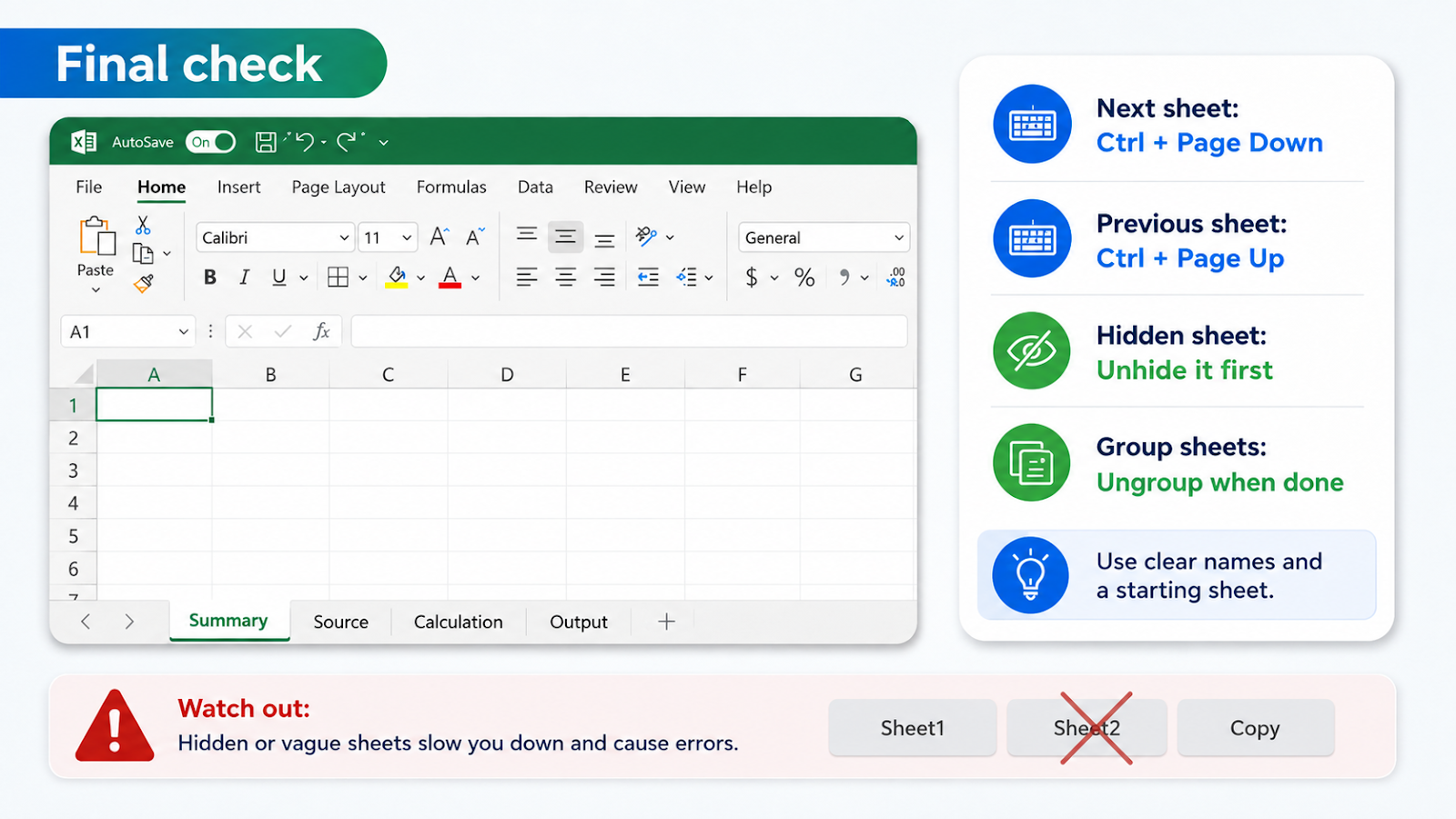
Use Ctrl + Page Down; Ctrl + Page Up moves to the previous sheet.
Can I navigate to a hidden sheet?
Unhide it or use the workbook’s controlled navigation method.
Should I group sheets?
Group only when the same action should apply to all selected sheets; ungroup immediately afterward.
How many tabs are too many?
There is no single number, but a workbook needs clear grouping and a summary surface when tabs become hard to scan.
Continue with the OneXcel Tutorial Hub and free Excel resources for related workflows.
Make the starting point intentional
Navigation is part of workbook design. Put a short instruction on the Summary sheet, use a consistent tab order, and leave the workbook saved on the surface most readers need first. When a macro or hyperlink moves the user to another sheet, make that movement deliberate and explain how to return. Fast navigation should reduce uncertainty, not hide it.
Design navigation around the reader’s next task
Fast movement matters most when the workbook has a predictable path: Summary to Input, Input to Calculation, and Calculation to Report. Use clear tab names and a consistent order so keyboard navigation reinforces the structure. If tabs are grouped by period or department, use a naming prefix that keeps related sheets together.
Save the workbook on the surface the reader needs first. If a hyperlink or macro moves to another sheet, make the destination obvious and provide a return link or Summary tab. Test the navigation after hiding or renaming sheets, because a fast shortcut is not helpful when the target is ambiguous.
For a large workbook, a navigation page with tested hyperlinks can be more reliable than asking users to scroll through dozens of tabs.
Make the result hold up in real work
Navigation should reflect the order in which a person works. Put the starting surface first, label input and output areas plainly, and give repeated actions a consistent route back to the hub or summary. If hyperlinks are used, test them after sheet renames and after making a copy of the workbook. Avoid sending the user to a calculation sheet just because it contains the source. A short “Start here” note can explain the expected sequence and reduce support questions. Review the workbook as a first-time user: can you find the next action without already knowing its internal structure?
Continue building reliable Excel workflows
Browse more lessons in the OneXcel Tutorial Hub or explore free Excel resources.