
FORMULAS & FUNCTIONS
TEXTJOIN in Excel: Combine Text with a Delimiter (and with Conditions)
TEXTJOIN joins a whole range of cells into one text string with the separator you choose, and it can skip empty cells for you. Combined with IF it does something no other text function can: list every value that matches a condition in a single cell, such as all the open orders for one customer. This guide covers the basics, line breaks, conditions and unique lists, with a free practice file.

Quick answer
=TEXTJOIN(", ",TRUE,A2:D2)| Argument | What it does | Example |
|---|---|---|
| delimiter | Text placed between the items | ", " or " " or CHAR(10) |
| ignore_empty | TRUE skips empty cells, FALSE keeps them | TRUE |
| text1, text2, … | Cells, ranges or text to join | A2:D2 |
TEXTJOIN works in Excel 2019, Excel 2021, Excel 2024, Microsoft 365 and Excel for the web. It is not available in Excel 2016 or earlier, which show #NAME? (see the alternative near the end).
Step 1: Join a range with a delimiter
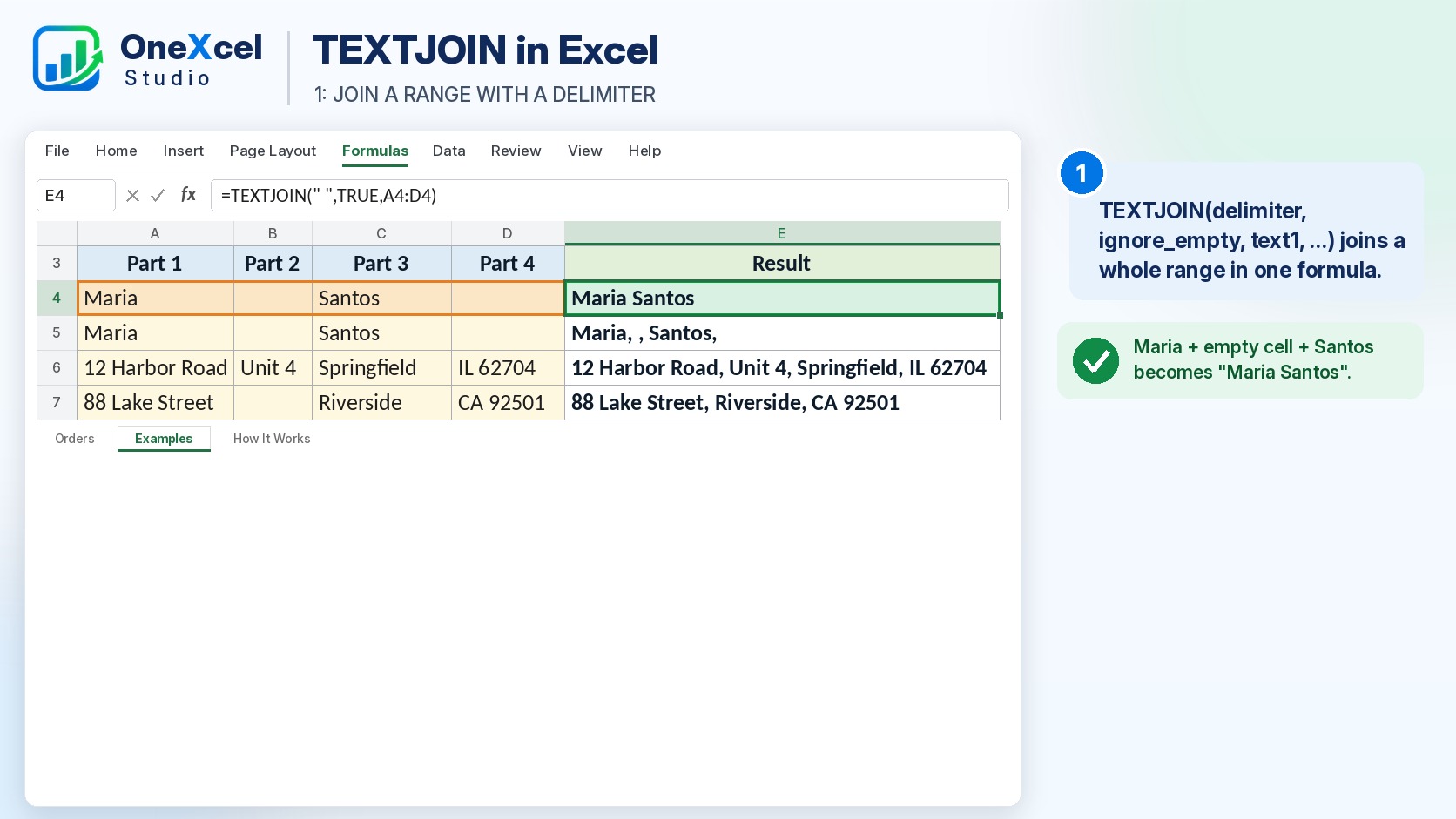
Row 4 has a first name, an empty middle-name cell and a last name. One formula joins them with a space:
=TEXTJOIN(" ",TRUE,A4:D4)The result is Maria Santos, with no double space, because TRUE tells Excel to skip the empty cells. With the & operator you would need a separate IF for every part that might be empty.
Step 2: TRUE skips empty cells, FALSE keeps them
Row 5 has the same data but uses FALSE:
=TEXTJOIN(", ",FALSE,A5:D5)The result is Maria, , Santos, : every empty cell still gets a delimiter. That is useful when the position matters, for example building a CSV line where every column must be present. For addresses and names you almost always want TRUE:
| Row | Parts | Result with TRUE |
|---|---|---|
| 6 | 12 Harbor Road | Unit 4 | Springfield | IL 62704 | 12 Harbor Road, Unit 4, Springfield, IL 62704 |
| 7 | 88 Lake Street | (empty) | Riverside | CA 92501 | 88 Lake Street, Riverside, CA 92501 |
TRUE also skips cells whose formula returns an empty string (“”), which is what makes the conditional versions below work.

Step 3: One item per line with CHAR(10)
CHAR(10) is the line break character, so it can be the delimiter:
=TEXTJOIN(CHAR(10),TRUE,A8:D8)Turn on Wrap Text (Home tab) for the result cell, otherwise the lines run together. This is handy for mailing labels and for notes that combine several comments.

TEXT(A2,"mmm d, yyyy"); see the TEXT function for month labels. In the practice file the invoice parts in row 9 are stored as text, so INV-2026-10-0042 keeps its leading zeros.Step 4: TEXTJOIN with IF: list all values that match
The Orders sheet has 12 orders. To list every product ordered by the customer in A12:
=TEXTJOIN(", ",TRUE,IF(Orders!$B$5:$B$16=A12,Orders!$C$5:$C$16,""))IF checks all 12 rows at once. Where the customer matches, it returns the product; everywhere else it returns “”. TEXTJOIN then skips the empty strings and joins the rest. Harbor Foods returns Paper cups, Napkins, Lids, Paper cups.

Step 5: TEXTJOIN with multiple conditions
To list only the open orders for each customer, multiply the conditions inside IF. Each condition is TRUE or FALSE, and TRUE x TRUE is the only combination that gives 1:
=TEXTJOIN(", ",TRUE,IF((Orders!$B$5:$B$16=A12)*(Orders!$E$5:$E$16="Open"),Orders!$A$5:$A$16,""))| Customer | Orders | Open orders |
|---|---|---|
| Harbor Foods | 4 | 1003, 1009 |
| Lakeside Cafe | 3 | 1007 |
| Pine Street Deli | 3 | 1012 |
| Northgate Bakery | 2 | 1006 |
For OR logic (either condition), add the conditions instead of multiplying them and test for a result greater than 0: IF((cond1)+(cond2)>0,...).

Step 6: Each value once with UNIQUE and FILTER
Harbor Foods ordered paper cups twice, so the list in Step 4 repeats it. In Microsoft 365 and Excel 2021, FILTER picks the matching rows and UNIQUE removes the repeats before TEXTJOIN joins them:
=IFERROR(TEXTJOIN(", ",TRUE,UNIQUE(FILTER(Orders!$C$5:$C$16,Orders!$B$5:$B$16=A12))),"")The result is Paper cups, Napkins, Lids. IFERROR covers a customer with no orders, where FILTER returns #CALC!. To sort the list, wrap UNIQUE in SORT. For more on these functions, see dynamic lists with FILTER and unique lists with UNIQUE.
The practice file also checks itself: the order counts per customer (COUNTIF) add up to 12, matching the number of orders on the Orders sheet, so no order is missed by the lists.

TEXTJOIN vs CONCAT vs CONCATENATE vs &
| Method | Delimiter | Ranges | Skips blanks | Versions |
|---|---|---|---|---|
| TEXTJOIN | Yes | Yes | Yes (TRUE) | 2019 and later |
| CONCAT | No | Yes | No | 2019 and later |
| CONCATENATE | No | No | No | All |
| & operator | Type it each time | No | No | All |
In Excel 2016 or earlier, build the same address with & and IF for each optional part: =A7&IF(B7<>"",", "&B7,"")&", "&C7&", "&D7. To go the other way and split a joined string back into parts, see how to split text into columns without losing data and extract text before or after a delimiter.
TEXTJOIN not working? Common problems
- #NAME?: your Excel version is 2016 or earlier, or the function name is misspelled.
- #VALUE!: the result is longer than 32,767 characters, the limit for one cell.
- Only one value with IF: in Excel 2019 the formula needs Ctrl+Shift+Enter.
- The formula shows as text: the cell was formatted as Text before you typed it. Format it as General and re-enter.
- Dates show as numbers: wrap them in TEXT with the format you want.
Frequently asked questions
How do I combine text with a comma in Excel?
Use =TEXTJOIN(“, “,TRUE,A2:D2). The first argument is the delimiter, the second skips empty cells.
How do I use TEXTJOIN with a condition?
Put IF inside it: =TEXTJOIN(“, “,TRUE,IF(range=criteria,values,””)). In Excel 2019 confirm with Ctrl+Shift+Enter.
How do I TEXTJOIN unique values only?
In Microsoft 365 or Excel 2021 use =TEXTJOIN(“, “,TRUE,UNIQUE(FILTER(values,range=criteria))).
Can TEXTJOIN add a line break?
Yes. Use CHAR(10) as the delimiter and turn on Wrap Text for the cell.
Does TEXTJOIN work in Excel 2016?
No. Use the & operator with IF for each optional part, or CONCATENATE.
Final checklist
- Delimiter first, then TRUE to skip empty cells, then the range.
- CHAR(10) plus Wrap Text for one item per line.
- IF inside TEXTJOIN to list matches; multiply conditions for AND.
- UNIQUE and FILTER to list each value once (Microsoft 365).
- TEXT around dates and numbers that need a format.
Work faster with text in Excel
Browse the OneXcel Tutorial Hub for more formulas, explore ready-to-use Excel templates, or build a report with the OneXcel Dashboard Builder.