
DATA CLEANUP & ERROR CHECKS
How to Split Text into Columns Without Losing Data
Split combined text into separate Excel columns safely by preserving the source, choosing the right delimiter, previewing the result, and checking exceptions before you continue.
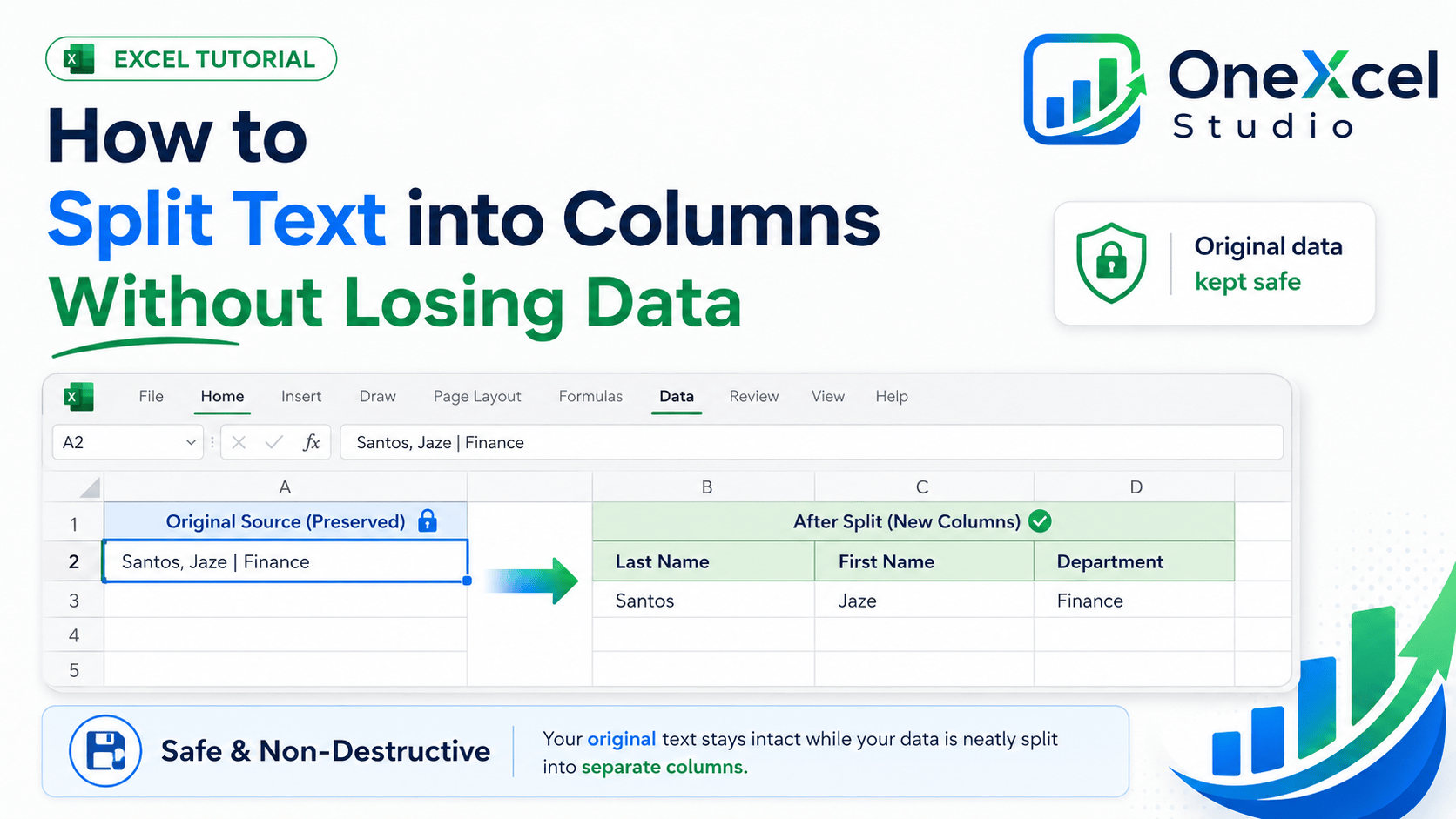
Why preserving the source matters
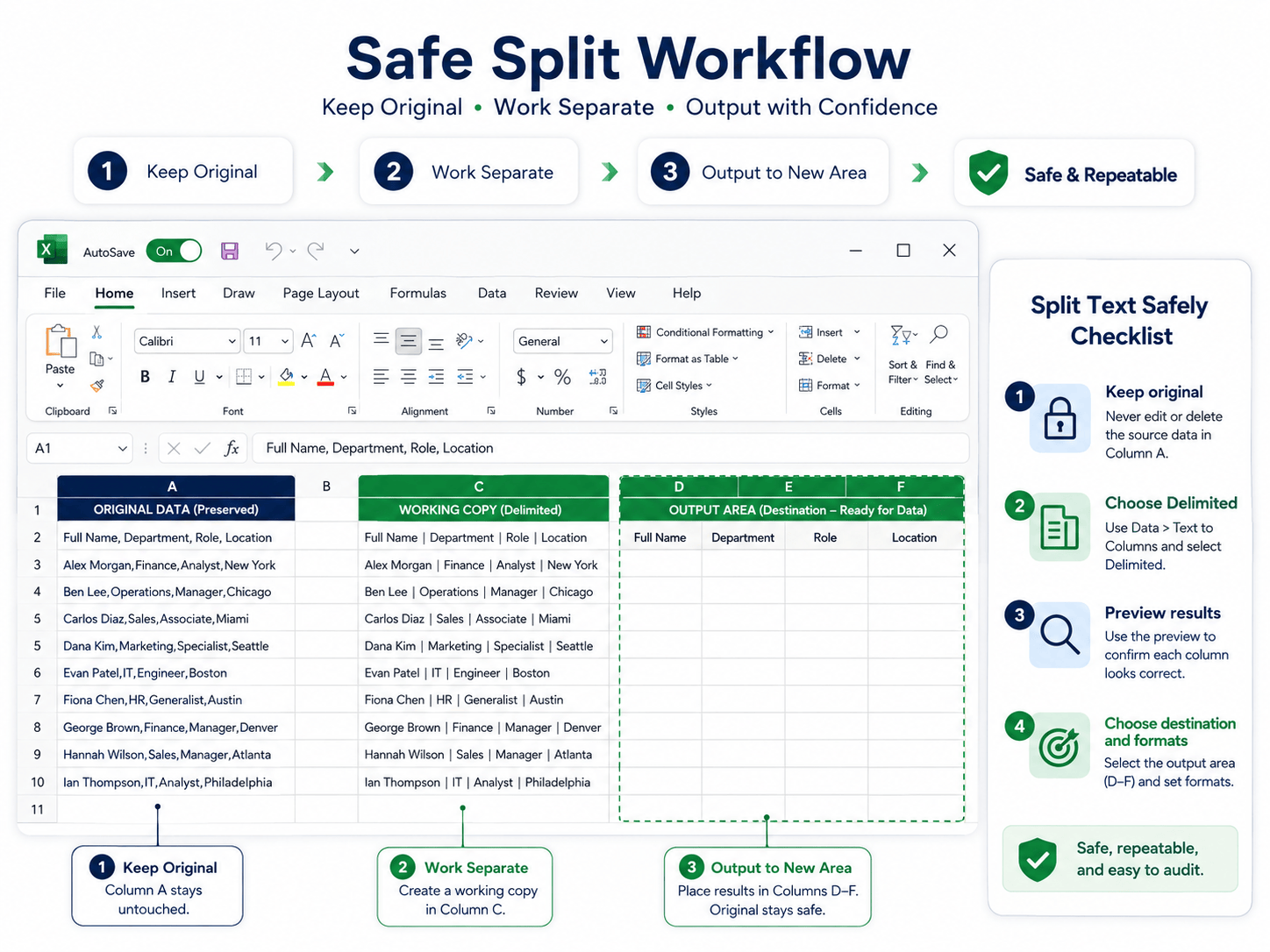
Text to Columns changes the cells you select. That is useful when the result should become a real table, but it is risky when the selected column is the only copy of the original text. Start with a duplicate column, leave enough blank space for the result, and keep the source visible until the split has been checked.
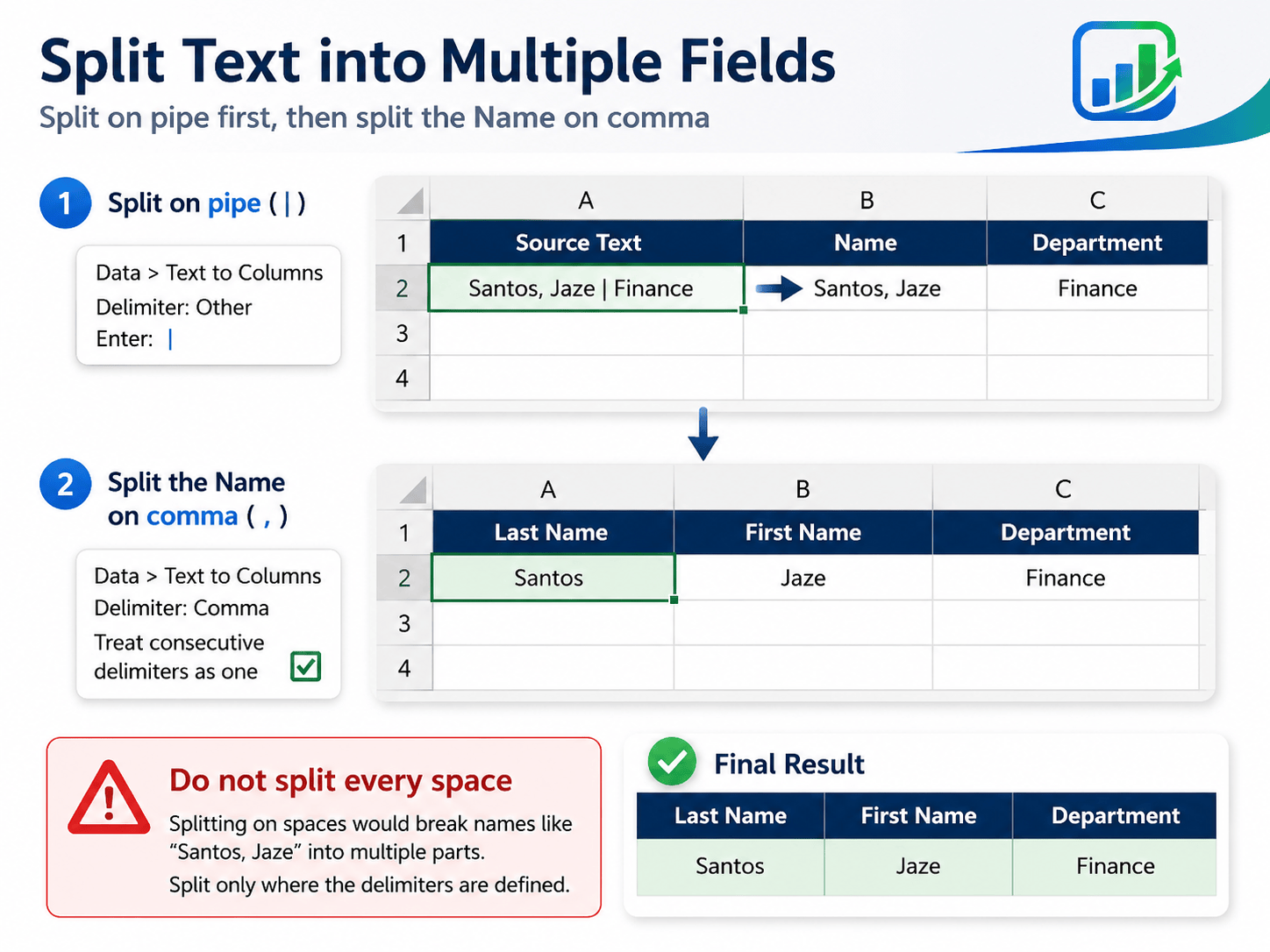
For example, a value such as Santos, Jaze | Finance contains two different separators with two different jobs. The pipe separates the person from the department. The comma separates the two parts of the name. Choosing Space would create extra, misleading columns.
Prepare a safe working area
- Save a copy of the workbook before changing a source list.
- Copy the combined-text column to a working area rather than splitting the only original.
- Reserve blank destination columns to the right; existing values can be overwritten by the wizard.
- Look at several rows before choosing a delimiter. Confirm whether separators are commas, tabs, pipes, or something else.
- Decide how dates, codes, and leading zeros should be stored before you finish.
Use Text to Columns step by step
Select the working copy, then open Data > Text to Columns. The wizard guides you through the split; do not click Finish until the preview and destination are correct.
- Choose Delimited when a character separates the fields. Use Fixed width only when every row has dependable character positions.
- On the delimiter screen, select the character that actually appears between fields. For a pipe-separated working copy, select Other and enter |.
- Review the preview. If names or addresses break into unexpected pieces, clear the incorrect delimiter before continuing.
- Set the destination to the first blank cell of the reserved output area. Do not point the wizard at the source column.
- Choose a column data format when Excel might change the value, such as an ID with leading zeros or a date-like code.
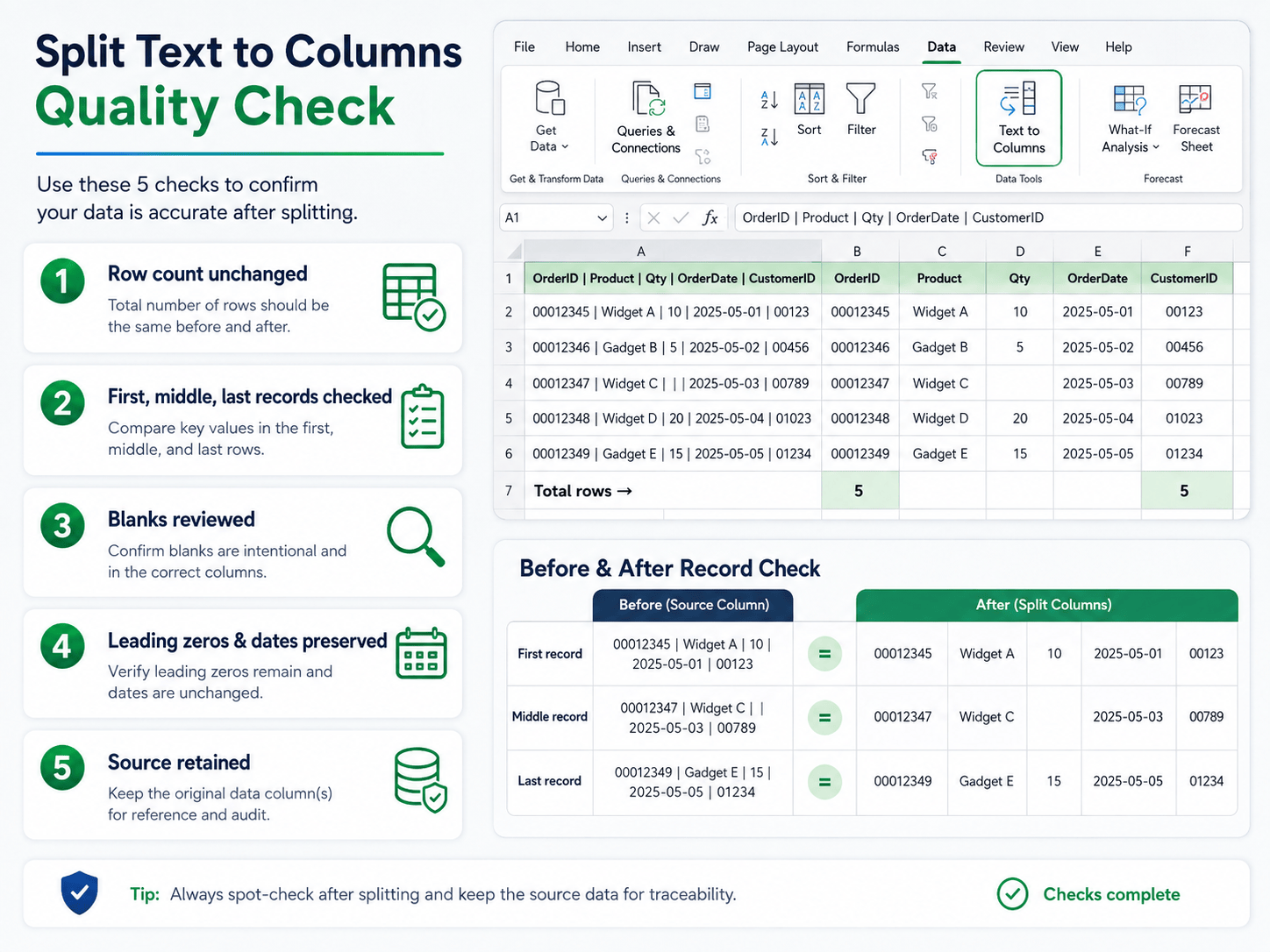
- Click Finish, then compare the first, middle, and last records with the source.
Handle more than one separator
Some records need two passes. With Santos, Jaze | Finance, split on the pipe first. The result is Santos, Jaze in one column and Finance in another. Then run Text to Columns on the name column with a comma delimiter to produce Santos and Jaze.
This two-pass approach is safer than selecting every possible delimiter at once because it preserves the intended hierarchy. It also makes the result easier to explain when another person reviews the cleanup.
Avoid the common cleanup mistakes
| Mistake | What can go wrong | Safer choice |
|---|---|---|
| Splitting the only copy | The original combined value is hard to reconstruct. | Duplicate the source first. |
| Choosing Space for names | Multiword names and addresses break into extra fields. | Use the documented separator. |
| Overwriting populated columns | Existing values can be replaced by the output. | Set a blank destination. |
| Accepting automatic conversions | Leading zeros, dates, and codes may change. | Set the destination format before Finish. |
| Ignoring irregular rows | One exception can shift data into the wrong columns. | Spot-check exceptions and blanks. |
Verify the finished columns
Do not judge a split only by whether the columns look tidy. Compare the output against the source and the expected structure.
- Compare the original and output row counts.
- Inspect the first, middle, and last records.
- Filter each new column for blanks, unexpected text, or shifted values.
- Check leading zeros, dates, punctuation, and multiword names.
- Keep the original column until the cleanup is approved and saved.
- If the same import repeats, consider extracting text before or after a delimiter with a repeatable formula instead of repeating a manual split.
- When source columns contain mixed types, review how to find inconsistent data types in a column before building a report on the result.
Frequently asked questions
Can Text to Columns use more than one delimiter?
It can, but selecting several delimiters at once may split a field more than you intend. If the data has a hierarchy, split the major separator first and process the remaining field separately.
Why did Excel turn a code into a date?
Excel recognized the text as date-like and converted it during the split. Set the destination column to Text in the wizard before clicking Finish, then compare the result with the source.
Can I refresh a Text to Columns split automatically?
Text to Columns is a manual transformation. For a recurring import, use Power Query or a documented formula workflow so the same rule can be reapplied and reviewed.
What if every row does not use the same separator?
Standardize the source first, isolate the exceptions, or use a transformation that explicitly handles the different patterns. Do not force inconsistent rows through a single delimiter rule.
Keep your Excel cleanup auditable
Browse the OneXcel Tutorial Hub for more practical Excel workflows and free resources.