
DATA CLEANUP & ERROR CHECKS
How to Find Inconsistent Data Types in a Column
Find mixed data types in an Excel column, identify the records causing errors, and convert the values to one consistent type.
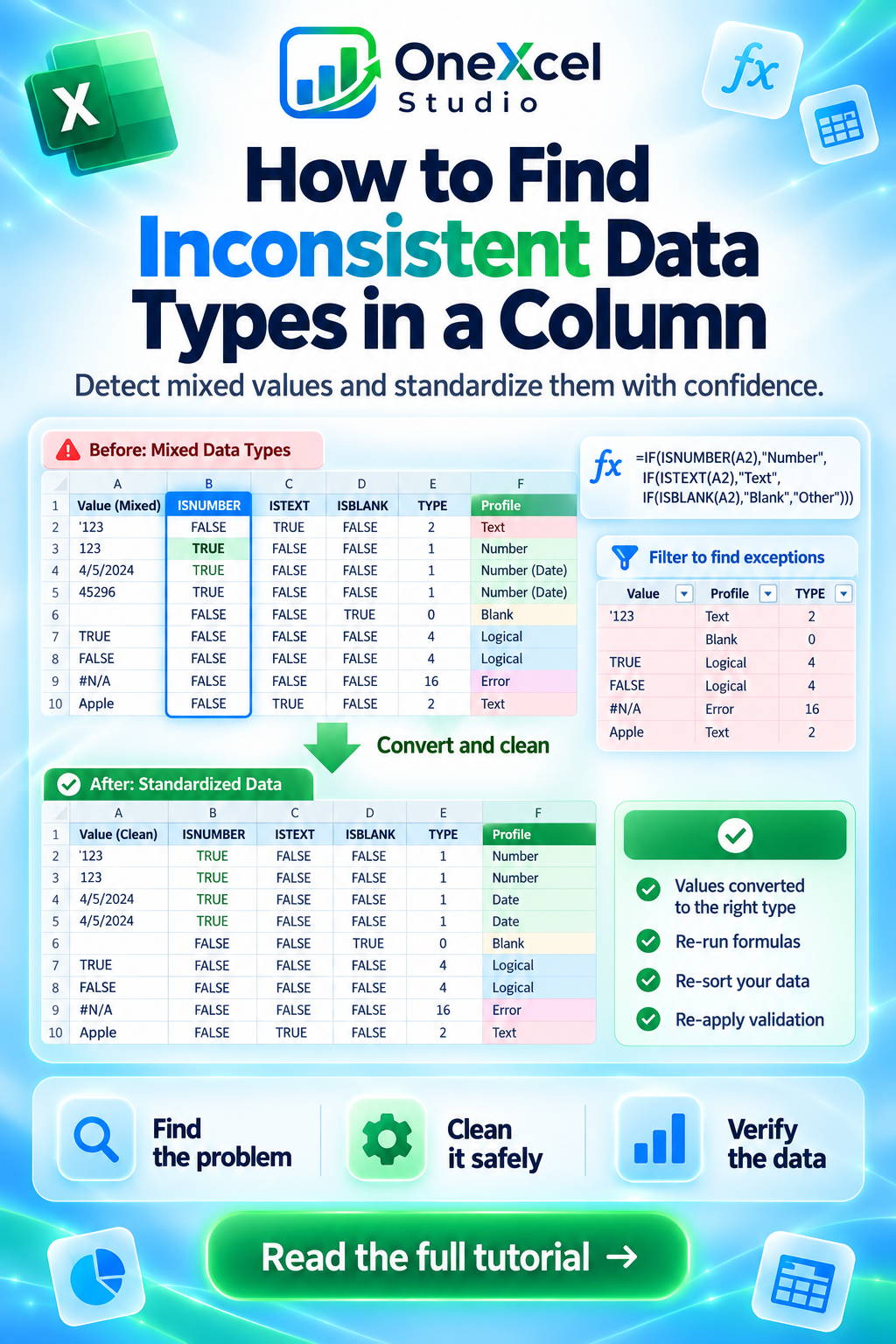
Use data-type profiling safely
Use helper columns to identify whether each value is stored as text, number, date serial, logical value, error, or blank.
- Apply ISNUMBER, ISTEXT, and ISBLANK tests to a sample.
- Use TYPE when a numeric type code is useful.
- Inspect alignment and number format only as clues, not proof.
- Filter the helper results to isolate exceptions.
- Convert values using a method appropriate to the intended type.
- Re-run formulas, sorts, and validation after standardization.
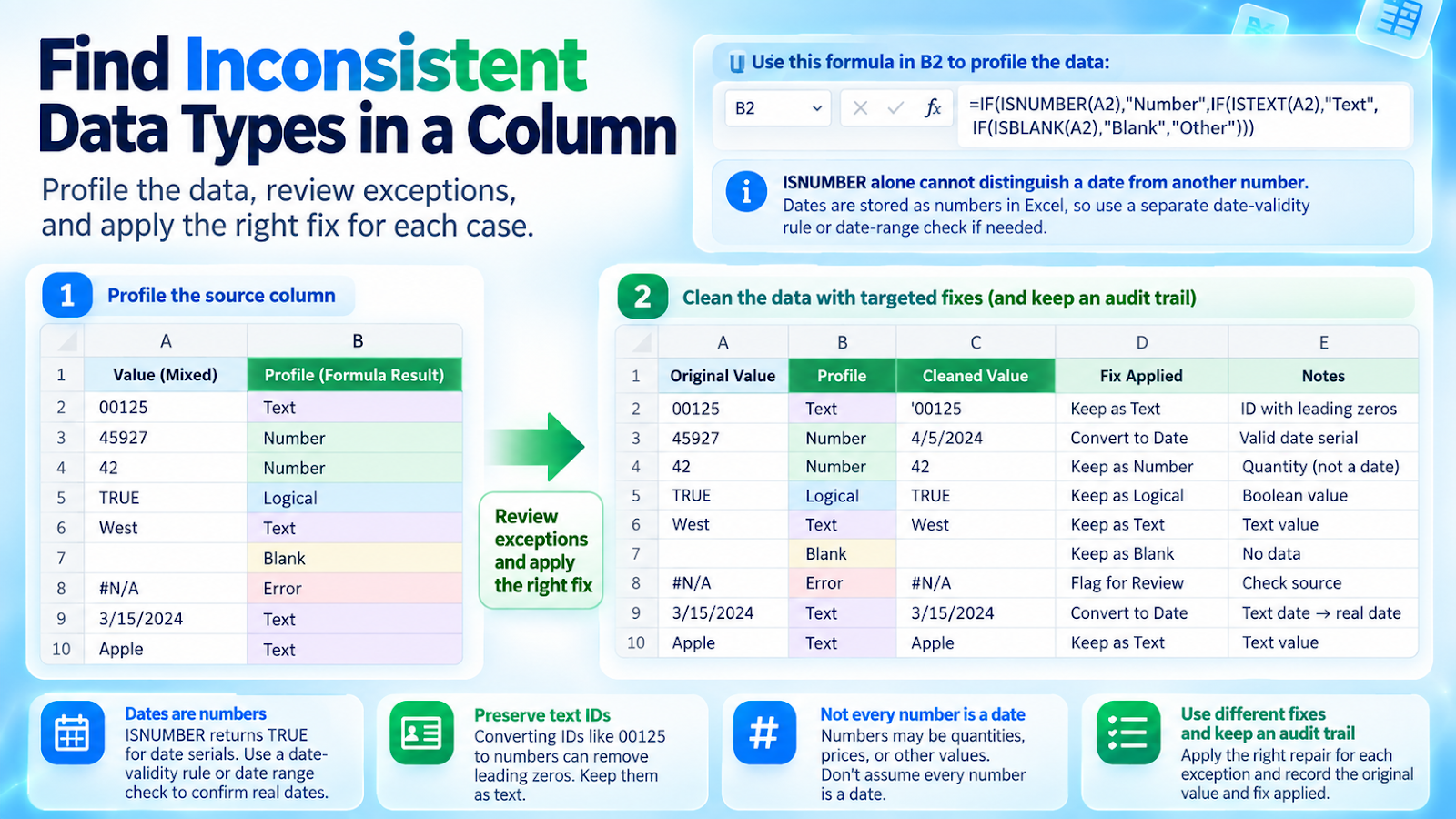
Worked example
=IF(ISNUMBER(A2),"Number",IF(ISTEXT(A2),"Text",IF(ISBLANK(A2),"Blank","Other"))) creates a simple profile. Dates are stored as numbers, so a separate range or date-validity rule may be needed.
When a numeric-looking value is stored as text, continue with how to fix numbers stored as text in Excel before changing the whole column.
Common cleanup mistakes
| Mistake | Why it matters |
|---|---|
| Treating displayed format as storage type | A text value can be formatted as Number and remain text. |
| Converting IDs into numbers | Leading zeros may be lost. |
| Assuming every number is a date | Dates are numeric serials but need contextual validation. |
| Applying one conversion to a mixed column | Different exceptions may need different repairs. |
| Overwriting the source before review | Keep an audit trail. |

Verification steps
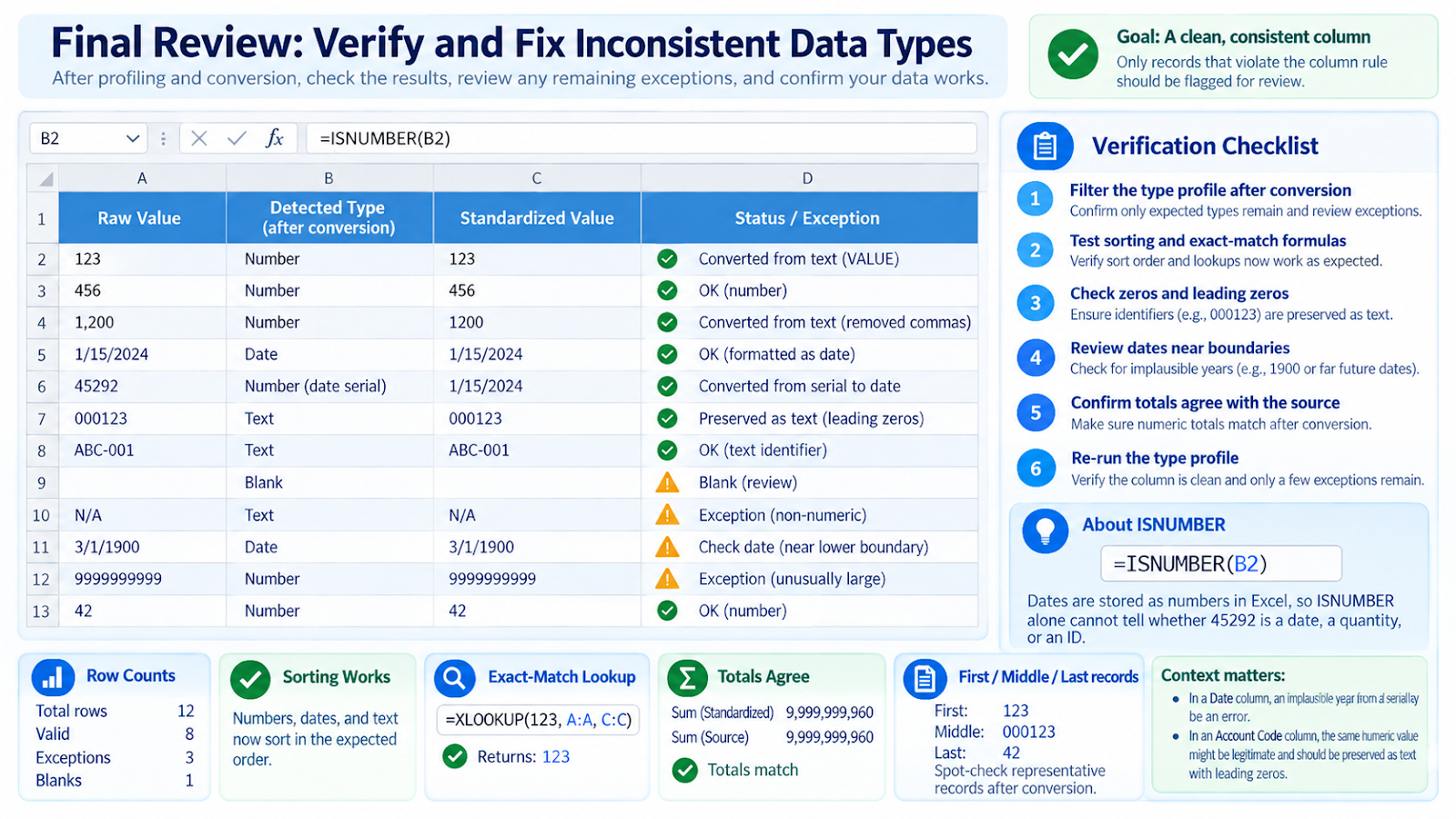
- Filter the type profile after conversion.
- Test sorting and exact-match formulas.
- Check zeros and leading zeros.
- Review dates near boundaries.
- Confirm totals agree with the source.
If imported values also contain hidden spaces or control characters, clean them with this guide to remove extra spaces and hidden characters before retesting the column.
Use the intended meaning to classify dates and IDs
Because Excel stores dates as numbers, ISNUMBER alone cannot tell whether 45292 is a date, a quantity, or an ID. Use column context plus valid-range checks. In a Date column, a serial that formats to an implausible year may be an error; in an Account Code column, the same number might be legitimate and should perhaps be stored as text.
After profiling, convert only the exceptions that violate the column rule. A mixed column often needs several fixes: numeric text converted with VALUE, real dates formatted consistently, and identifiers preserved as text with leading zeros. Re-run the type profile after cleanup and test the operations the column must support—sorting, exact lookup, arithmetic, or export. Consistency is defined by business use, not merely by making every cell look the same.
Use sorting as a quick type-quality test
A mixed-type column often exposes itself when sorted. Numeric values may group separately from numeric text, and dates stored as text may appear out of chronological order. Use this only as a clue, then confirm with ISNUMBER, ISTEXT, or a helper profile. After conversion, sort again and compare the sequence. A column that behaves consistently in sorting, calculations, and lookups is a stronger sign of successful cleanup than appearance alone.
Frequently asked questions
Are dates numbers in Excel?
Yes, valid dates are stored as serial numbers with a date number format.
Why does a numeric-looking cell return ISTEXT?
It was imported or entered as text.
Can Power Query show data types?
Yes. It applies explicit column types and flags conversion errors.
How do I handle a column that legitimately mixes types?
Document the rule or separate the values into dedicated fields.
Continue building reliable Excel workflows
Browse more lessons in the OneXcel Tutorial Hub or explore free Excel resources.