
DATA CLEANUP & ERROR CHECKS
How to Fix Numbers Stored as Text in Excel
Fix numbers stored as text in Excel, choose the safest conversion method, and protect identifiers that need leading zeros.

Use text-to-number conversion safely
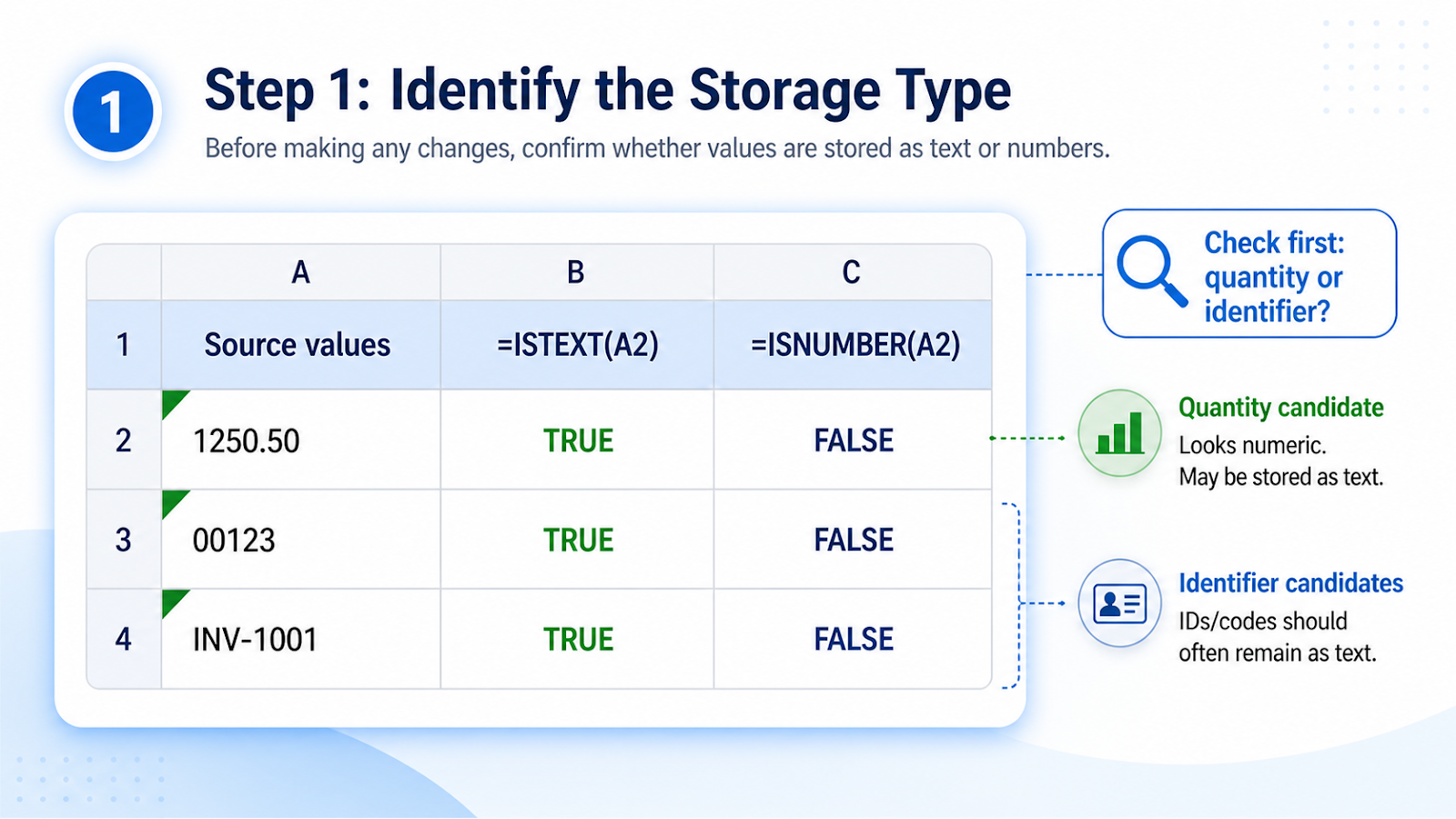
First decide whether the value is a quantity that should calculate or an identifier that must remain text.
- Use ISNUMBER or ISTEXT to confirm the current storage type.
- Inspect leading zeros and codes before conversion.
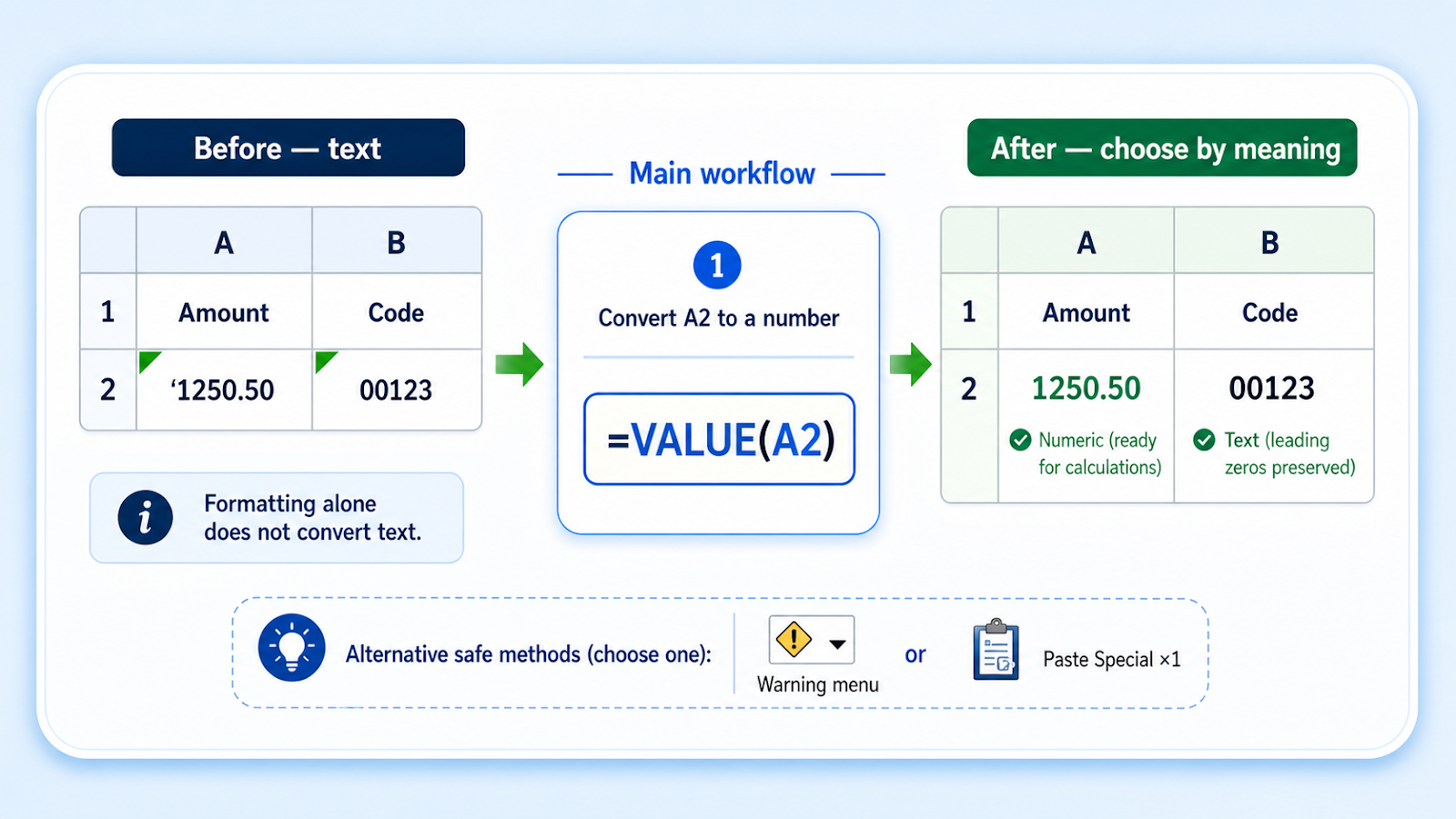
- For true numbers, use the warning menu, VALUE, Paste Special Multiply by 1, or Text to Columns.
- Apply the appropriate number format after conversion.
- Recalculate totals, lookups, and sorting.
- Leave identifiers as text when their zeros or characters are meaningful.
Worked example
`=VALUE(A2)` converts many numeric text strings into numbers. A postal code such as 00123 should usually remain text, while an amount such as ‘1250.50 should be converted.
Common cleanup mistakes
| Mistake | Why it matters |
|---|---|
| Converting every flagged cell | Some IDs are intentionally stored as text. |
| Using formatting as conversion | Changing to Number does not always change the stored type. |
| Losing leading zeros | Numeric conversion removes them unless they are display-only. |
| Ignoring decimal and thousands separators | Regional formats can change the interpreted value. |
| Mixing converted and unconverted cells | Sorting and lookups remain unreliable. |
Verification steps
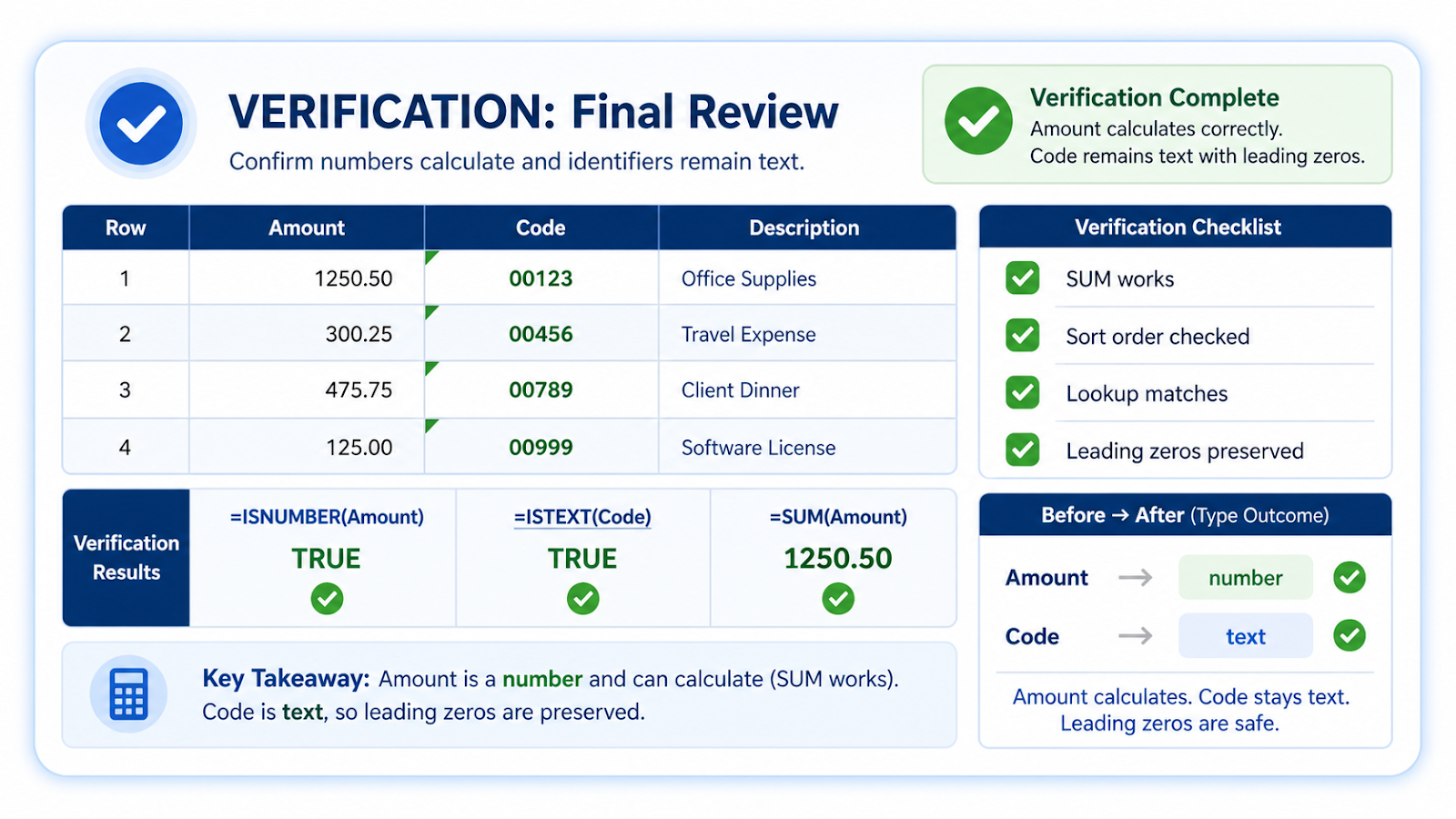
- Use SUM to confirm numeric values participate.
- Sort and compare the order.
- Test exact-match lookups.
- Check identifiers for lost zeros.
- Use ISTEXT and ISNUMBER on a sample after conversion.
Choose storage type from the business meaning
The safest conversion decision depends on what the value represents. An amount such as '1250.50 should normally become a number so SUM, sorting, and numeric comparisons work. An account code such as 00123 may need to remain text because the leading zeros are part of the identifier. Converting both cells just because Excel shows a green triangle would damage one of them.
When leading zeros are display-only, store a number and use a custom format such as 00000. When the zeros are part of the actual ID that must survive CSV export or system integration, store text. After conversion, test the downstream use: add a few values, run an exact-match lookup, sort the column, and export a sample if the data leaves Excel. A conversion is only successful when the stored type works in the next process, not merely when the warning icon disappears.
Frequently asked questions
Why is the green triangle shown?
Excel detected a numeric-looking value stored as text.
Can I keep leading zeros and still calculate?
Usually no; choose between an identifier stored as text and a numeric value with display formatting.
Why does VALUE return #VALUE!?
The text may contain spaces, currency symbols, or separators that do not match the locale.
Is multiplying by 1 safe?
It can convert numeric text quickly, but test dates, IDs, and formatted values first.
Continue building reliable Excel workflows
Browse more lessons in the OneXcel Tutorial Hub or explore free Excel resources.