
Shortcuts & Faster Workflows
How to Move Columns Fast in Excel
Reordering columns is simple until a drag overwrites data or breaks a carefully arranged report. This tutorial shows how to move a full column by inserting it into a new position, then checks formulas, Tables, and dependent charts before the change is accepted.
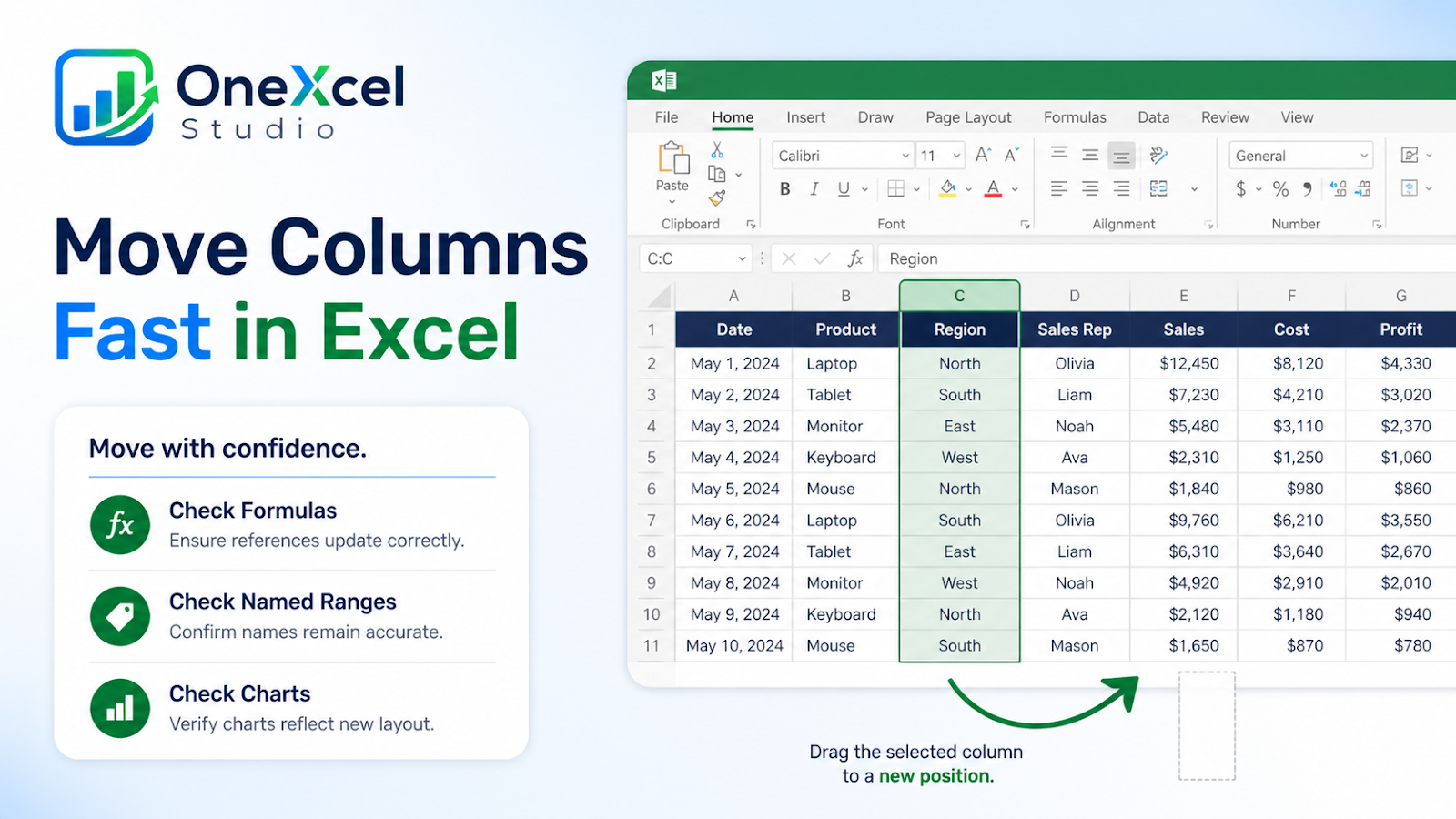
Start with the right worksheet setup
Duplicate the worksheet first and identify the column that should move. Select the entire column by its letter when the whole field belongs together; select only the Table column when the sheet contains unrelated blocks. Look at formulas and chart series that reference the column before moving it.
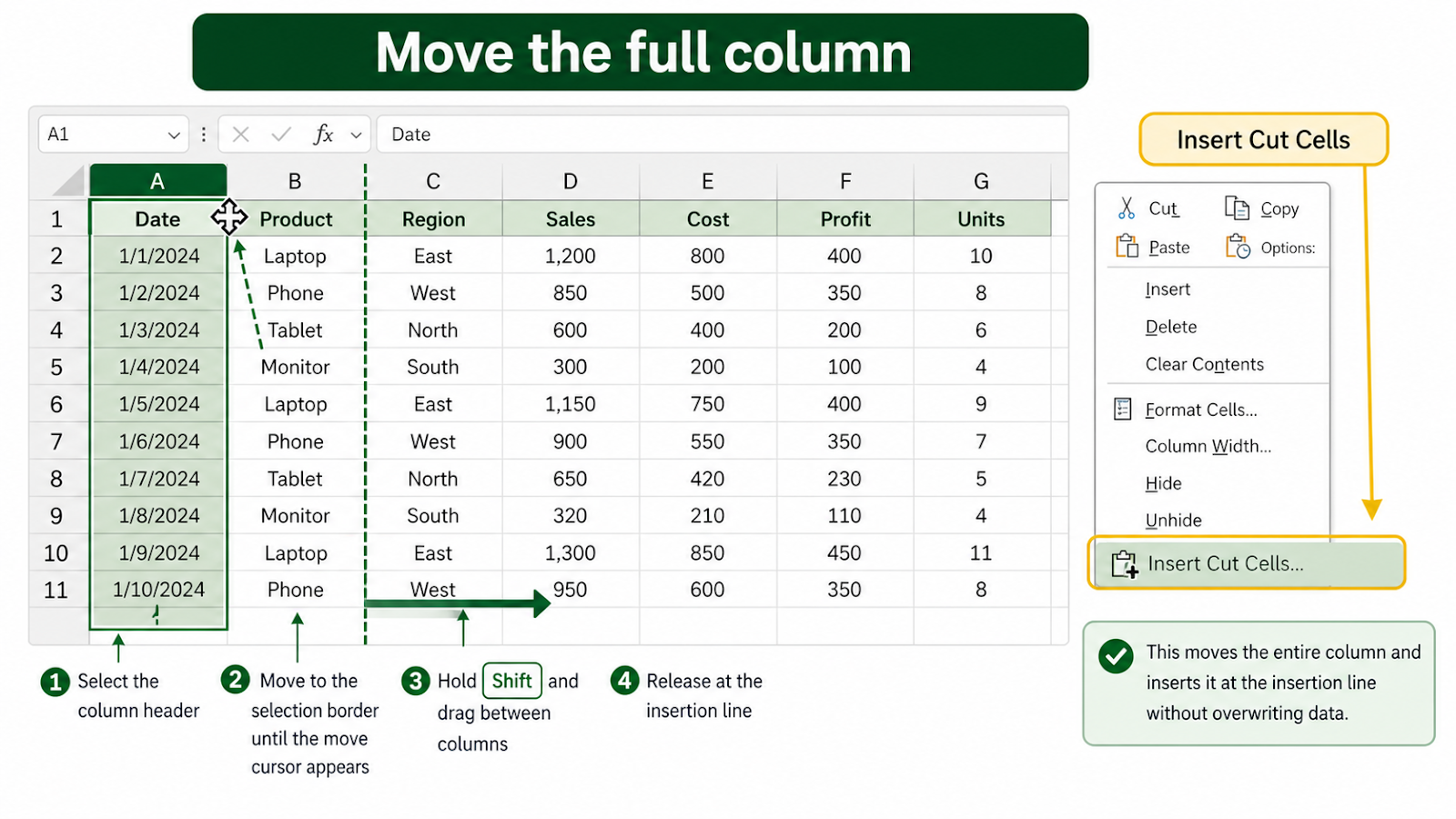
Work through the Excel example
Select the column header, move the pointer to the selection border until the move cursor appears, and hold the appropriate modifier while dragging the column between two existing columns. Release only when the insertion line is in the intended position. If you prefer a menu workflow, cut the column, select the destination column, and use Insert Cut Cells. Do not paste over the destination unless replacement is genuinely intended. If imported fields need to be split after the move, use this text-to-columns workflow to keep the original values available.
Keep the original values visible, test a normal case and an exception, then compare the output with the business rule the worksheet is meant to represent.
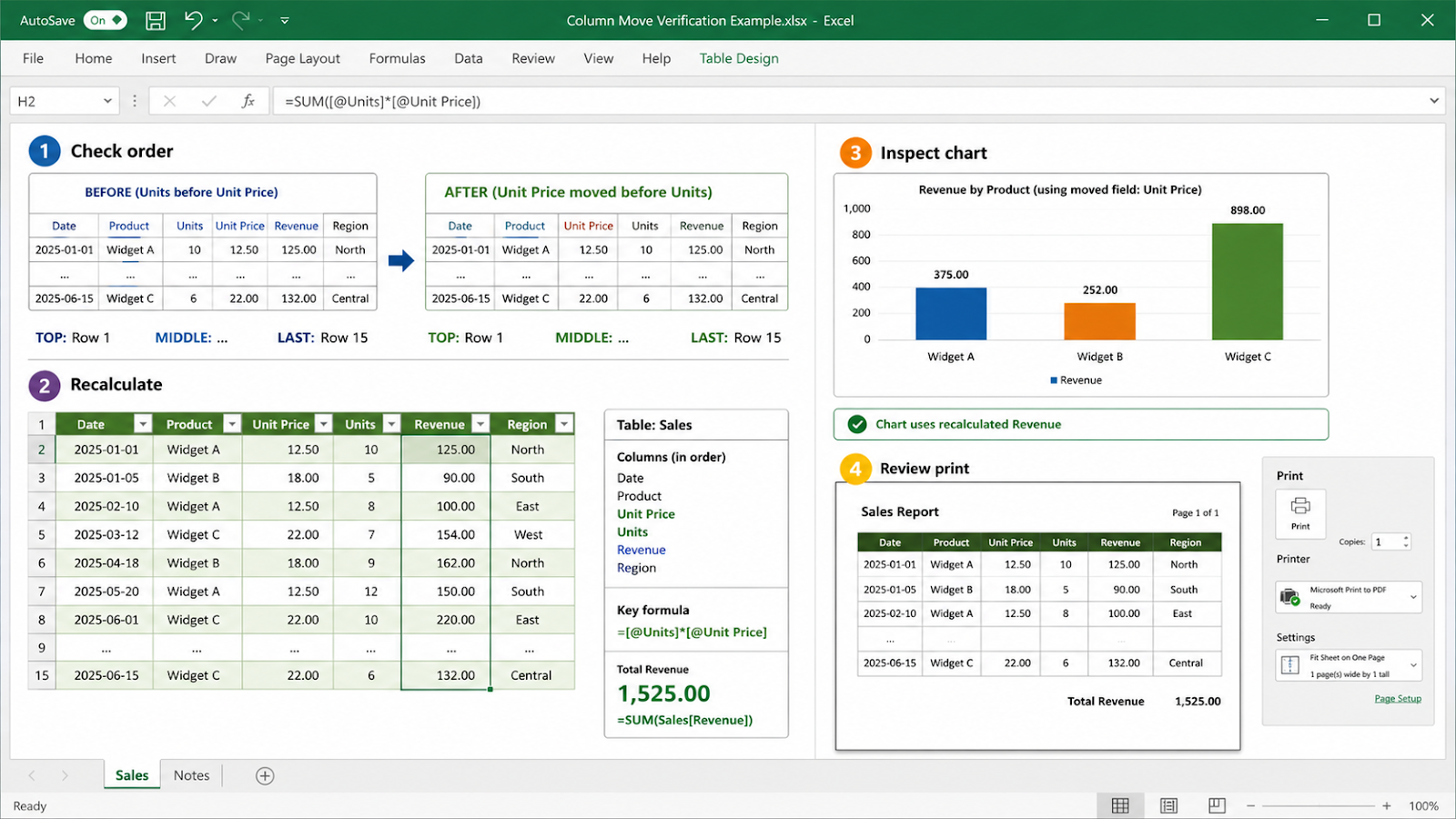
Verify the result and protect the workflow
Check the header order, one record near the top, one in the middle, and the last record. Recalculate formulas and inspect a chart that uses the moved field. If the data is an Excel Table, confirm the Table column name and structured references still describe the same field. Review print preview because a new order can push an important field onto another page. If a moved field is still misaligned because values were imported as text, check how to fix numbers stored as text in Excel before changing the layout again.
Common mistakes and corrections
| Mistake | Correction |
|---|---|
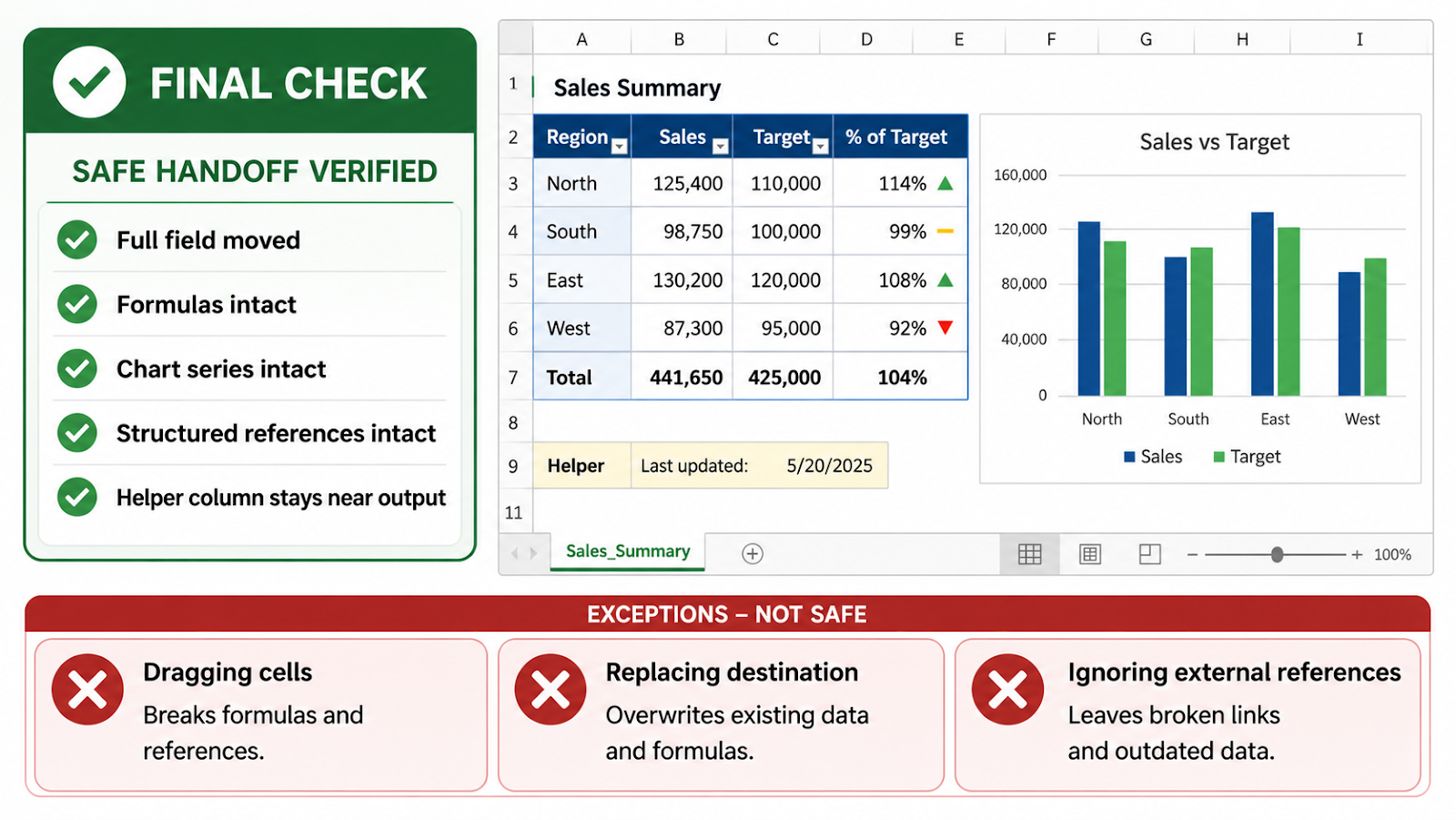
| Dragging cells instead of the full field | Only part of the record moves, leaving the table misaligned. |
| Dropping without the insertion modifier | Excel may replace destination content instead of inserting the column. |
| Ignoring external references | Other sheets and charts may depend on the old position or name. |
| Moving a helper column away from its explanation | Keep calculation helpers near the outputs they support when readability matters. |
Frequently asked questions
Can I move a column in an Excel Table?
Yes. Move the Table column deliberately and verify structured references afterward.
Will formulas break?
Excel usually adjusts internal references, but external links, text-based references, and chart series need review.
Is cut-and-insert safer than drag-and-drop?
It is more explicit and can be easier to audit in a complex workbook.
Can I move multiple columns together?
Yes, select the contiguous columns and insert the block at the destination.
For related practical lessons, continue through the OneXcel Tutorial Hub and the free Excel resources.
Choose a safe movement method for complex sheets
When a worksheet is a simple rectangular table, moving a column is usually low risk. When the sheet contains separated blocks, merged headers, charts, or named ranges, use a duplicate and record the before-and-after order. A moved column can be visually correct while a chart series, external reference, or macro still expects the old arrangement.
After the move, use Formulas > Trace Dependents on a representative cell and inspect chart data ranges. Search the workbook for the old header text if formulas or documentation refer to it by name. If the field is part of a Table, confirm that its structured name remains meaningful and that calculated columns still use the intended field.
For a recurring report, define the column order in a source specification rather than repeatedly dragging fields by hand. A documented order reduces the chance that the next update silently changes the meaning of a downstream export.
Make the result hold up in real work
Moving a column changes the reader’s path through the sheet, but it can also affect formulas, named ranges, charts, and external references. Before moving it, check whether the header is used in a structured reference or name. Move the entire column through Excel’s command rather than copying values into a new location, then inspect a formula that consumes the field and one chart that displays it. If the move is for readability, consider placing identifiers first, inputs next, and calculated outputs later. Leave a short change note when a shared report’s layout changes. A tidy arrangement is valuable only when downstream dependencies still point to the intended field.
Continue building reliable Excel workflows
Browse more lessons in the OneXcel Tutorial Hub or explore free Excel resources.