
SHORTCUTS & FASTER WORKFLOWS
How to Use Go To Special for Faster Excel Cleanup
Use Excel Go To Special to select blanks, formulas, constants, visible cells, and other targeted ranges for faster cleanup and review.
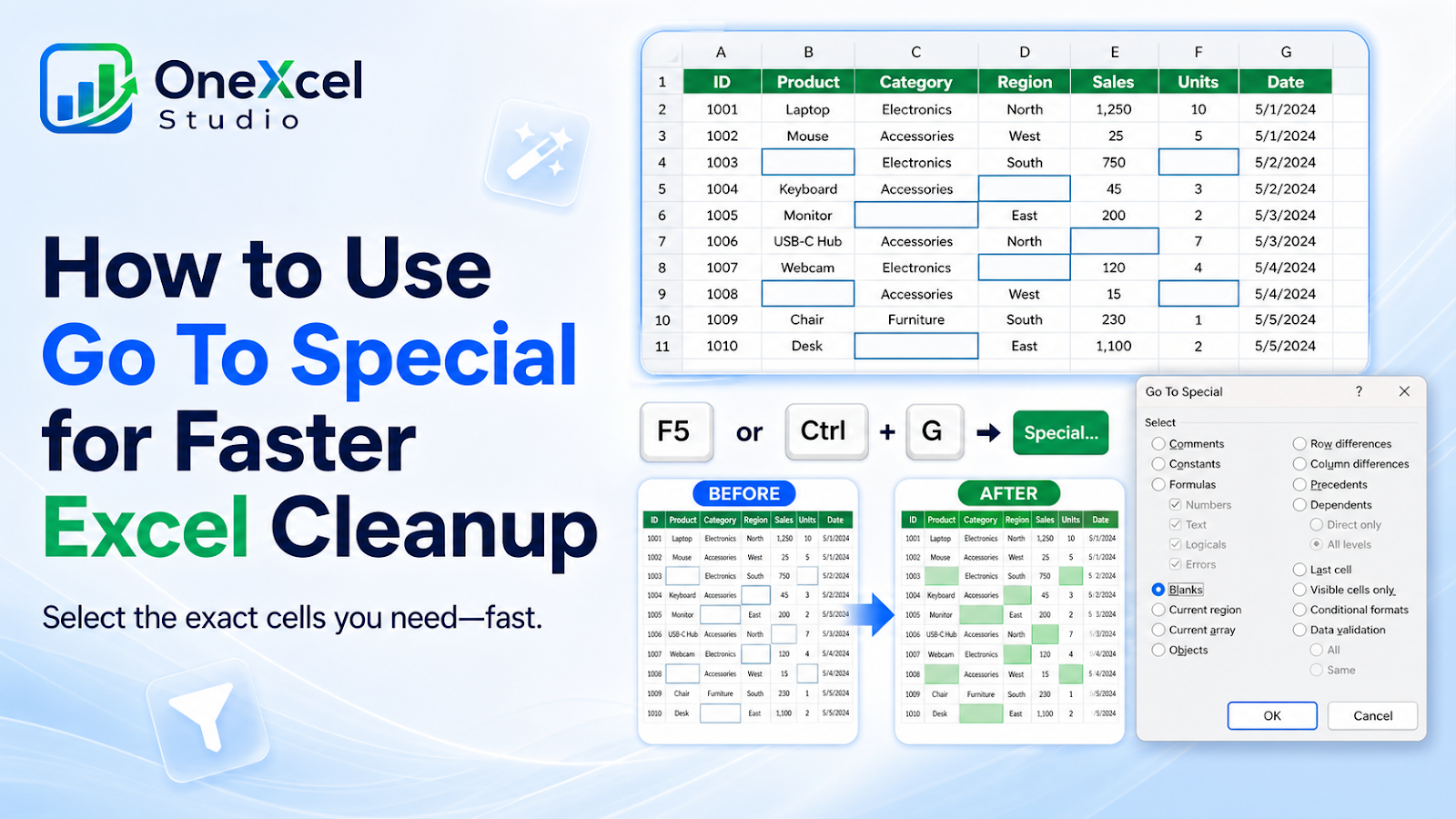
What F5 or Ctrl + G, then Special does
Go To Special can target blanks, formulas, constants, visible cells, row differences, column differences, and other cell groups without manually finding them.
Use the shortcut step by step
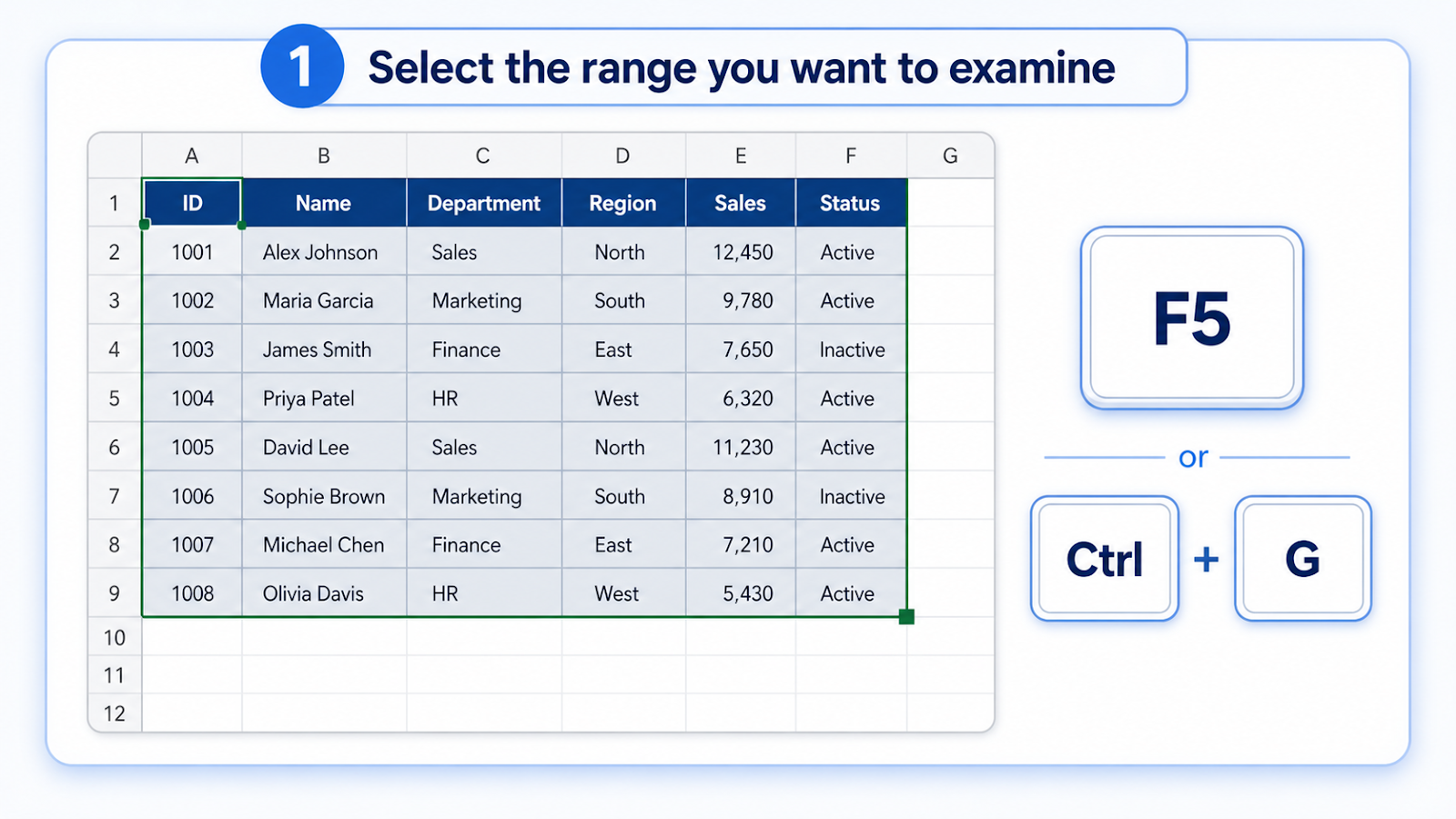
- Select the range you want to examine.
- Open Go To with F5 or Ctrl + G.
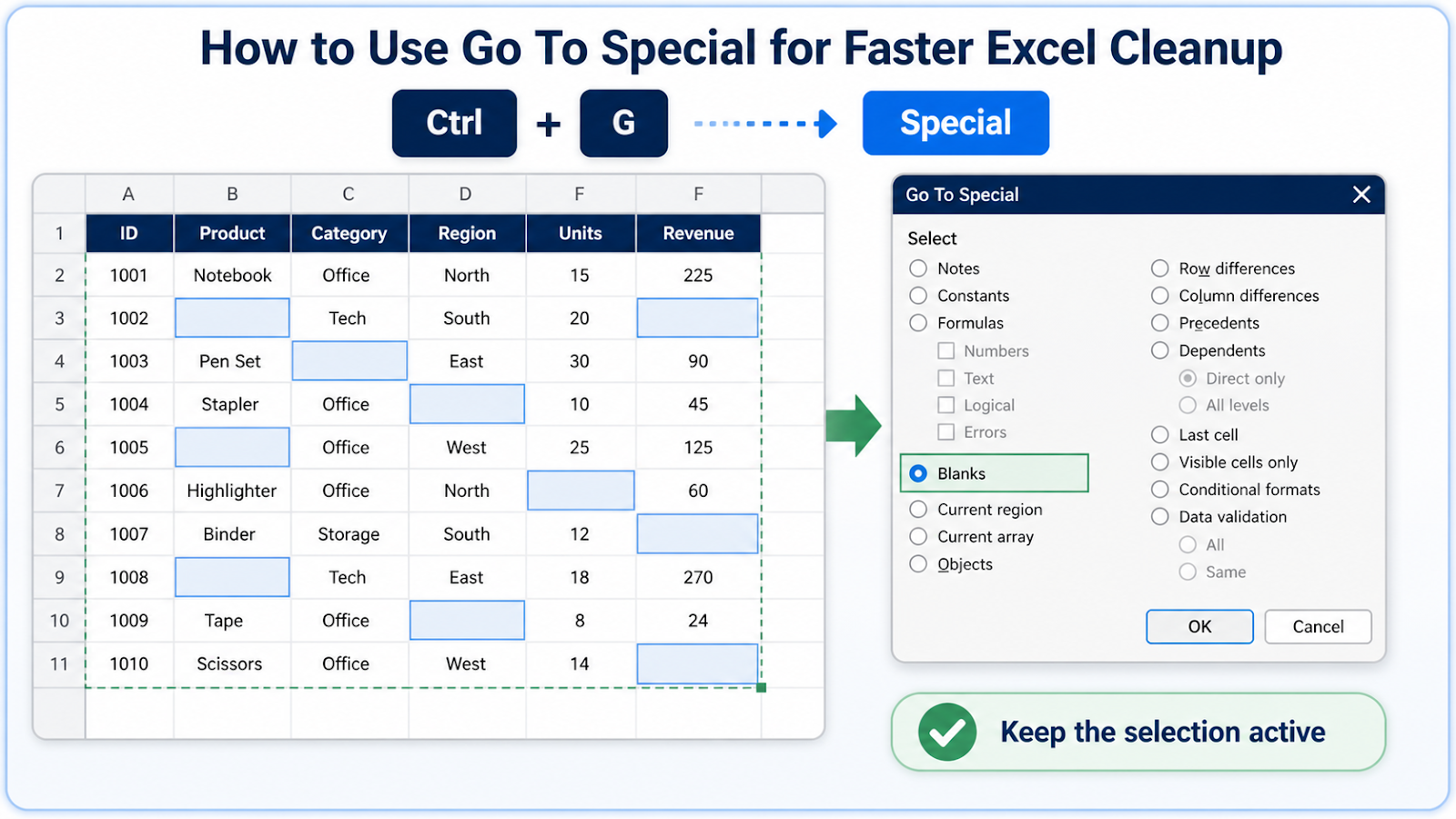
- Choose Special.
- Select the exact cell type, such as Blanks, Formulas, or Visible cells only.
- Perform the next action carefully while the special selection remains active.
Common shortcut mistakes
| Mistake | Risk |
|---|---|
| Running it on the whole worksheet | A cleanup command can affect far more cells than intended. |
| Choosing blanks in a range with formula empty strings | Those cells may not be treated as truly blank. |
| Typing and pressing Enter instead of Ctrl + Enter | Only one selected cell changes. |
| Deleting cells rather than entire intended rows | Surrounding data may shift. |
| Losing the selection before acting | A normal click cancels the special selection. |
Use the right Special selection for the job
Go To Special is valuable because the selection is the logic. Choose Blanks when you need to fill only blank cells without overwriting existing data, Formulas when reviewing calculated areas, Constants when locating hard-coded entries, or Visible cells only before copying a filtered list. The action that follows can be simple because the difficult part—targeting the correct cells—has already been done.
Always start with a bounded range. Selecting the whole worksheet and then choosing Blanks can create an enormous selection that is easy to damage. If formulas return empty strings, remember they are formulas even though the cells look blank. Before deleting, filling, or formatting the selected cells, check the Name Box or selection boundaries and keep one immediate Undo available in case the wrong region was included.
Use Visible Cells Only before copying filtered data
One of the most useful Go To Special options is Visible cells only. After filtering a list, select the exact range, choose Visible cells only, and then copy. This prevents hidden records from traveling with the visible rows. Before copying, use the Excel filtering guide to confirm that the selected rows are the ones you intend to keep. Reconcile the destination row count afterward. The same principle applies to other Special selections: use the smallest bounded range possible, then verify the selected cells before performing a bulk action.

Frequently asked questions
How do I select visible cells only?
Choose Visible cells only, or use Alt + Semicolon on supported Windows keyboards.
Can it select formulas that return errors?
The Formulas option can be refined by result type; test on a copy before bulk changes.
Why were no blank cells selected?
Cells containing spaces or formulas returning text are not always true blanks.
Is Go To Special available on Mac?
The command exists, but keyboard access and dialog layout can differ by version.
Continue building reliable Excel workflows
Browse more lessons in the OneXcel Tutorial Hub or explore free Excel resources.