
DATA CLEANUP & ERROR CHECKS
How to Fill Blank Cells Without Overwriting Existing Data
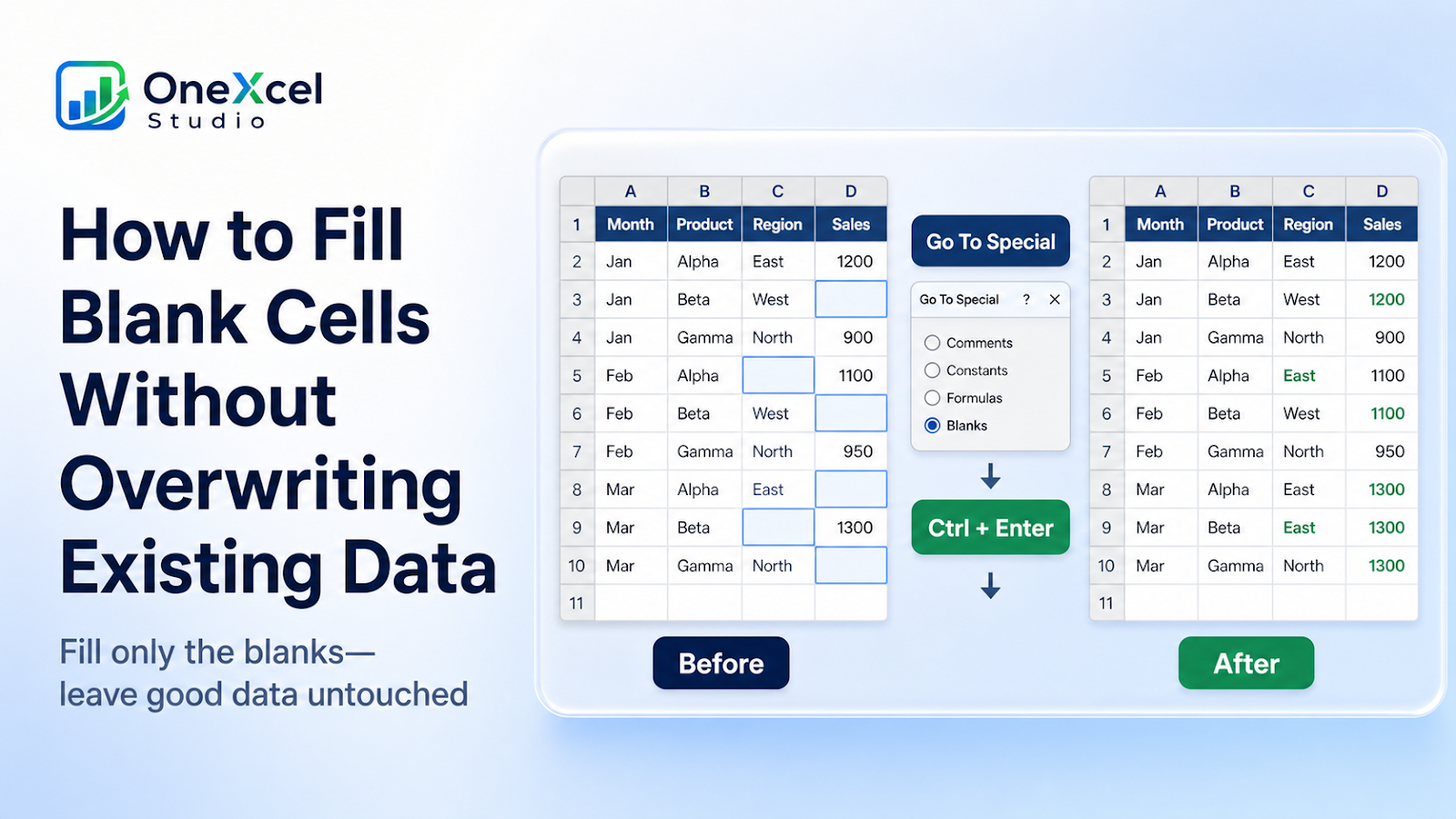
Fill only blank cells in Excel with Go To Special, enter the replacement once, and protect values that are already present.
Use Go To Special blanks safely
Limit the selection to the exact data range before selecting blanks.
- Select the target data range.
- Open Go To Special and choose Blanks.
- Confirm that only true blank cells are selected.
- Type the replacement value or formula once.
- Press Ctrl + Enter to fill every selected blank.
- Review formulas, hidden rows, and totals before saving.

Worked example
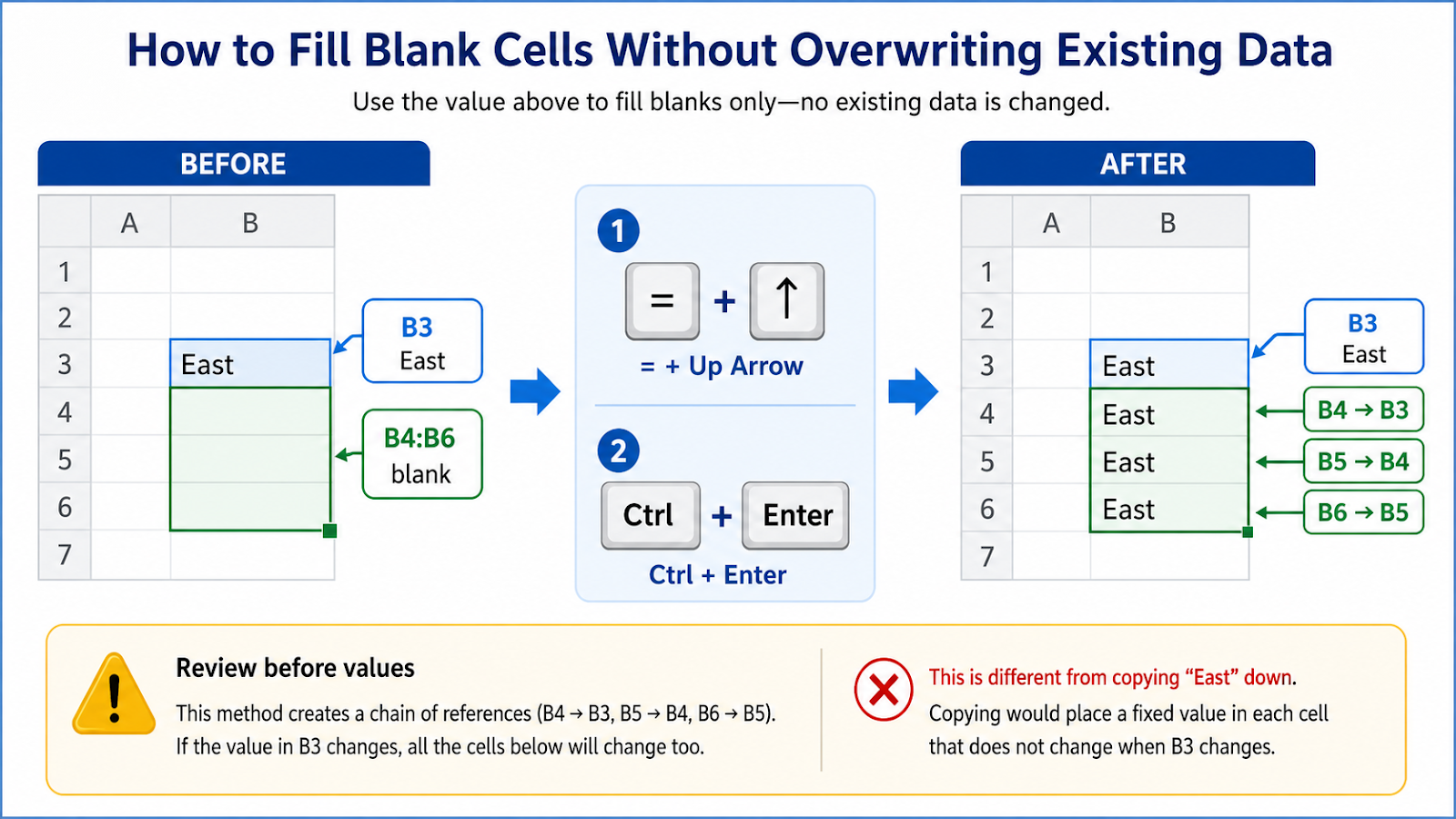
To carry the value from the cell above into selected blanks, type `=` and press the Up Arrow, then use Ctrl + Enter. Relative references will point each blank cell to the row above, but the result must be checked where several blanks occur in sequence.
Common cleanup mistakes
| Mistake | Why it matters |
|---|---|
| Selecting the entire worksheet | Too many unrelated blanks are changed. |
| Treating formula empty strings as blanks | Go To Special may not select them. |
| Pressing Enter instead of Ctrl + Enter | Only the active blank is filled. |
| Filling intentionally blank fields | Define which columns require values first. |
| Filling filtered-out records accidentally | Use Visible Cells Only when the action should apply only to displayed rows. |
Verification steps
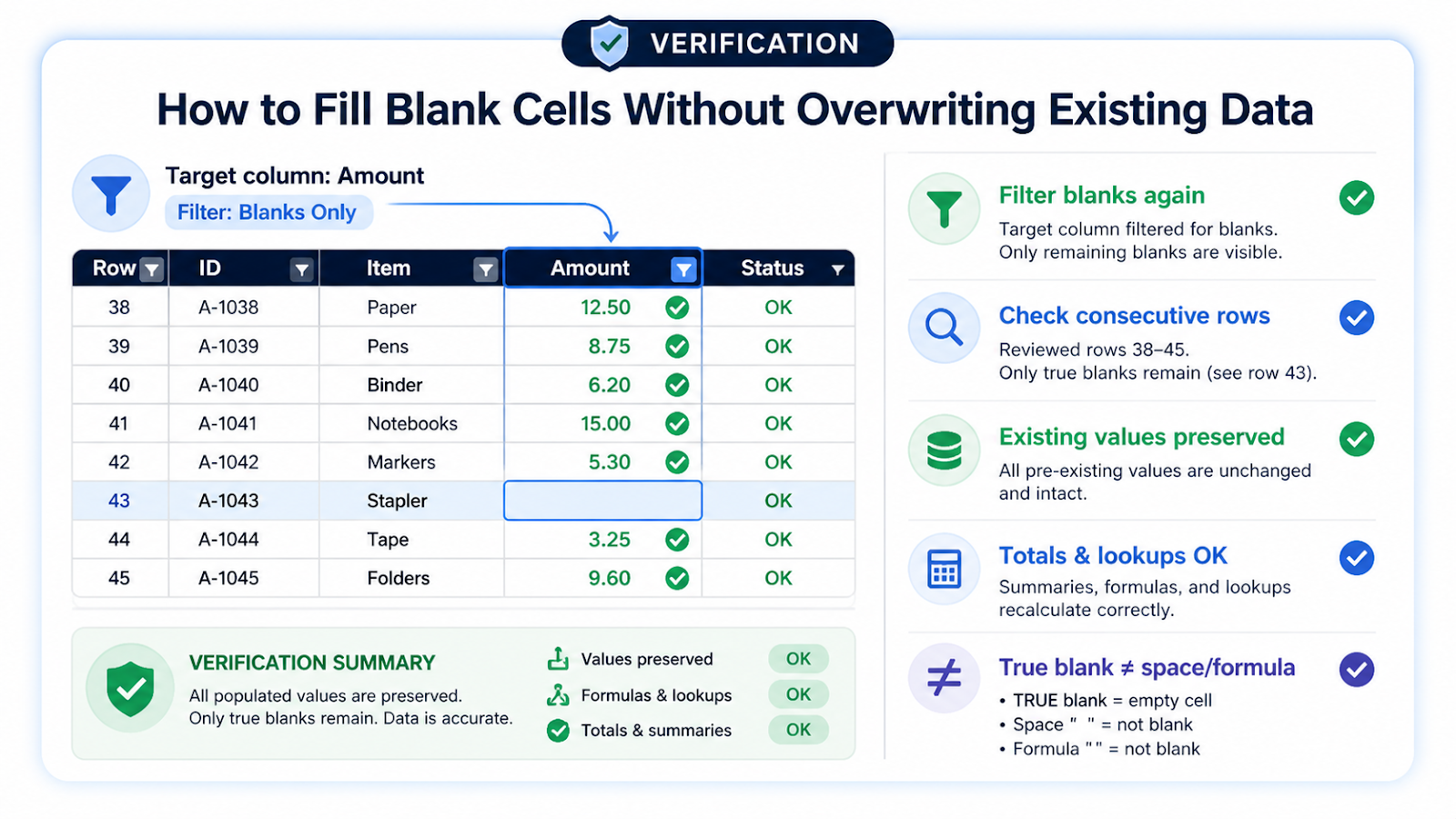
- Filter the target column for blanks again.
- Check several consecutive blank rows.
- Confirm existing values were preserved.
- Review totals and lookups.
- Replace helper formulas with values only when appropriate.
Watch consecutive blanks when filling from above
If B3 contains East and B4:B6 are blank, selecting all three blanks and entering a relative reference to the cell above can create a chain: B4 points to B3, B5 points to B4, and B6 points to B5. That may be fine while the cells remain formulas, but it is different from directly copying East into each row. Review the result before converting formulas to values.
Also distinguish true blanks from cells containing "", spaces, or formulas. Go To Special Blanks does not treat all blank-looking cells the same way. Define which columns are allowed to be empty, work inside the exact data range, and repeat the filter after filling. If the dataset is refreshed regularly, Power Query or source-system rules are usually safer than repeatedly patching missing values by hand.
Decide whether blanks mean missing or intentionally empty
Not every blank should be filled. A blank Middle Name, optional Notes field, or not-applicable date may be correct. Before using Go To Special Blanks, identify the columns where a blank represents a data-quality problem. Fill only those fields and leave optional blanks untouched. This prevents a cleanup step from creating invented values simply because the cells happen to be empty.
Frequently asked questions
Why were some blank-looking cells not selected?
They may contain formulas, spaces, or apostrophes.
Can I fill only visible blanks?
First select the visible range, then apply the blank-cell workflow carefully.
How do I fill with the value above?
Enter a relative reference to the cell above and use Ctrl + Enter.
Can I undo the fill?
Usually one immediate Undo reverses the multi-cell entry.
Continue building reliable Excel workflows
Browse more lessons in the OneXcel Tutorial Hub or explore free Excel resources.