
EXCEL AUTOMATION & VBA
How to Protect and Unprotect Sheets with VBA
Protect or unprotect multiple Excel worksheets with VBA while keeping the allowed user actions consistent across the workbook.

Plan the macro
Place procedures in a standard module. Store the password securely enough for the workbook’s purpose and understand that worksheet protection is not strong encryption.
If the workbook also refreshes report outputs, the VBA refresh workflow for Queries and PivotTables is a useful related pattern.
Private
Const SHEET_PASSWORD As String = "ChangeMe"
Public Sub ProtectWorkbookSheets()
Dim ws As Worksheet
On Error GoTo CleanFail
For Each ws In ThisWorkbook.Worksheets
If ws.Name <> "_Calc" Then
ws.Protect Password:=SHEET_PASSWORD, _
UserInterfaceOnly:=True, _
AllowFiltering:=True
End If
Next ws
Exit Sub
CleanFail:
MsgBox "Protection failed: " & Err.Description, vbExclamation
End Sub
Public Sub UnprotectWorkbookSheets()
Dim ws As Worksheet
On Error GoTo CleanFail
For Each ws In ThisWorkbook.Worksheets
ws.Unprotect Password:=SHEET_PASSWORD
Next ws
Exit Sub
CleanFail:
MsgBox "Unprotect failed: " & Err.Description, vbExclamation
End Sub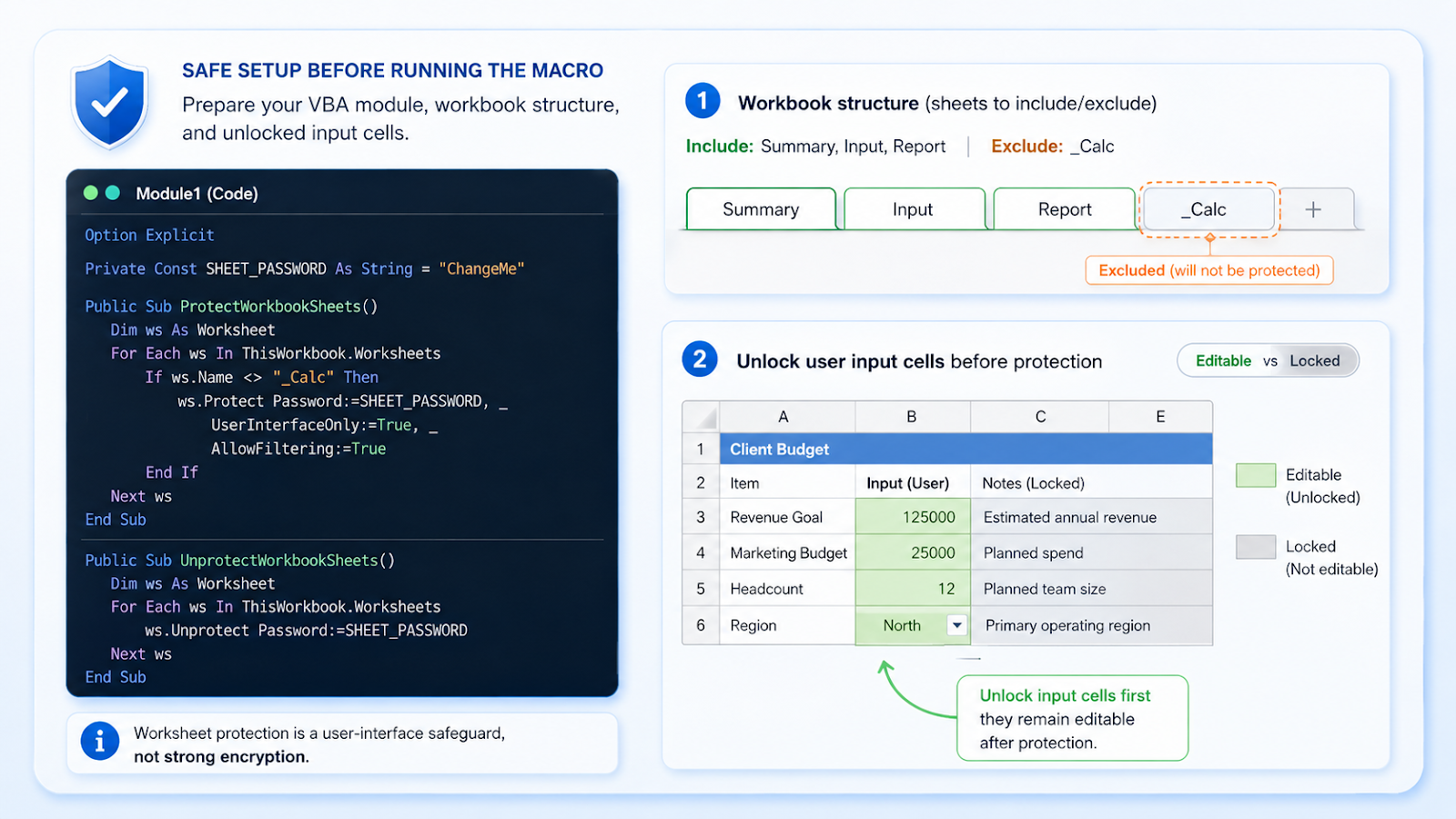
Implementation steps
- Unlock only the approved user-input cells before protection.
- Decide which sheets should be excluded or remain very hidden.
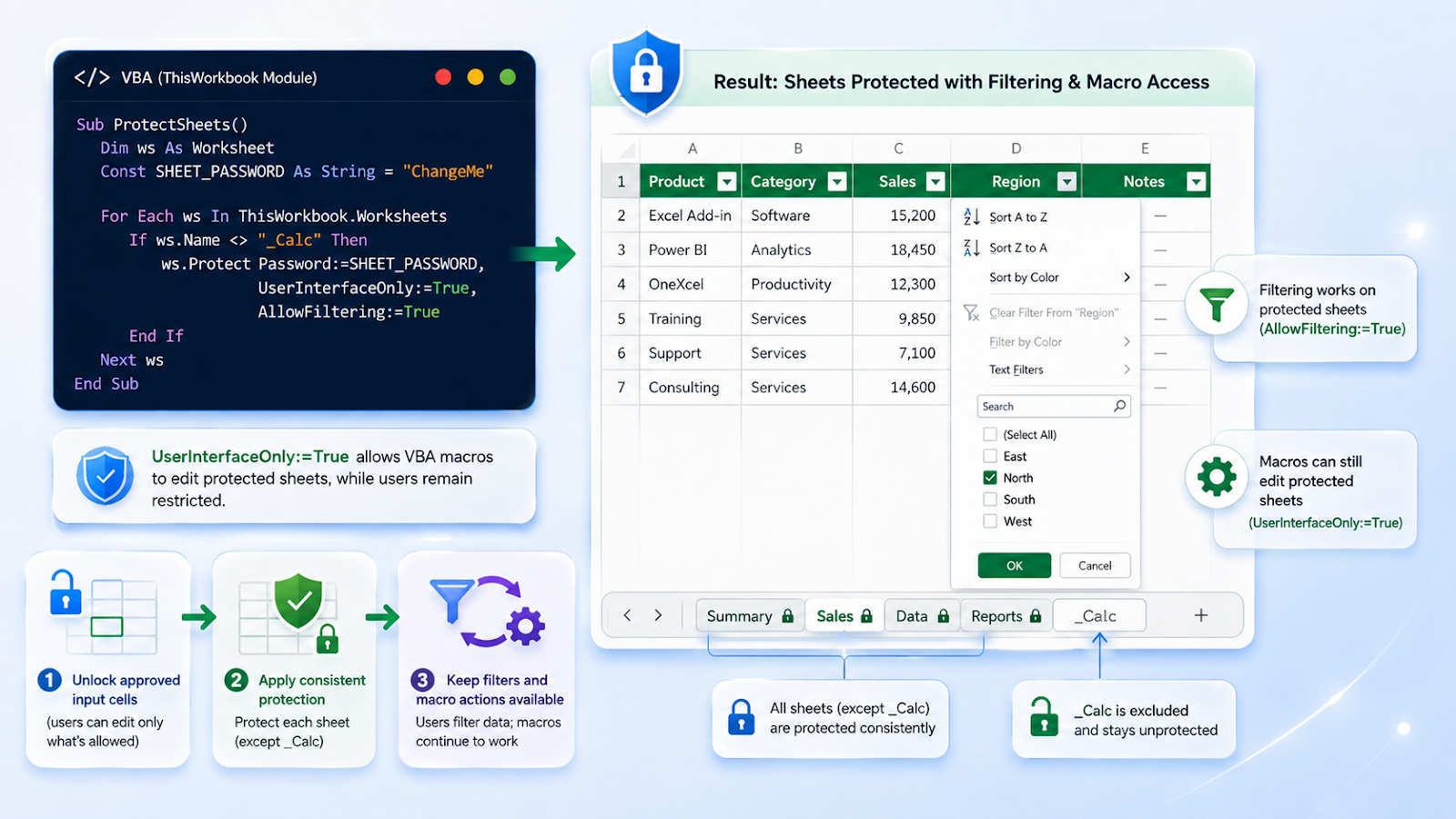
- Apply the same allowed actions consistently.
- Use UserInterfaceOnly when macros need to edit protected sheets.
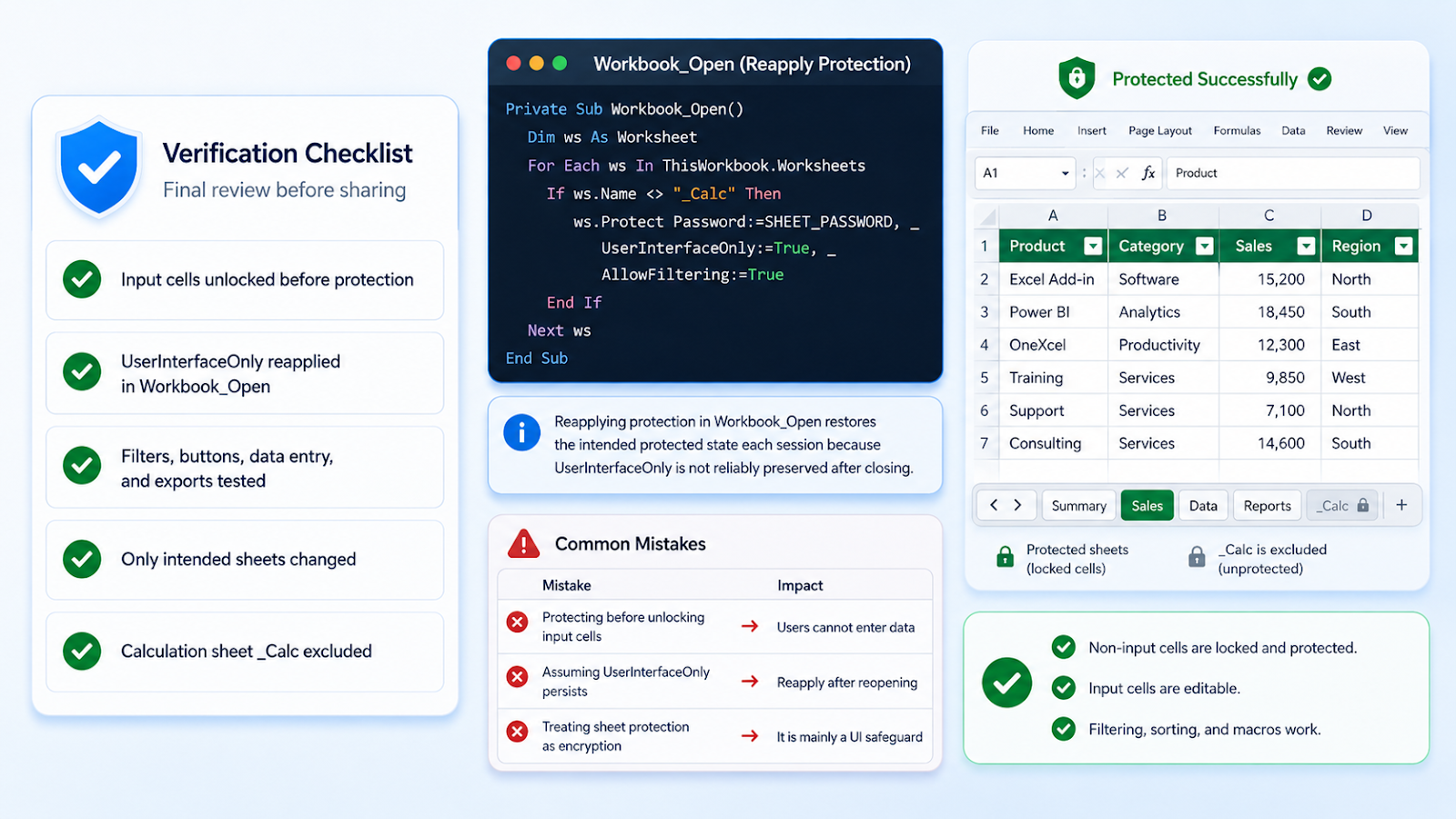
- Reapply UserInterfaceOnly during Workbook_Open because it is not reliably persisted.
- Test filters, buttons, data entry, and exports while protected.
- For another reusable worksheet automation pattern, see the AutoFit the used range with VBA guide.
Common VBA mistakes
| Mistake | Impact |
|---|---|
| Protecting before unlocking input cells | Users cannot enter data. |
| Assuming UserInterfaceOnly persists after reopening | It usually needs to be reapplied. |
| Treating worksheet protection as security encryption | It is mainly a user-interface safeguard. |
| Protecting every sheet with identical rules | Calculation and report sheets may need different settings. |
| Renaming existing procedures used by buttons | Assignments can break. |
Reapply UserInterfaceOnly when the workbook opens
UserInterfaceOnly:=True is useful because users remain restricted while macros can edit protected cells. However, that setting is not reliably preserved when the workbook closes. A production workbook should call the protection routine from Workbook_Open so the intended protection state is restored every session.
Test more than data entry. Verify filter buttons, sorting, form controls, export macros, and any code that writes to calculation sheets. Use different protection settings where the workbook design requires them rather than blindly applying one rule to every sheet. Also be clear about the purpose: worksheet protection reduces accidental edits and guides users, but it should not be presented as strong security for confidential data or formulas.
Protection settings should match the sheet purpose
An input sheet may allow users to select unlocked cells, filter, and use dropdowns, while a report sheet may need almost no interaction. A hidden calculation sheet may need a different approach again. Build the protection routine around those roles rather than applying one identical option set to every worksheet. After protection is applied, test the real user journey—data entry, navigation, filtering, buttons, and exports—before considering the workbook ready.
Frequently asked questions
Can macros edit a protected sheet?
Yes, when protection is applied with UserInterfaceOnly or the macro temporarily unprotects and re-protects.
Where should Workbook_Open code go?
In ThisWorkbook, calling a standard-module protection routine.
Does this work on Mac?
The core Protect and Unprotect methods are cross-platform.
Can users still filter?
AllowFiltering can permit filters when the worksheet and cells are configured appropriately.
Continue building reliable Excel workflows
Browse more lessons in the OneXcel Tutorial Hub or explore free Excel resources.