
EXCEL AUTOMATION & VBA
How to Refresh All Queries and PivotTables with VBA
Create a VBA macro that refreshes Excel queries, connections, and PivotTables, then confirms when the update is complete.

Plan the macro
Place the procedure in a standard module. Test connection types used by the actual workbook.
Public Sub RefreshWorkbookData()
Dim ws As Worksheet
Dim pt As PivotTable
On Error GoTo CleanFail
Application.ScreenUpdating = False
Application.EnableEvents = False
Application.StatusBar = "Refreshing workbook data..." ThisWorkbook.RefreshAll
Application.CalculateUntilAsyncQueriesDone
For Each ws In ThisWorkbook.Worksheets
For Each pt In ws.PivotTables pt.RefreshTable
Next pt
Next ws
Application.StatusBar = False
MsgBox "Refresh complete.", vbInformation
CleanExit:
Application.StatusBar = False
Application.EnableEvents = True
Application.ScreenUpdating = True
Exit Sub
CleanFail:
MsgBox "Refresh failed: " & Err.Description, vbExclamation Resume CleanExit
End Sub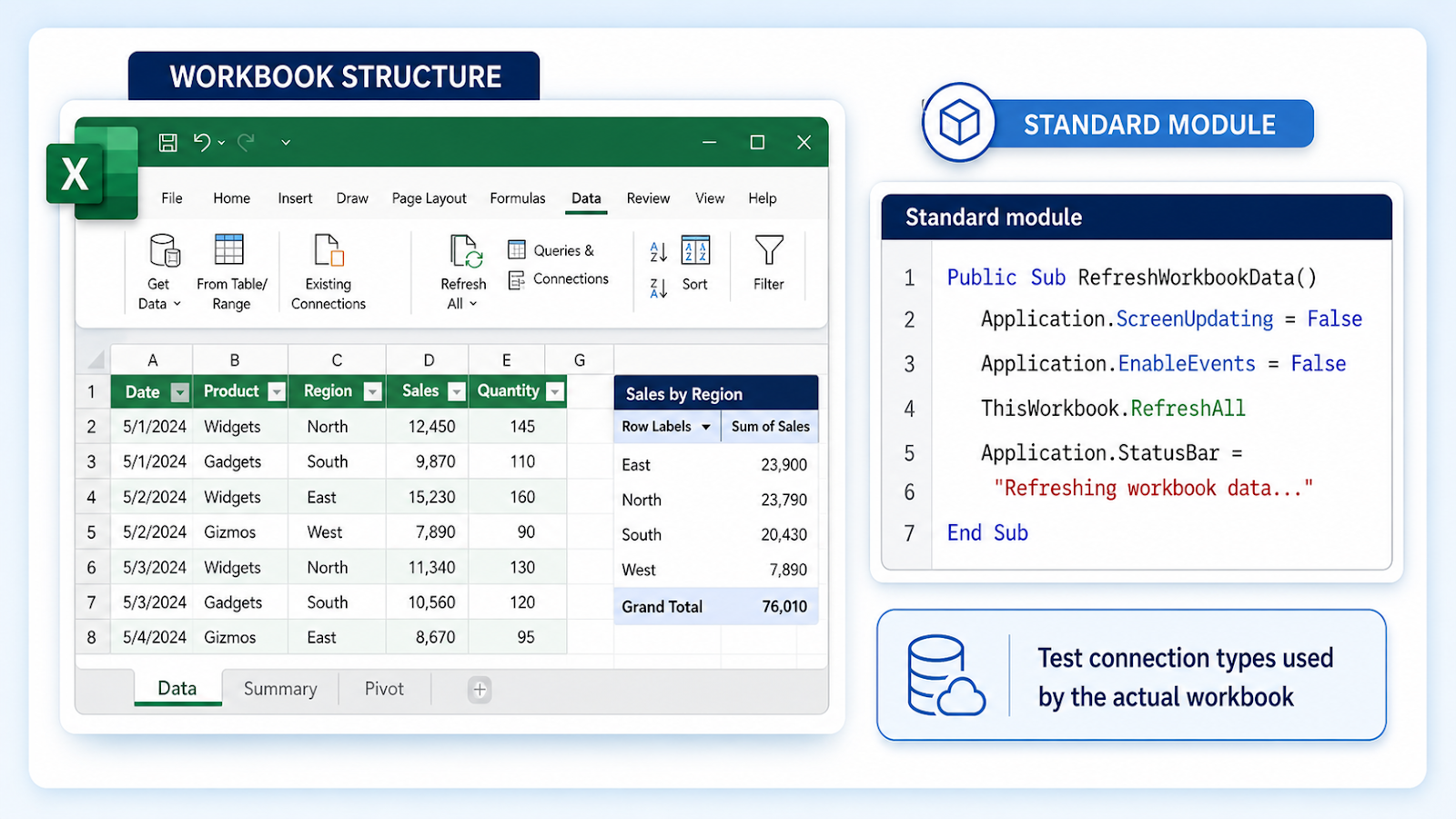
Implementation steps
- List the workbook’s queries, connections, and PivotTables.
- Refresh on a copy and observe whether any connection runs asynchronously.
- Use RefreshAll, then wait for supported asynchronous queries.
- Refresh PivotTables that depend on updated ranges or caches.
- Restore events, screen updating, and the status bar.
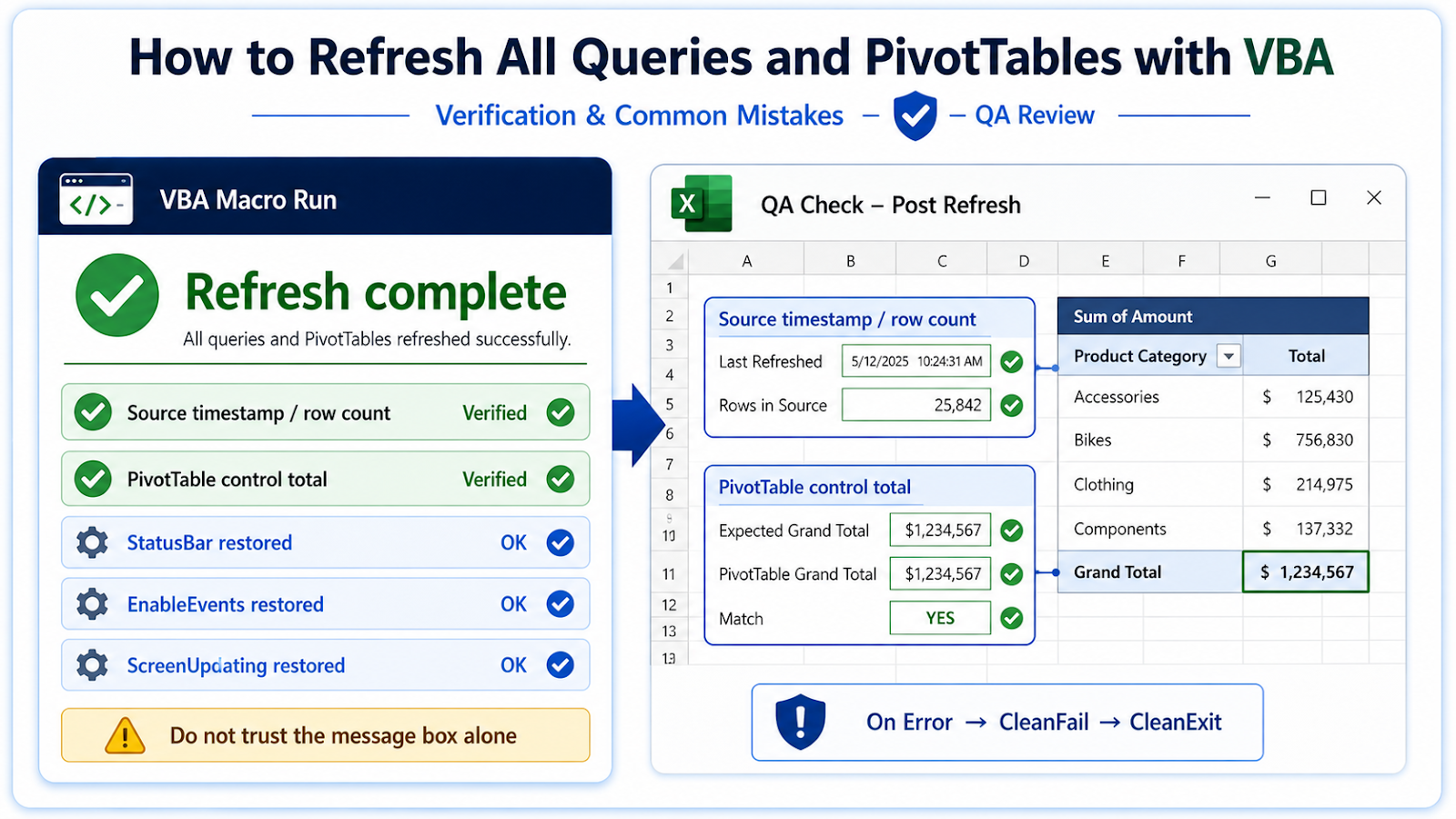
- Verify source timestamps and key totals rather than relying only on a completion message.

Common VBA mistakes
| Mistake | Impact |
|---|---|
| Showing Complete before queries finish | Async refreshes can still be running. |
| Refreshing unsupported connections on Mac | Connection capabilities differ by platform and Excel version. |
| Ignoring credential prompts | Scheduled automation cannot complete when user authentication is required. |
| Leaving the status bar changed | Excel appears stuck after the macro ends. |
| Refreshing every object unnecessarily | Large workbooks may need a targeted sequence. |
Verify the refresh instead of trusting the message box
A successful RefreshAll call only proves Excel accepted the refresh request. It does not guarantee every connection returned new data. After the macro finishes, compare a source timestamp, row count, or control total with the expected value. For example, if the refreshed table should contain today’s transactions, confirm the maximum date in the table actually changed.
Large workbooks may need a deliberate sequence: refresh source queries, wait for supported asynchronous work, calculate dependent formulas, then refresh PivotTables that summarize those results. Some connection types and Power Query behavior differ between Windows and Mac, so test the exact workbook on both target platforms rather than advertising universal support. Always restore StatusBar, EnableEvents, and ScreenUpdating even when one refresh fails.
Check refresh dependencies before optimizing the macro
If PivotTables summarize query results, their refresh must happen after the source data is actually updated. A fast macro that refreshes objects in the wrong order can leave a dashboard showing yesterday’s cache with today’s timestamp. Document the dependency chain for the real workbook, then refresh only the objects that need it. On completion, verify one source value and one PivotTable total so the success message reflects actual refreshed content.
Frequently asked questions
Does RefreshAll wait automatically?
Not always. Some connections refresh asynchronously.
Can I refresh one query only?
Yes. Target the relevant connection or query table by name.
Why is a PivotTable unchanged?
Its source may not include new rows or its cache may need a separate refresh.
Does this work on Mac?
Basic PivotTable and supported connection refreshes can work, but Power Query and connection behavior must be tested on the target version.
Continue building reliable Excel workflows
Browse more lessons in the OneXcel Tutorial Hub or explore free Excel resources.