
FORMULAS & FUNCTIONS
How to Build an IF Formula with AND and OR in Excel
Build a clear IF formula with AND and OR in Excel by translating business rules into conditions, testing real examples, and returning consistent labels.
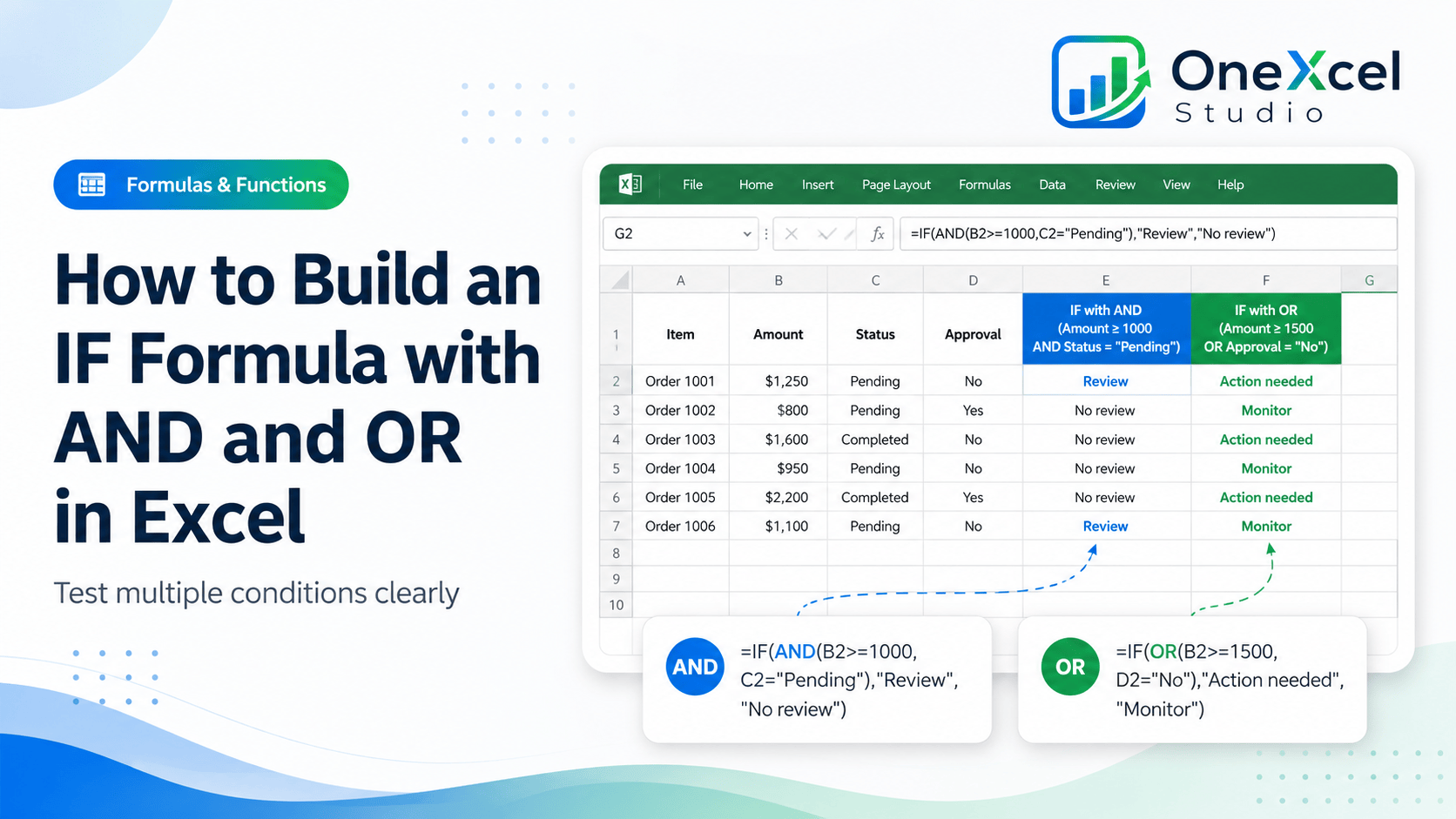
Translate the business rule before writing the formula
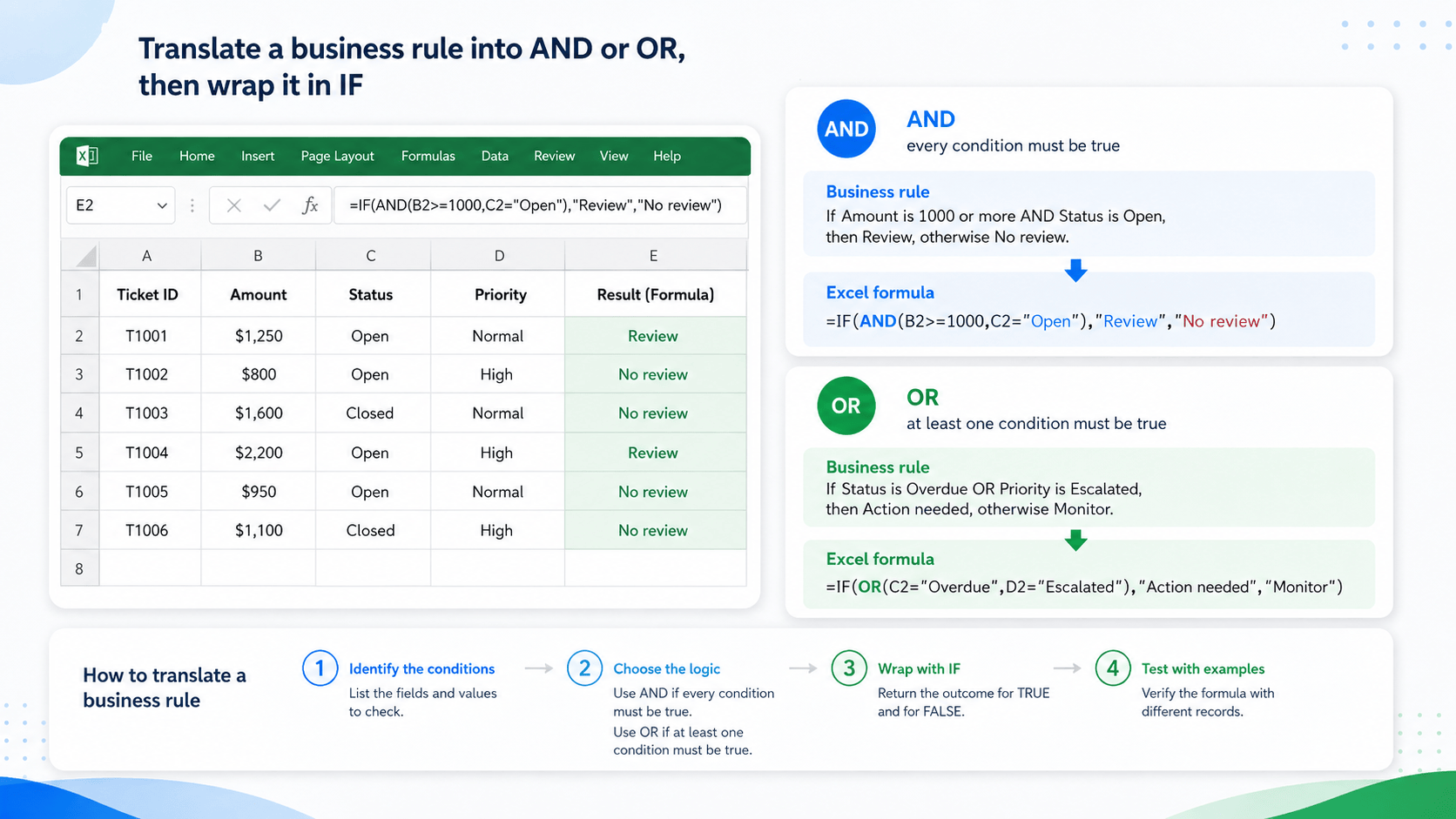
Start with the rule in plain language. Use AND when every condition must be true. Use OR when any one of several acceptable conditions is enough. Wrap that logic in IF to return a label that people can filter, review, or summarize.
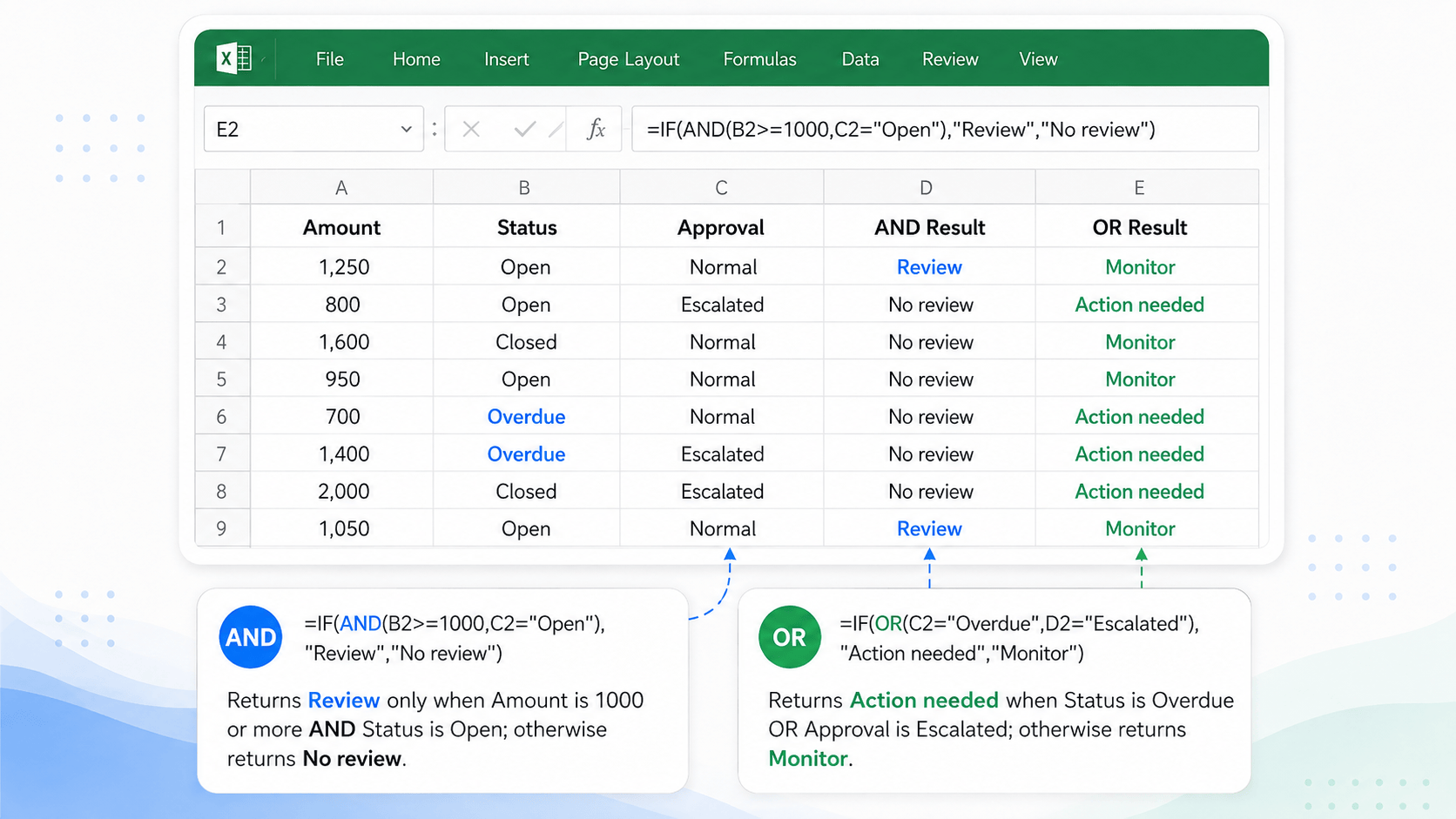
In the example below, Amount is in column B, Status is in column C, and Approval is in column D. The formulas use row 2; after the first result is correct, fill the formula down for the rest of the table.
Build the IF with AND formula
Suppose a ticket should be reviewed only when the amount is at least 1,000 and the status is Open. Enter this formula in the result column:
=IF(AND(B2>=1000,C2="Open"),"Review","No review")AND returns TRUE only when both tests pass. A row with 1,250 and Open returns Review. A row with 800 and Open returns No review because the amount test is false. The boundary value 1,000 should return Review when the status is exactly Open.
Build the IF with OR formula
Now suppose a ticket needs attention when it is Overdue or when its Approval status is Escalated. Either condition is enough, so place both tests inside OR:
=IF(OR(C2="Overdue",D2="Escalated"),"Action needed","Monitor")OR returns TRUE when at least one test is true. A row with an Escalated approval returns Action needed even when the status is not Overdue. A row that matches neither condition returns Monitor.
Make the formula repeatable
- Put clear headers above Amount, Status, Approval, and Result.
- Enter the formula in the first result row and check the returned label.
- Use the fill handle or copy the formula down through the table.
- Check that relative references move from row 2 to row 3, row 4, and so on.
- Use consistent text such as Open, Overdue, and Escalated. A trailing space or different spelling can make a text test fail.
- If the rule changes often, place the threshold or status values in visible setup cells instead of hiding them in a long formula.
Check edge cases before trusting the output
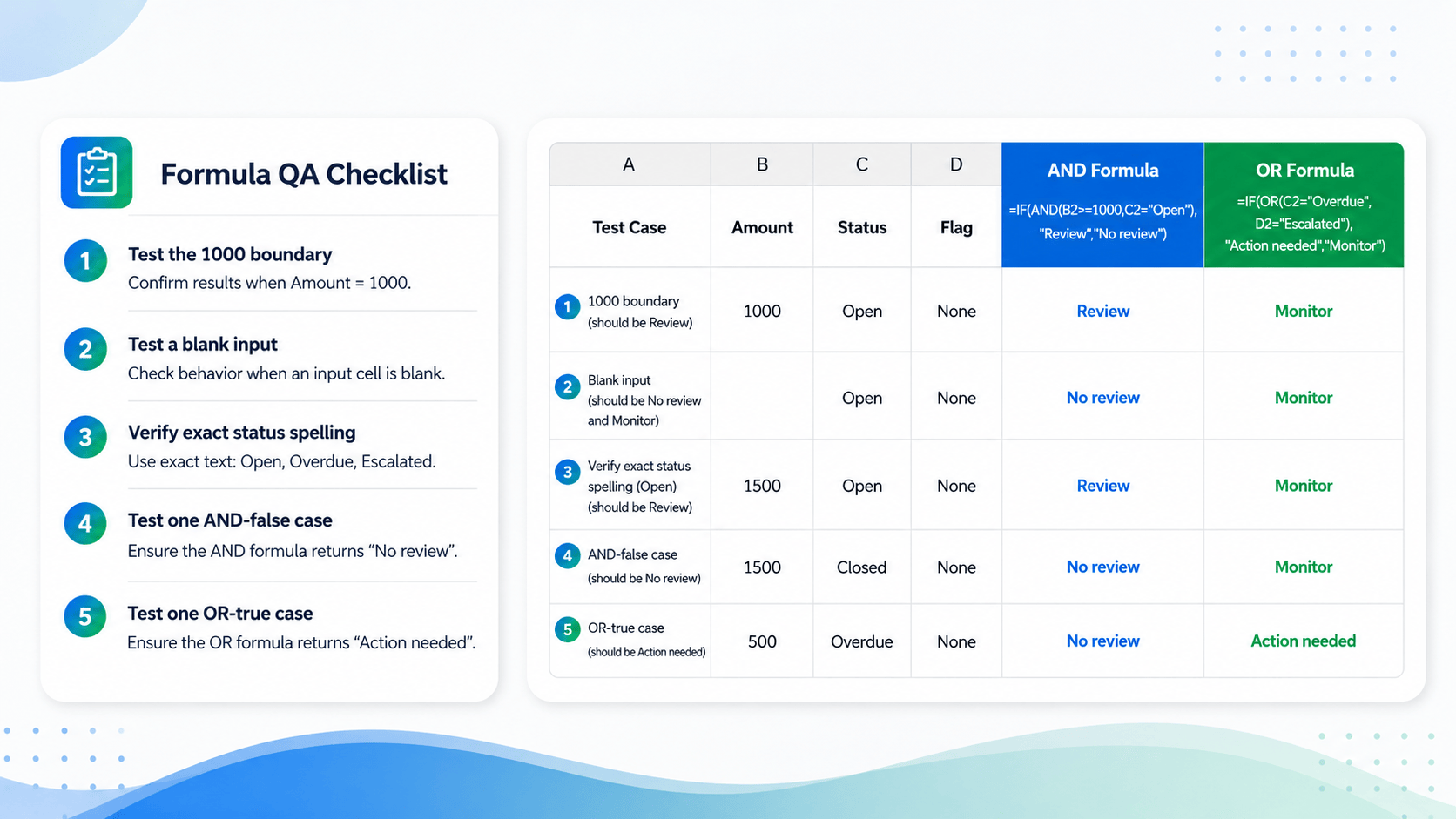
| Test case | What to check | Expected reasoning |
|---|---|---|
| Amount exactly 1,000 | Amount meets the boundary. | AND can return Review when Status is Open. |
| Amount below 1,000 | One required test is false. | AND returns No review. |
| Overdue status | One OR condition is true. | OR returns Action needed. |
| Escalated approval | The other OR condition is true. | OR returns Action needed. |
| Blank or misspelled text | Text does not match exactly. | Check whether the result should remain Monitor or No review. |
Continue with related formula workflows
If your rule depends on text formatting or period labels, see how to create month labels with the TEXT function. When a formula must return multiple matching records, continue with XLOOKUP with FILTER for multiple results.
Frequently asked questions
Can AND and OR be used together?
Yes. Nest them when a rule has both required tests and acceptable alternatives. Build and test each logical group separately before combining them inside IF.
Should I use a nested IF instead?
Use nested IF when the outcomes depend on ordered decisions. For a short rule with all-required or any-acceptable conditions, IF with AND or OR is usually easier to read and review.
Why does a text condition fail?
Check spelling, spaces, punctuation, and whether the cell contains a formula result or a different value than it displays. Clean or standardize the source text before changing the logic.
Can the threshold come from a cell?
Yes. Replace the hard-coded 1000 with a reference such as $H$2 when the threshold belongs in a visible setup area. Lock the reference if you plan to fill the formula down.
Build formulas people can verify
Browse the OneXcel Tutorial Hub for more practical Excel formulas and workflow guides.