
Shortcuts & Faster Workflows
How to Insert Page Break Fast
A page break should separate complete sections, not split a heading from its table or leave a single total row on the next page. Excel’s Page Break Preview lets you place the boundary while seeing how the report will print.
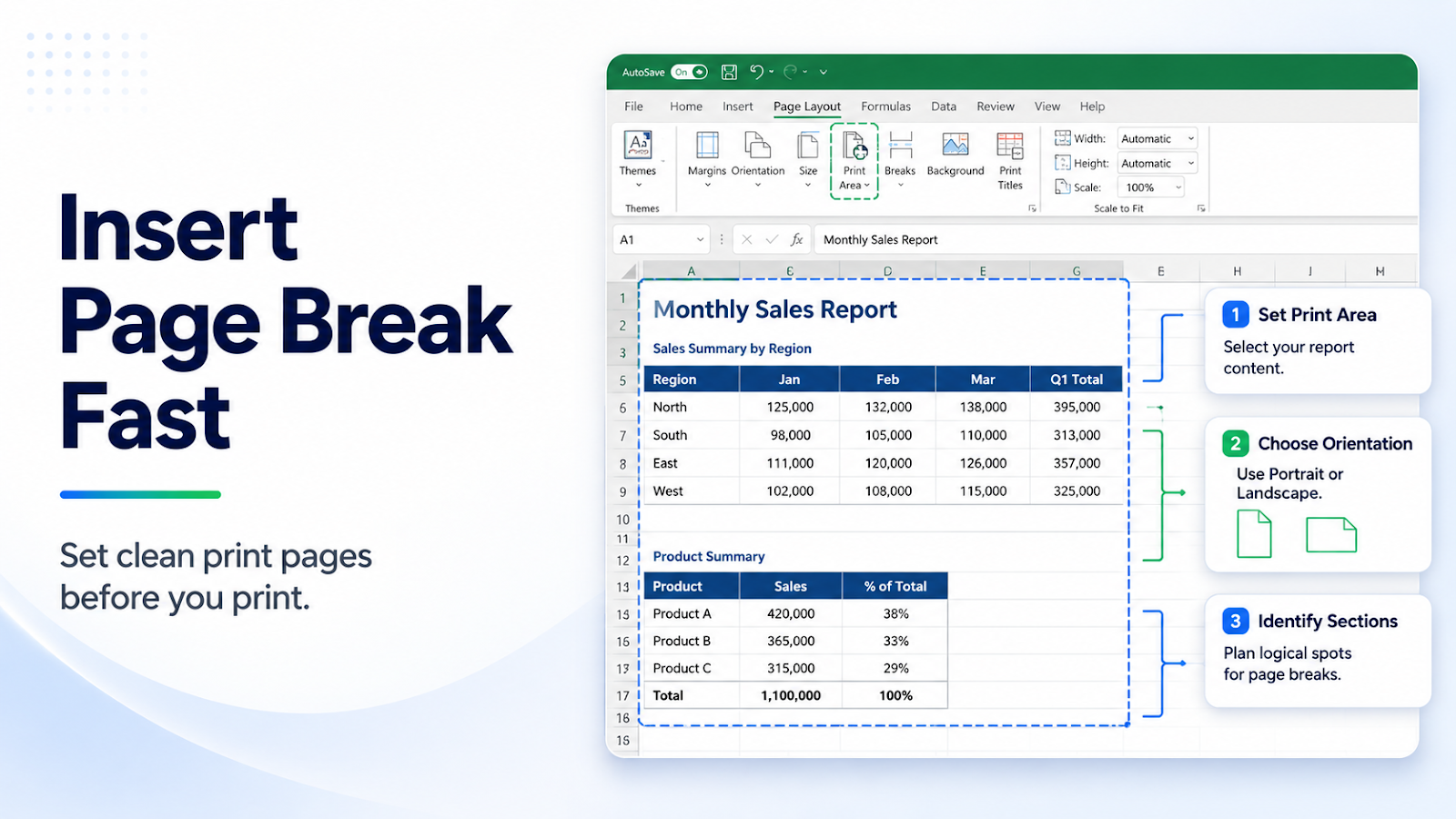
Set up the worksheet before changing it
Set the print area first and remove accidental used-range formatting. Decide whether the report should be portrait or landscape and whether the header row repeats. Identify logical sections such as one department, one month, or one summary block before inserting breaks.
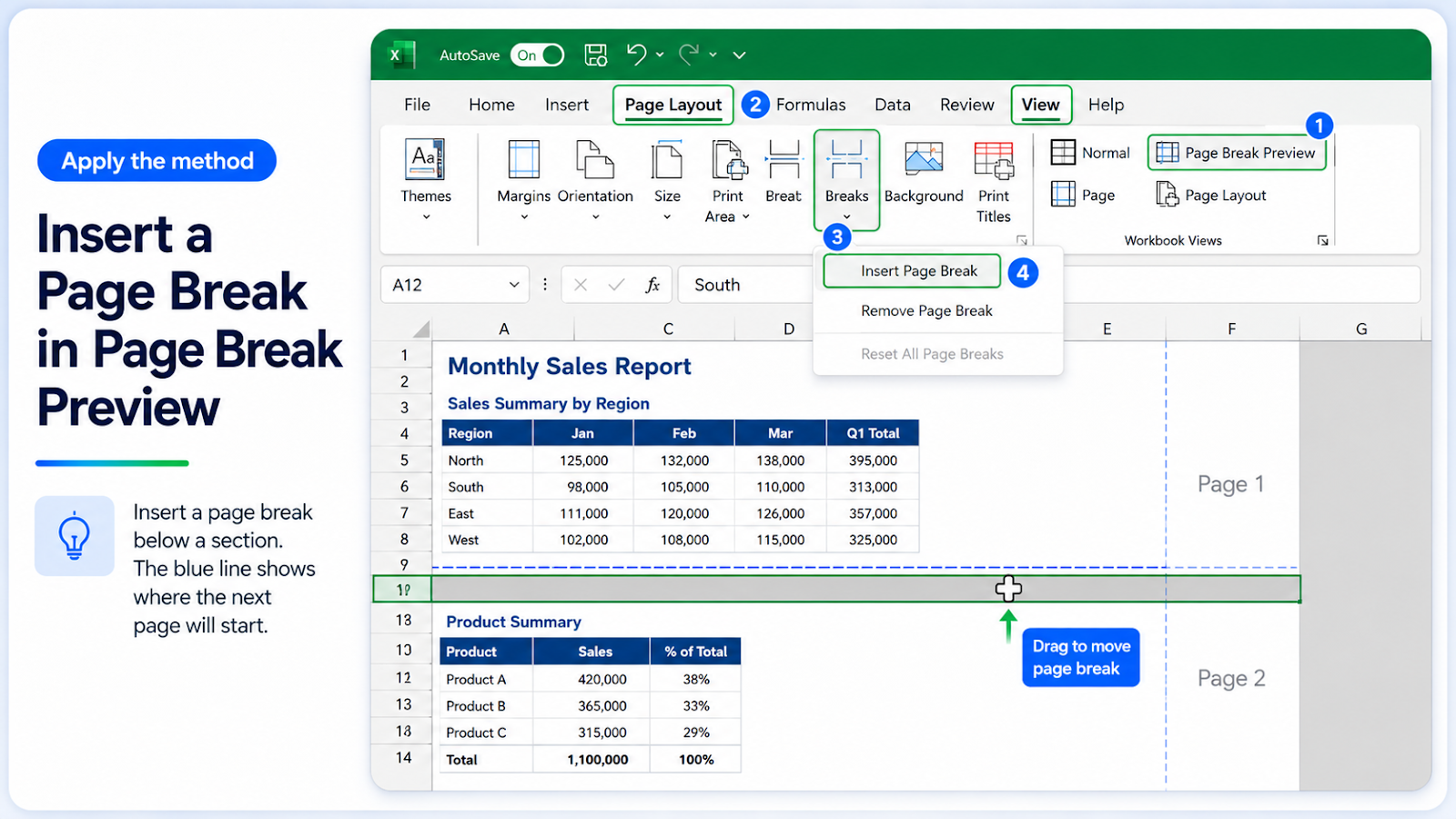
Apply the method to a real example
Open View > Page Break Preview, select the row below the section that should stay together, and choose Page Layout > Breaks > Insert Page Break. You can also drag a blue break line to a new position. Use manual breaks only where the report structure requires them; otherwise allow Excel to calculate automatic breaks. If the report has repeated headings, set Print Titles separately rather than inserting a break after every header.
For a wider report, AutoFit Rows and Columns Instantly can help you check the printable layout before placing the break.
Check one normal case, one edge case, and one result that should not change. This keeps the workflow auditable before it reaches the full report.
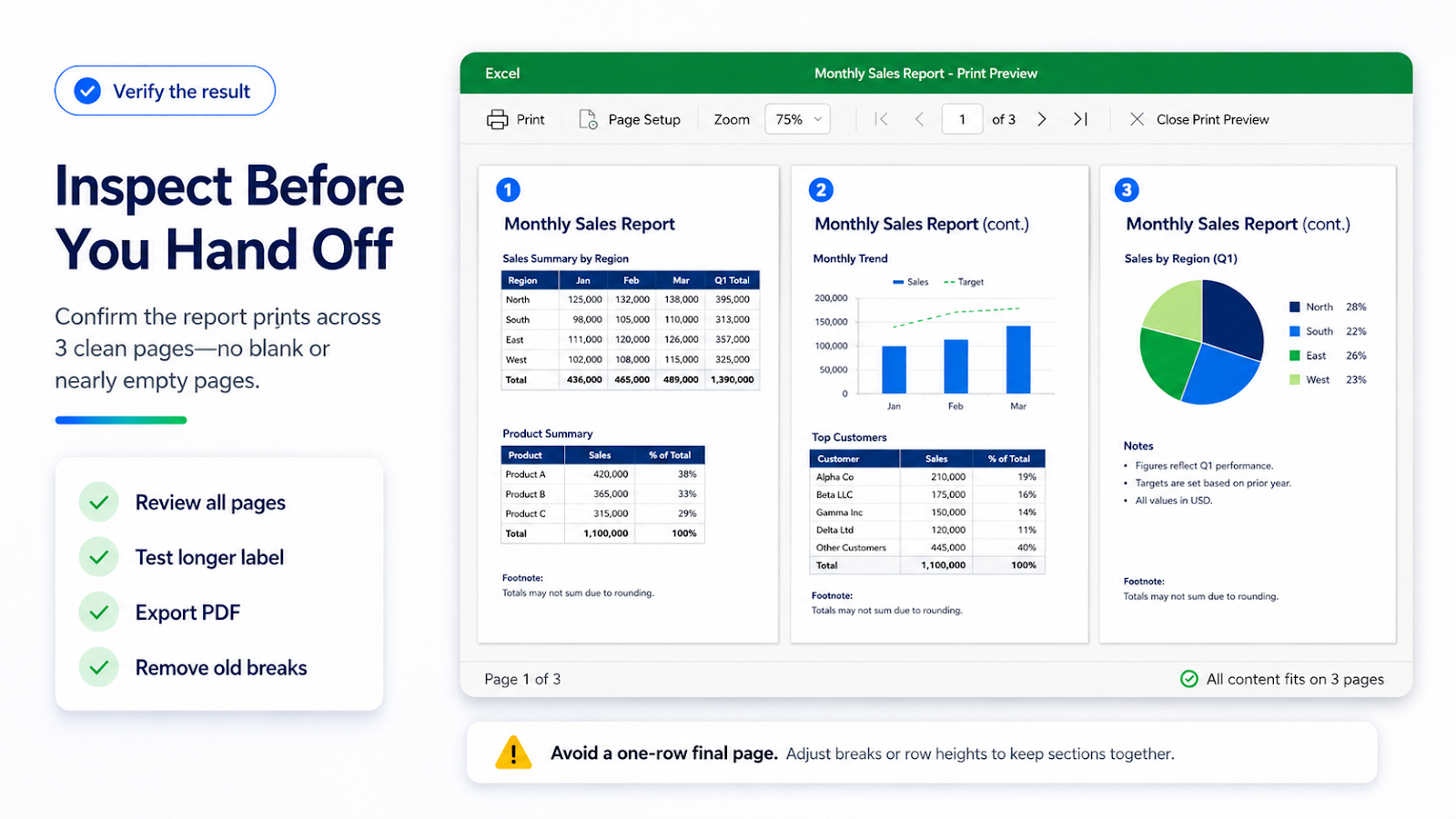
Verify the result before handoff
Review the entire print preview, not just the first page. Check that headings, table headers, subtotals, and footnotes remain with the relevant section. Add a longer label and inspect the result again. Export a PDF and confirm the final page count and order with an Excel-to-PDF workflow. Remove a manual break when the report changes so old layout decisions do not create blank or nearly empty pages.
Common mistakes and corrections
| Mistake | Correction |
|---|---|
| Inserting breaks before setting the print area | The worksheet may include irrelevant cells and create confusing pages. |
| Using breaks as a substitute for print titles | Repeated headings need the print-title setting. |
| Leaving manual breaks after a layout change | Breaks are not self-maintaining when the report grows. |
| Accepting a one-row final page | Move the break or adjust the section layout so the report reads naturally. |
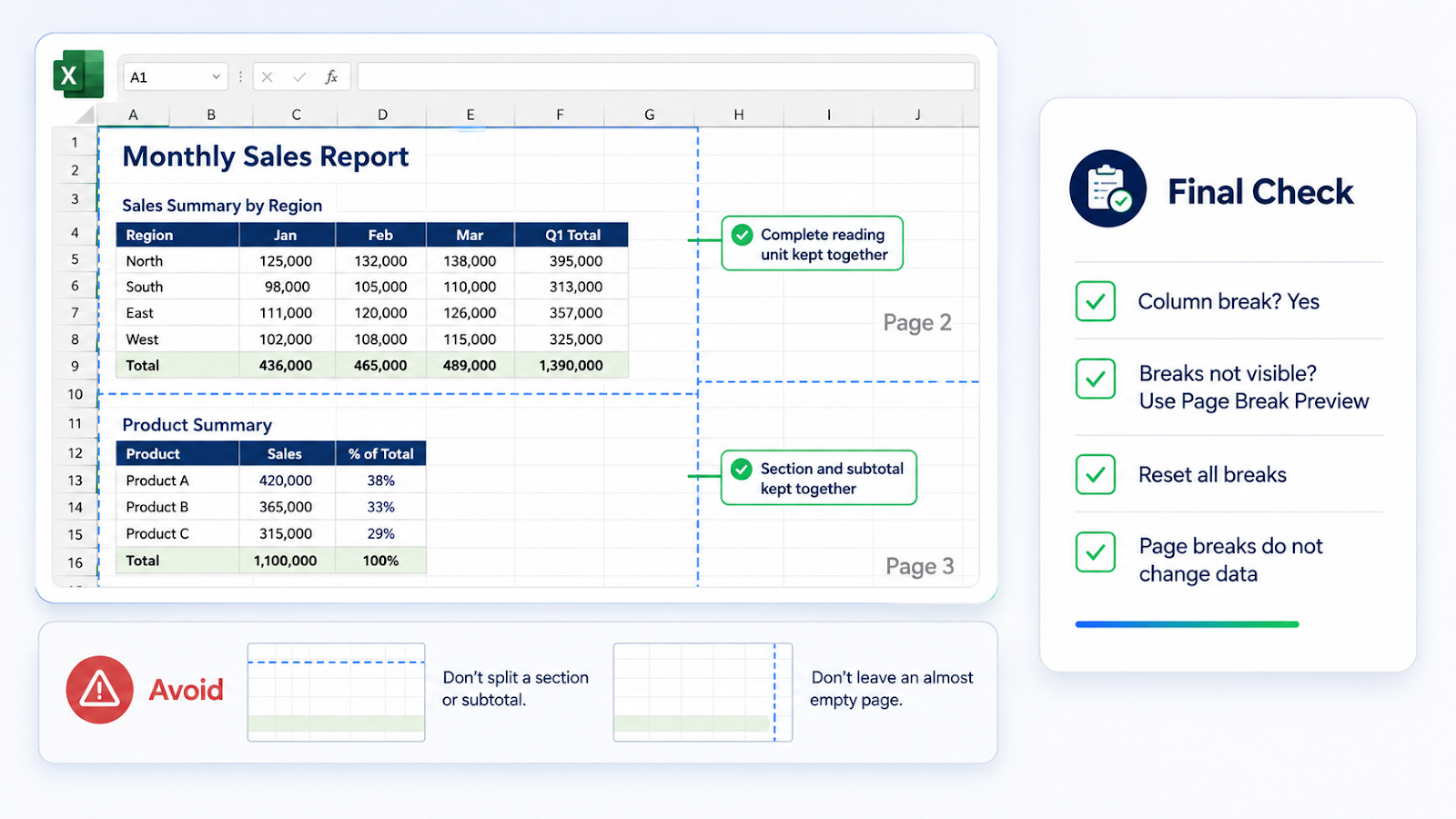
Frequently asked questions
Can I insert a column page break?
Yes. Select the column to the right of the intended boundary and insert a vertical break.
Why are page breaks not visible?
Use Page Break Preview or inspect print preview.
Can I reset all breaks?
Use Reset All Page Breaks, then add only the breaks the report needs.
Do page breaks change worksheet data?
No. They control the printed or exported layout.
Continue with the OneXcel Tutorial Hub and free Excel resources for related workflows.
Use page breaks to tell the report story
Think of each page as a complete reading unit. Keep the section heading, its column labels, the relevant records, and its subtotal together when possible. If a section is too large, split it at a natural group boundary and repeat the header. This produces a more useful report than placing breaks at arbitrary row counts.
Build page breaks around complete sections
Page Break Preview is easier to use when the report has a known reading order. Keep a section title, its column headings, the relevant records, and the subtotal together where possible. If a department or month is too large for one page, split at a natural group boundary and repeat the column headings.
Use Print Titles for repeated headers instead of inserting a manual break after every header. Set the print area and orientation first, then add only the breaks that improve the story. Recheck the layout after adding rows because manual breaks remain even when the data changes.
Export a PDF and review the last page. A nearly empty final page often signals an unnecessary break, stray formatting, or a print area that extends too far.
Make the result hold up in real work
A manual page break should separate complete units of meaning: a department, month, project, or report section. Insert it after checking the print area, paper size, orientation, and scaling, because those settings can move the apparent break. Preview with the longest heading and the last row of a section visible. If a table continues across pages, repeat its heading rows instead of placing a break that hides context. Keep manual breaks limited; too many become fragile when rows are inserted. After a structural change, reopen print preview and verify that each page still begins and ends at a sensible point.
Continue building reliable Excel workflows
Browse more lessons in the OneXcel Tutorial Hub or explore free Excel resources.