
Formulas & Functions
How to Lock Formula Cells Fast
A protected worksheet should make the intended workflow obvious: users can edit inputs, while calculation cells remain safe. The reliable sequence is to identify input cells, unlock only those cells, verify the formulas are locked, and then protect the sheet with options that match the job.
Start with the right worksheet setup
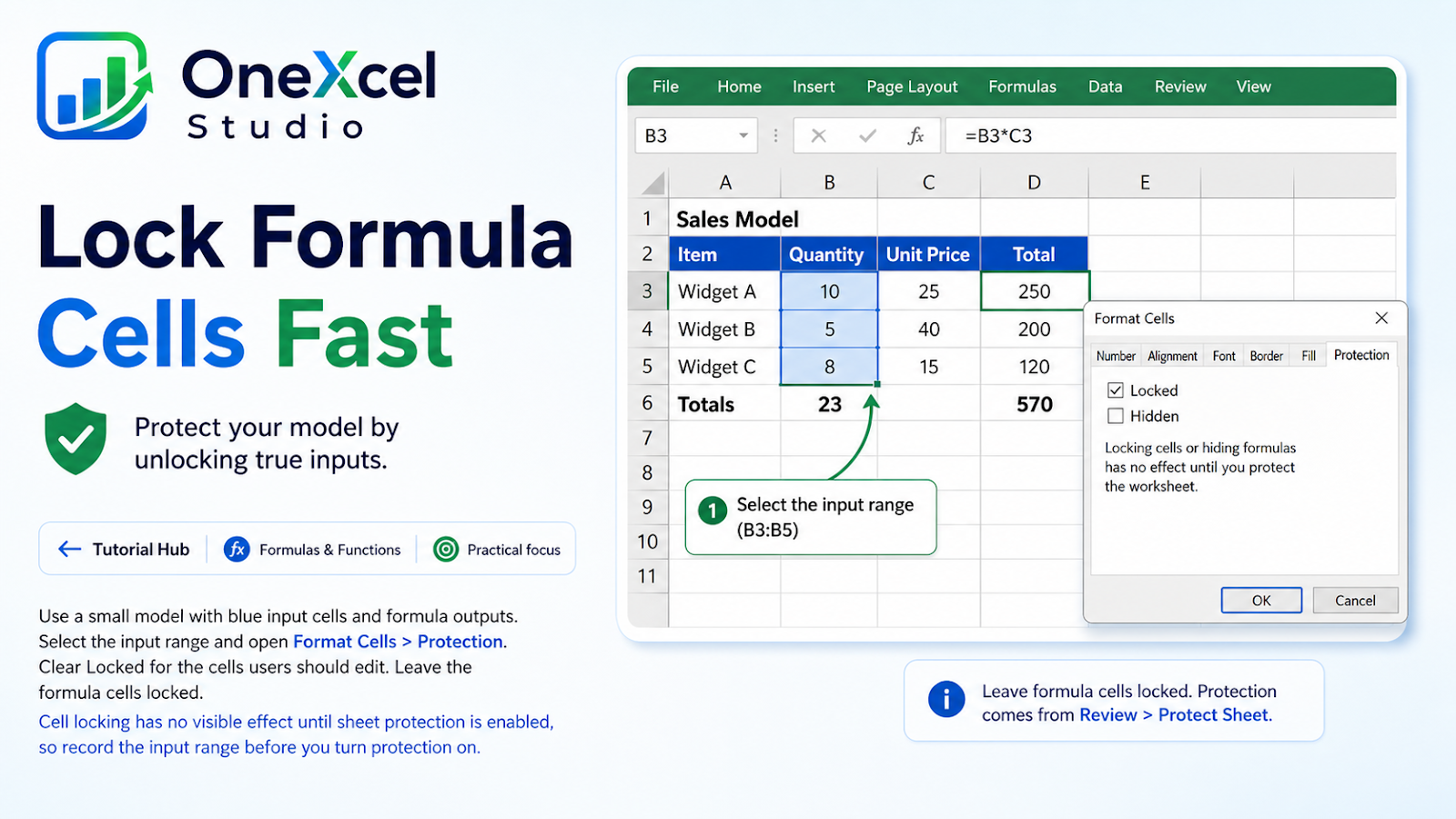
Use a small model with blue input cells and formula outputs. Select the input range and open Format Cells > Protection. Clear Locked for the cells users should edit. Leave the formula cells locked. If you need to reopen the protection settings quickly, see how to open Format Cells with Ctrl + 1. Cell locking has no visible effect until sheet protection is enabled, so record the input range before you turn protection on.

Work through the Excel example
After unlocking inputs, review the formula cells for accidental hard-coded values. Then choose Review > Protect Sheet. Select the permissions users need, such as Select unlocked cells, and add a password only if the workbook’s access process supports storing it safely. Test the result by changing an input and confirming the output recalculates. Then try to type in a formula cell; Excel should prevent the edit or show the protection message.
Keep the original values visible, test a normal case and an exception, then compare the output with the business rule the worksheet is meant to represent.

Verify the result and protect the workflow
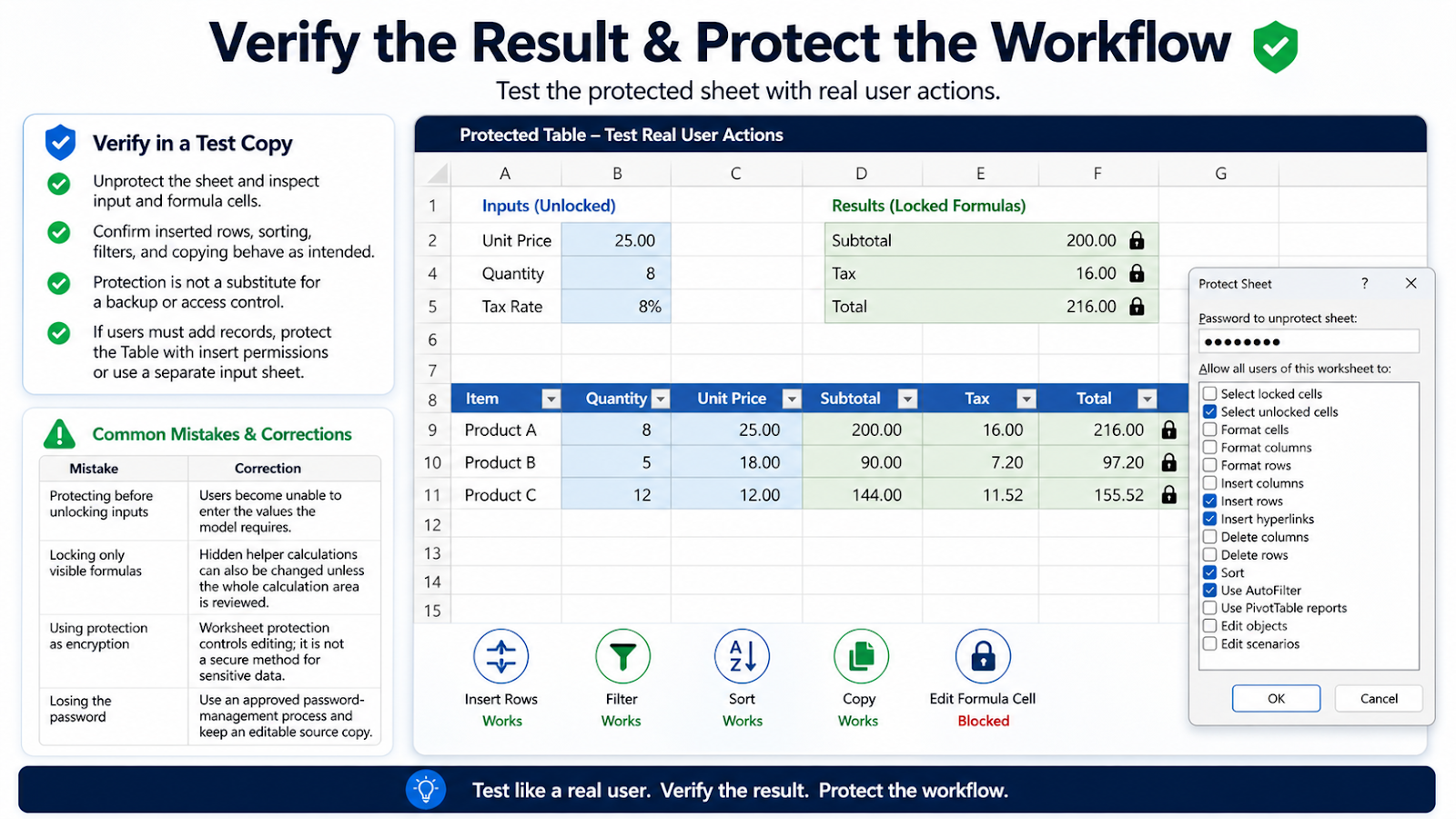
Unprotect the sheet in a test copy and inspect both input and formula cells. Confirm that inserted rows, sorting, filters, and copying behave as intended under the selected permissions. For a macro-based workflow, compare this with protecting and unprotecting sheets with VBA. Protection is not a substitute for a backup or access control. If users need to add records, protect the sheet with the Table and insert permissions that support the workflow, or design a separate input sheet.
Common mistakes and corrections
| Mistake | Correction |
|---|---|
| Protecting before unlocking inputs | Users become unable to enter the values the model requires. |
| Locking only visible formulas | Hidden helper calculations can also be changed unless the whole calculation area is reviewed. |
| Using protection as encryption | Worksheet protection controls editing; it is not a secure method for sensitive data. |
| Losing the password | Use an approved password-management process and keep an editable source copy. |
Frequently asked questions
Are cells locked by default?
Usually yes, but locking has no effect until the worksheet is protected.
Can users still filter a protected table?
Only if the appropriate permission was enabled and the table structure supports it.
Can I hide formulas as well?
Yes, the Hidden protection setting can prevent formulas from displaying in the formula bar when the sheet is protected.
Should I protect the workbook or worksheet?
Choose worksheet protection for cell editing and workbook protection when the sheet structure itself must be controlled.
For related practical lessons, continue through the OneXcel Tutorial Hub and the free Excel resources.
Protect the workflow, not just the cells
Worksheet protection should reflect how the workbook is used. If users enter new rows in a Table, test whether they can insert rows, sort, filter, and select unlocked cells under the chosen permissions. If they need to edit formulas occasionally, provide a controlled unprotect process rather than leaving every calculation exposed.
Use different visual treatments for input cells and calculated cells, but do not rely on color alone. A short instruction near the input area can explain which cells are editable. If formulas contain sensitive business logic, consider the Hidden setting while the sheet is protected, then verify that the output still recalculates when an input changes.
Protection should be tested in a non-owner account or a copy with the same permissions. Confirm that users can complete the intended task, that they cannot accidentally overwrite the calculation layer, and that the workbook still opens in the required Mac and Windows Excel environments.
Make the result hold up in real work
Protection works best when it reflects the workbook’s real workflow. Identify which cells are inputs, which formulas are calculations, and which areas are intended for review. Unlock only the input cells, protect the sheet, and test sorting, filtering, validation, and row insertion as the actual user will perform them. If formulas must remain visible for auditing, use protection to prevent accidental edits rather than hiding every calculation. Add a clear instruction for how the sheet is unprotected by an authorized owner. Finally, test the protected file on the platforms you support; a protection setting that behaves differently on Mac and Windows should be documented before release.
Continue building reliable Excel workflows
Browse more lessons in the OneXcel Tutorial Hub or explore free Excel resources.