
Data Cleanup & Error Checks
How to Make Status Look Clean in Excel
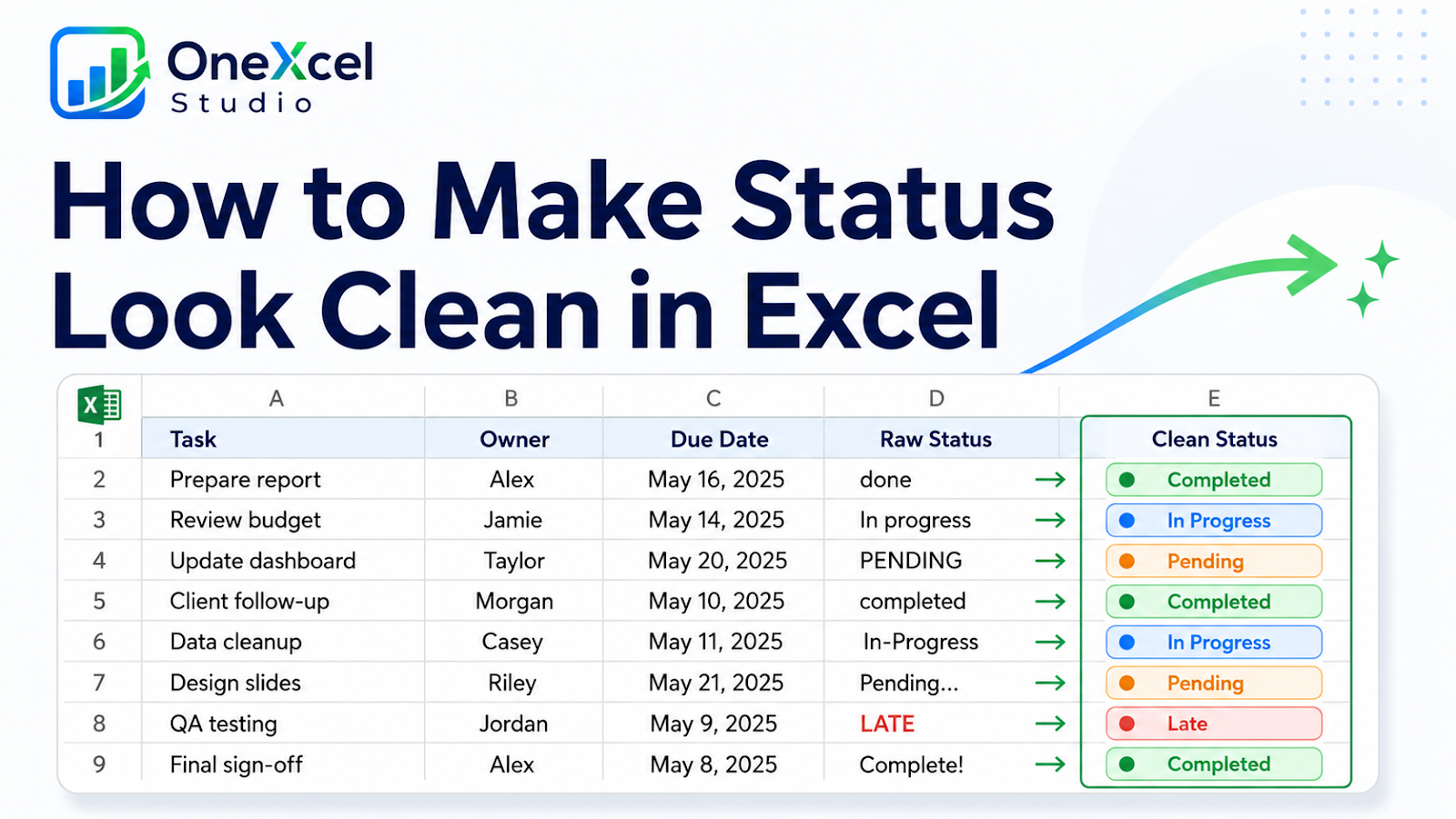
Status columns often become unreliable because people type slightly different versions of the same state: In progress, In Progress, Started, or Working. This tutorial creates a controlled status field that stays readable, filters correctly, and supports consistent conditional formatting.
Start with the right worksheet setup
Use a tracker with Task, Owner, Due Date, and Status columns. Decide the small vocabulary before formatting. A useful starting set is Not Started, In Progress, Blocked, and Done, but the right labels depend on the workflow. Write the approved values on a separate Rules sheet or in an unused planning area so the source list has one visible owner.
Work through the Excel example
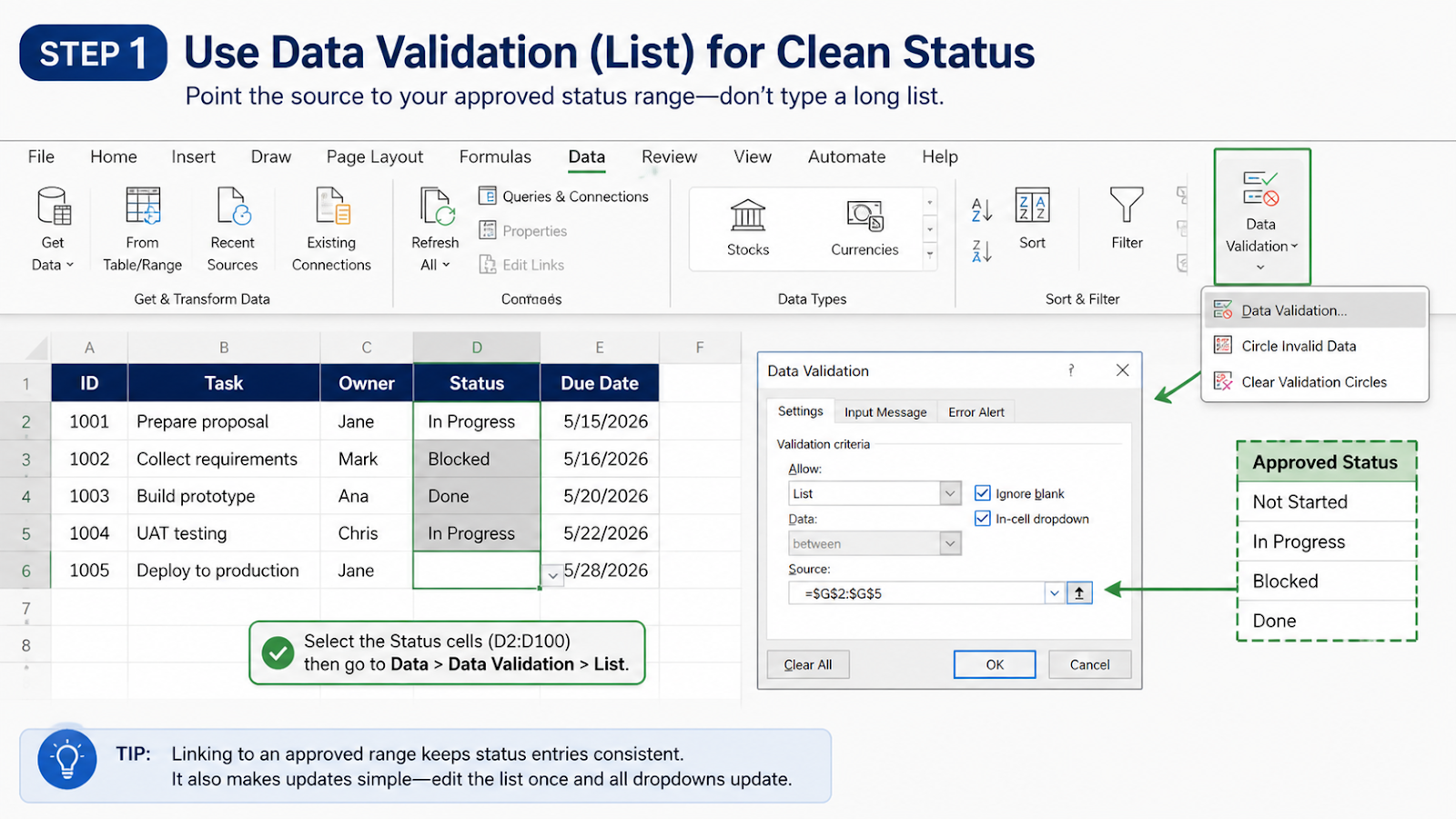
Select the status cells and choose Data > Data Validation > List. Point the validation source to the approved status range rather than typing a long list into the dialog. Then apply conditional-formatting rules that match the exact labels. For example, a rule containing `=$D2=”Blocked”` can use an amber fill, while `=$D2=”Done”` can use a muted green. Apply the rule to the entire row only when highlighting the whole record helps the reader; otherwise format just the status cell.
Keep the original values visible, test a normal case and an exception, then compare the output with the business rule the worksheet is meant to represent.
Verify the result and protect the workflow
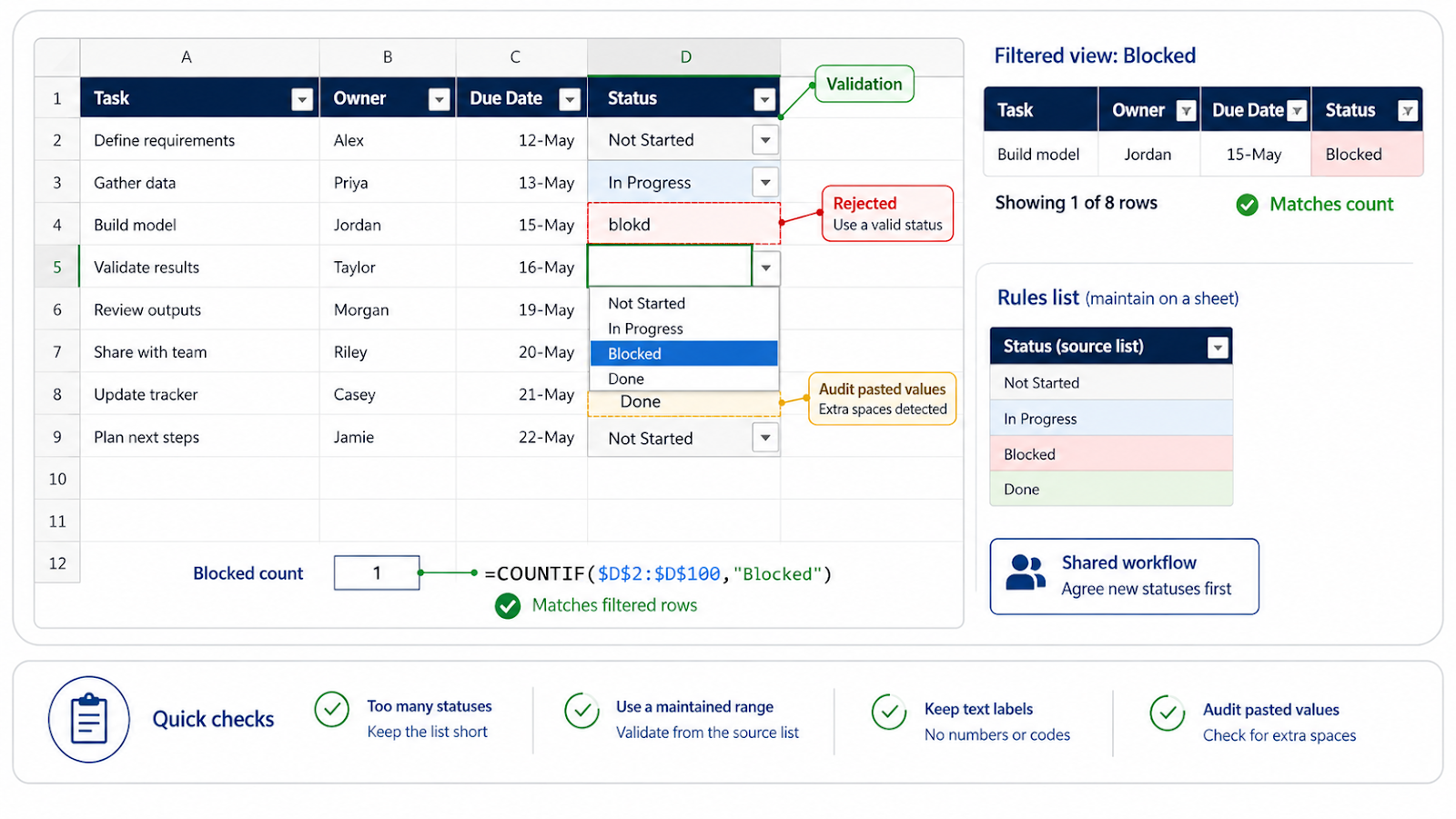
Try to type a misspelled status, paste a value with extra spaces, and select each approved option from the dropdown. If pasted labels carry stray whitespace or nonprinting characters, the remove extra spaces and hidden characters guide shows a focused cleanup check before you validate the list. Confirm that invalid entries are rejected or visibly warned about. Filter by each status and check that the counts match the visible records. Change one label in the source list and verify whether the validation range updates as intended. If the tracker is shared, add a short note explaining that new statuses should be agreed before they are added.
Common mistakes and corrections
| Mistake | Correction |
|---|---|
| Too many statuses | Readers stop distinguishing the important states when every exception gets its own label. |
| Validation source is hard-coded | A maintained range is easier to update and audit than a long comma-separated list. |
| Colors are the only signal | Keep the text label; color alone is not reliable for printing or accessibility. |
| Pasted values bypass the workflow | Review paste behavior and audit the column for values outside the approved list. |
Frequently asked questions
Can I use icons instead of colors?
Yes, but keep a readable text status as the primary signal.
Should statuses be verbs or adjectives?
Choose one style and keep it consistent, such as Not Started, In Progress, and Done.
How do I find bad status values?
Filter the column, compare it with the approved list, or use a helper COUNTIF check.
Can the dropdown expand automatically?
Yes. Put the approved values in an Excel Table or a named range that expands with the list.
For related practical lessons, continue through the OneXcel Tutorial Hub and the free Excel resources.
Make the status field support reporting
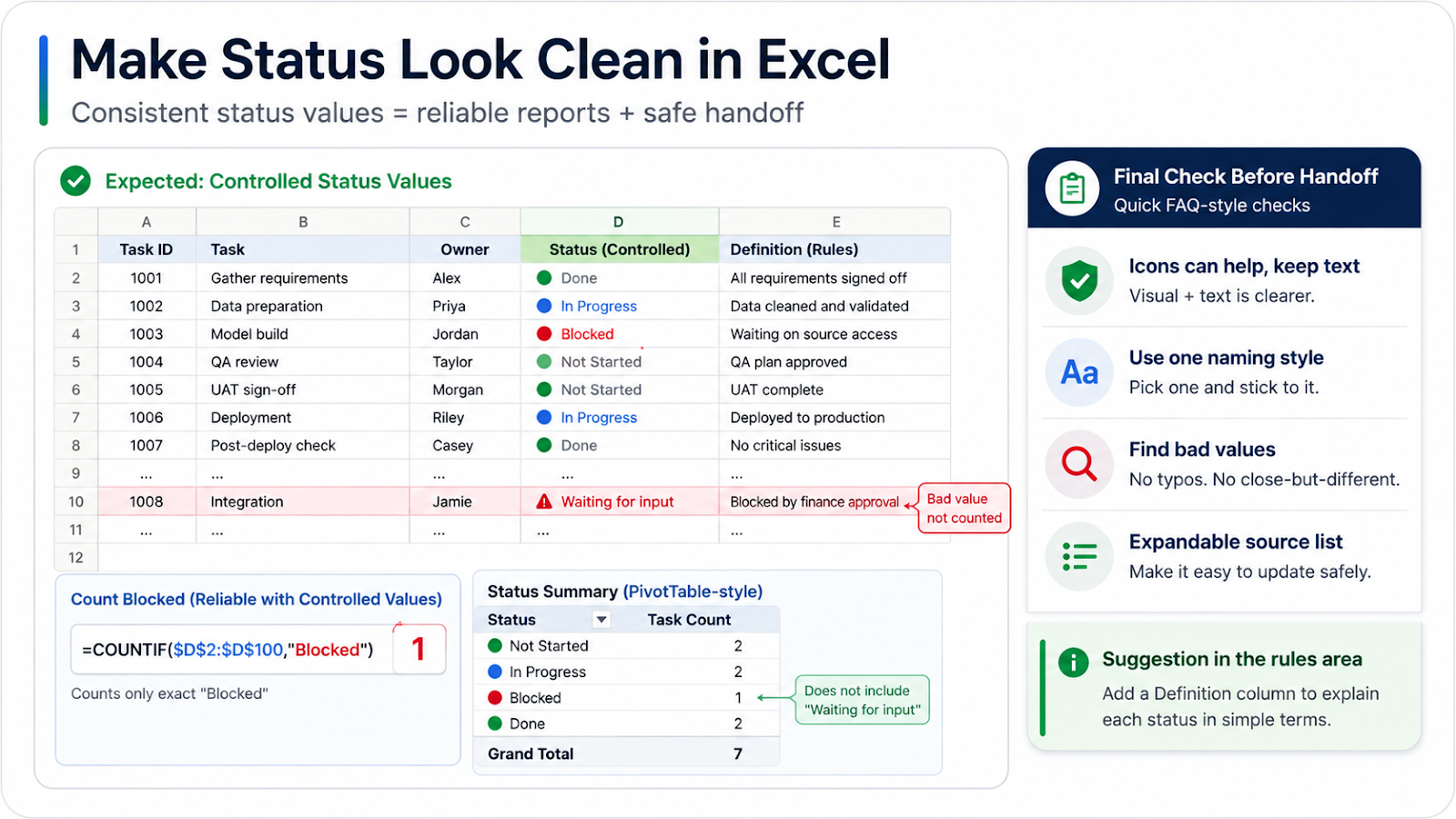
A clean status column should be useful beyond appearance. Once the values are controlled, you can count them with formulas such as =COUNTIF($D$2:$D$100,"Blocked") or build a PivotTable that groups the approved labels. These summaries become unreliable when one user types Blocked and another types Waiting for input. For a broader workbook check, use the Excel error-checking rules guide before trusting the report. Keep the status list short enough that each label represents a meaningful decision.
Consider adding a Definition column to the rules area. Explain what qualifies as In Progress, when Blocked should be used, and who is responsible for changing a record to Done. This prevents the dropdown from becoming a collection of vague labels. If a status is no longer used, do not delete it from the list until historical records have been converted or the report logic has been updated.
Before handoff, filter for blanks and values outside the approved list. A clean tracker is one where the label, color, counts, and workflow meaning all agree.
Make the result hold up in real work
Use the approved labels as a small vocabulary, then give each one a definition that a new teammate can apply without asking. For example, Blocked should mean work cannot continue, not simply that the owner has not started. If you need a reason, keep it in a separate Notes or Blocker Reason column rather than creating ten new statuses. This keeps PivotTables and COUNTIF summaries stable. Before publishing a report, filter for blanks and unexpected text, then compare the total of the status counts with the number of data rows. That reconciliation is a practical quality check, not just a cosmetic cleanup.
Keep Excel status fields consistent
Use the OneXcel Tutorial Hub for more practical Excel lessons, or explore free Excel resources for ready-to-use workflow ideas.