
EXCEL TROUBLESHOOTING
How to Audit a Workbook with Excel Error Checking Rules
Excel’s Error Checking tools can surface suspicious formulas, inconsistent patterns, omitted cells, and other potential problems before they reach a report or dashboard. The tool is most useful when you treat each warning as a review prompt—not an automatic correction.
Best use: run Error Checking after formula changes, imported data, inserted rows, copied sections, or any update that could change references without producing an obvious error message.
What Excel Error Checking can—and cannot—tell you
Error Checking reviews formulas against a set of built-in rules. It can flag patterns that deserve attention, such as a formula that differs from neighboring cells, a number stored as text, a formula that omits nearby cells, or a cell that returns an error value. These warnings help you locate possible issues faster than reviewing every formula manually.
The tool does not understand your business logic. A formula can be technically valid and still calculate the wrong period, department, rate, or range. It can also flag an intentional exception such as a subtotal, opening balance, or manually entered assumption. Use the warning as the beginning of the audit, then confirm the logic yourself. For a worked pattern check, compare the inconsistent-formula tutorial with the surrounding cells. If the warning involves text that should be numeric, see the numbers-stored-as-text guide before changing the formula.
| Error Checking helps with | You still need to verify |
|---|---|
| Finding cells that match a built-in warning rule | Whether the formula reflects the intended business rule |
| Moving through warnings one at a time | Whether referenced ranges cover the correct rows and periods |
| Showing possible causes and actions | Whether a suggested correction is safe |
| Tracing the source of an error value | Whether downstream totals, charts, and reports remain correct |
1. Confirm that background error checking is enabled
On Excel for Windows, open File → Options → Formulas. In the Error Checking section, confirm that background error checking is enabled. This allows Excel to display small indicators on cells that match active rules. The exact location may differ slightly by Excel version, and Excel for Mac uses different preference screens.
Review the enabled rules before changing them. Turning off a rule can reduce noise, but it can also hide useful warnings across every workbook. It is usually safer to keep the standard rules active and ignore a specific warning only after confirming that the cell is intentional.
2. Run Error Checking from the Formulas tab
- Save the workbook or create a backup copy when the file is important.
- Open the Formulas tab.
- Select Error Checking in the Formula Auditing group.
- Read the explanation for the current cell.
- Inspect the formula and surrounding cells before choosing an action.
- Move to the next warning and repeat the review.
3. Read the warning before accepting a correction
The dialog normally identifies the cell, describes the warning, and offers actions that depend on the error type. Options may include editing the formula, copying a nearby formula, showing calculation steps, ignoring the warning, or opening help. Do not choose an action only because it is presented first.
Important: Ignore Error removes the indicator for that cell; it does not prove the formula is correct. Record or document intentional exceptions when another reviewer may question them later.
4. Compare the formula with the surrounding pattern
Select the flagged cell and read the full formula in the formula bar. Compare it with the same column above and below. Look for a row number that does not progress normally, a fixed reference that moved, a range that stops too early, or a hard-coded value inside a formula region.
| Check | Example problem |
|---|---|
| Relative references | Row 12 refers to B11 instead of B12 |
| Absolute references | $B$2 changes to B2 after a manual edit |
| Ranges | SUM stops at row 49 although row 50 contains data |
| Formula continuity | One cell contains a pasted value instead of a formula |
| Sheet references | A formula points to the previous month’s sheet |
5. Use Trace Error to follow the problem upstream
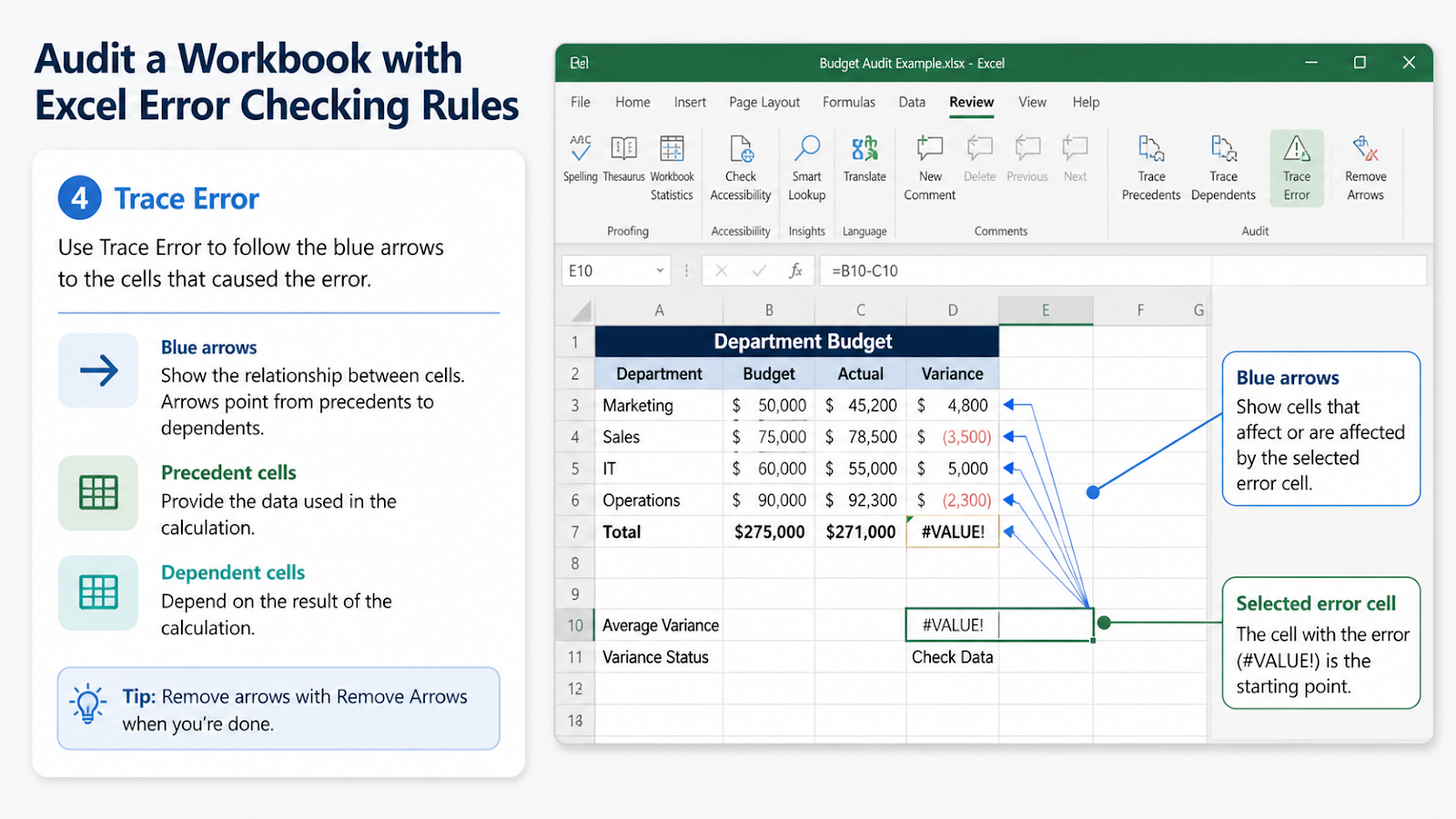
When a formula returns an error such as #DIV/0!, #VALUE!, or #REF!, use Formulas → Error Checking → Trace Error. Excel draws arrows from the cells that feed the error. Follow the arrows toward the source and inspect the earliest cell that contains an unexpected value or formula.
If the error crosses worksheets or workbooks, the trace may show a worksheet icon or dotted line rather than a direct arrow. Open the referenced location and continue the review there. Fix the source whenever possible instead of hiding the final error with IFERROR before you understand the cause.
6. Correct the formula safely
- Confirm the expected pattern or rule.
- Copy a known-correct neighboring formula when the structure should repeat.
- For a unique formula, edit only the incorrect reference or operator.
- Press Enter and verify the result.
- Check totals, dependent formulas, PivotTables, charts, and dashboards.
- Recalculate the workbook and run Error Checking again.
Safer correction: when a column follows a repeated formula pattern, copying from a verified neighboring row is usually safer than retyping a long formula manually.
Common warnings you may see
| Warning | What to review |
|---|---|
| Inconsistent formula | Compare the formula with nearby cells and confirm whether the difference is intentional. |
| Formula omits adjacent cells | Check whether the total should include the nearby row or column. |
| Number stored as text | Confirm whether the value should be numeric, an identifier, or text with leading zeros. |
| Unlocked cell containing a formula | Review worksheet protection and whether users should be able to edit the formula. |
| Error value in a formula | Trace the inputs and fix the earliest incorrect cell. |
Final workbook audit checklist
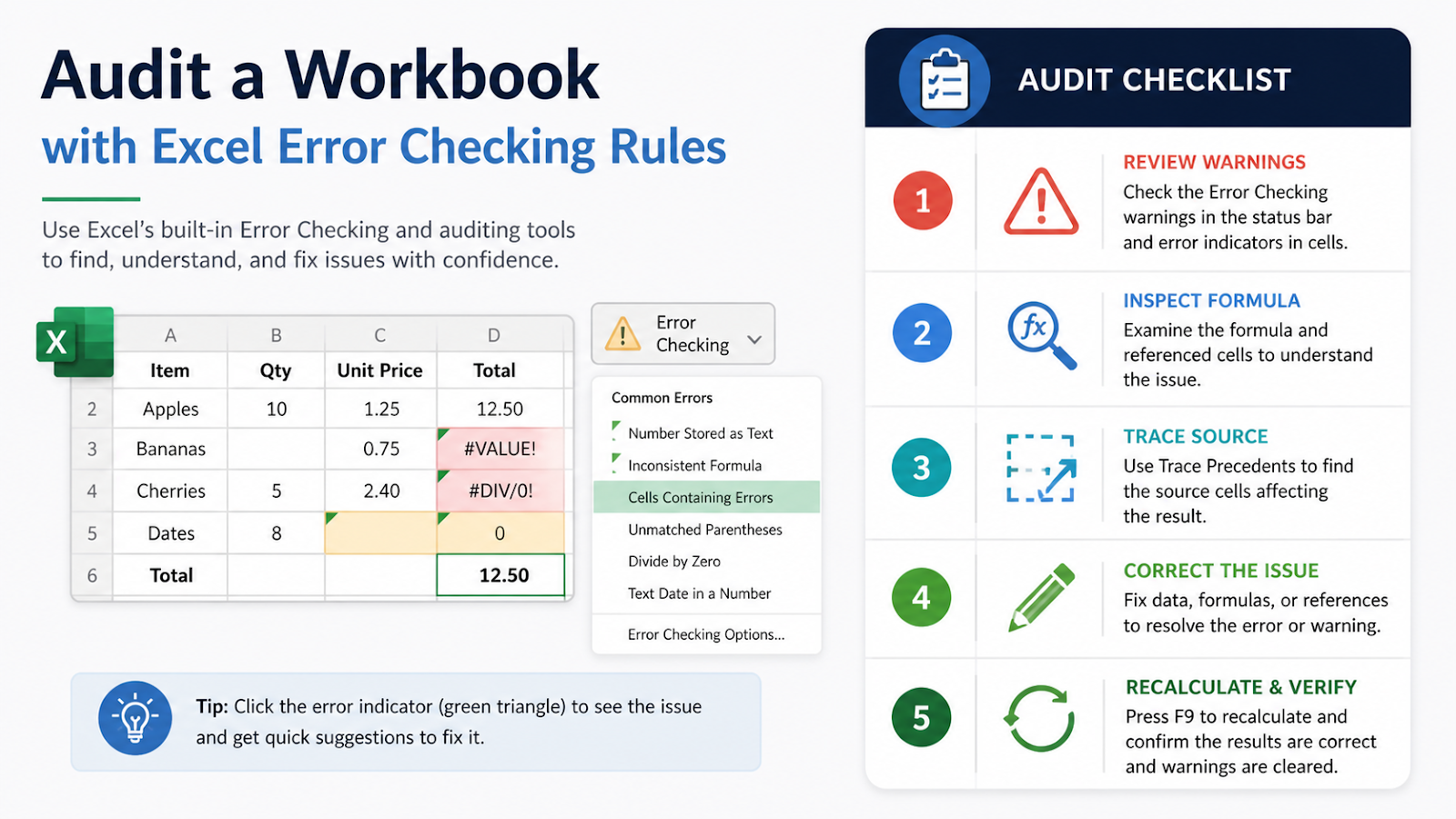
- Save a backup before changing important formulas.
- Run Error Checking and inspect every warning.
- Compare suspicious formulas with surrounding rows and columns.
- Trace error values back to their source.
- Confirm whether each exception is intentional.
- Verify totals, charts, dashboards, and exported reports.
- Refresh PivotTables, queries, and external connections when relevant.
- Run Error Checking again after corrections.
Frequently asked questions
Does Error Checking find every formula mistake?
No. It identifies cells that match enabled rules, but a formula can follow the same structure as nearby formulas and still use the wrong business assumption, date, rate, or source range.
Should I choose Ignore Error for intentional formulas?
You can ignore a warning after verifying the formula, but document the reason when the workbook is shared or audited. Another user may otherwise assume the warning was overlooked.
Is Trace Error the same as Trace Precedents?
They are related auditing tools. Trace Error focuses on cells contributing to an error result, while Trace Precedents shows the cells referenced by the selected formula even when no error is present.
Does this workflow work on Excel for Mac?
The review principles are the same, but menu locations and available warning options can differ by Excel version. Use the Formula Auditing tools available in your Mac installation and verify formulas manually when a command is not shown.
Build a more reliable Excel review process
Continue with more practical Excel lessons or explore OneXcel’s free Excel resources.