
DATA CLEANUP & ERROR CHECKS
How to Flag Duplicate Invoice Numbers in Excel
Flag duplicate invoice numbers in Excel with conditional formatting and a formula, then review whether each repeat is a true error.
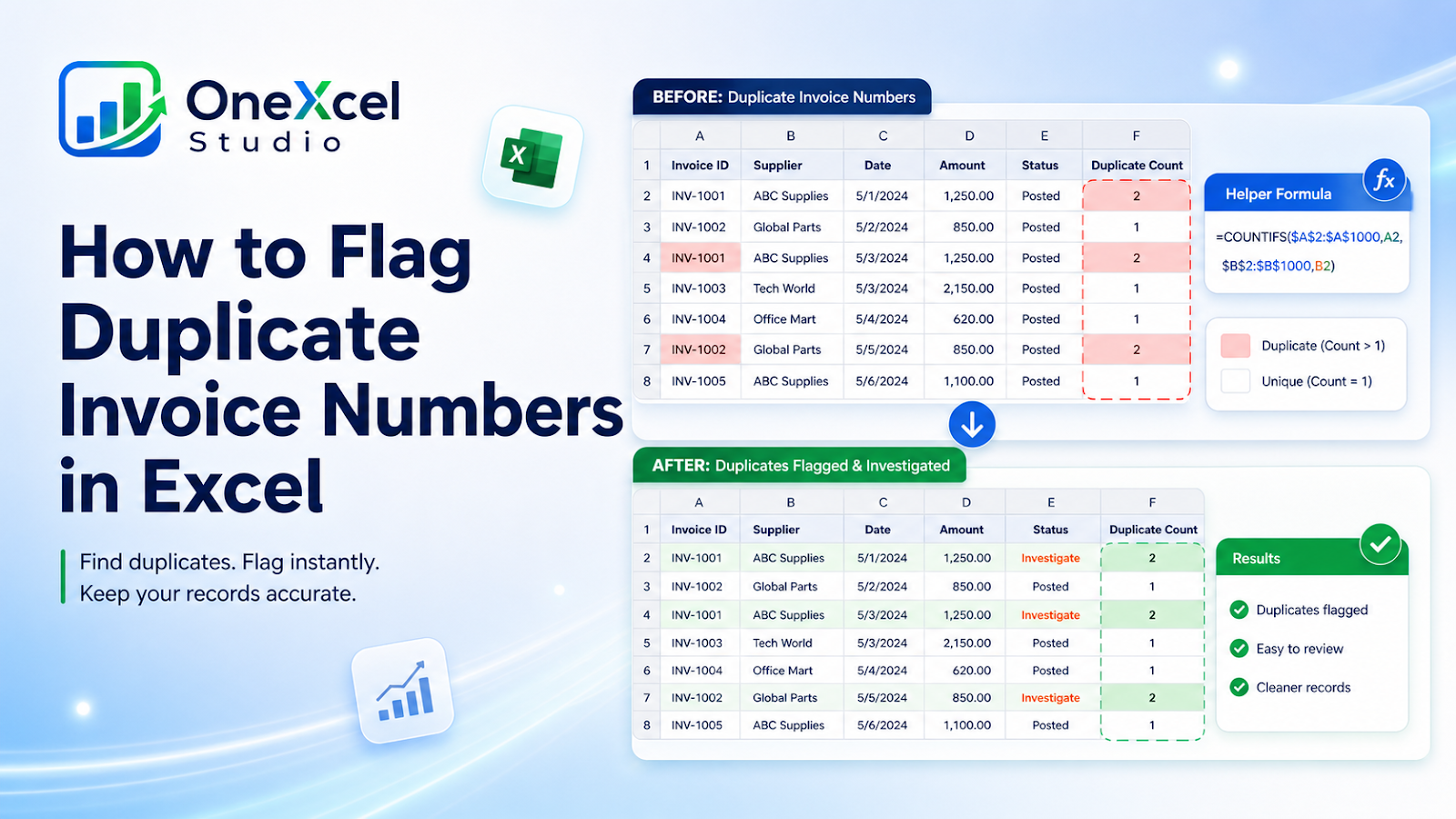
Use duplicate-key formula and conditional formatting safely
Define whether Invoice Number alone is unique or whether Supplier, Entity, or Year must be included in the key.
- Clean spaces and standardize numbers stored as text in Excel before checking the invoice-number type.
- Add a COUNTIF or COUNTIFS helper column.
- Flag results greater than one.
- Apply conditional formatting to the key or entire row.
- Filter the flagged records and compare supplier, date, amount, and status.
- Resolve true duplicates in the source system rather than deleting blindly.

Worked example
For invoice numbers in A2:A1000, `=COUNTIF($A$2:$A$1000,A2)` returns the number of occurrences. If invoice numbers can repeat across suppliers, use COUNTIFS with both fields.
Common cleanup mistakes
| Mistake | Why it matters |
|---|---|
| Assuming invoice number is globally unique | Different suppliers may use the same sequence. |
| Ignoring credit notes or reversals | Legitimate related documents can share references. |
| Deleting one record immediately | A repeated number may represent a split invoice or corrected entry. |
| Not cleaning spaces and leading zeros | Equivalent IDs may fail to match. |
| Highlighting blanks as duplicates | Exclude empty keys from the rule. |
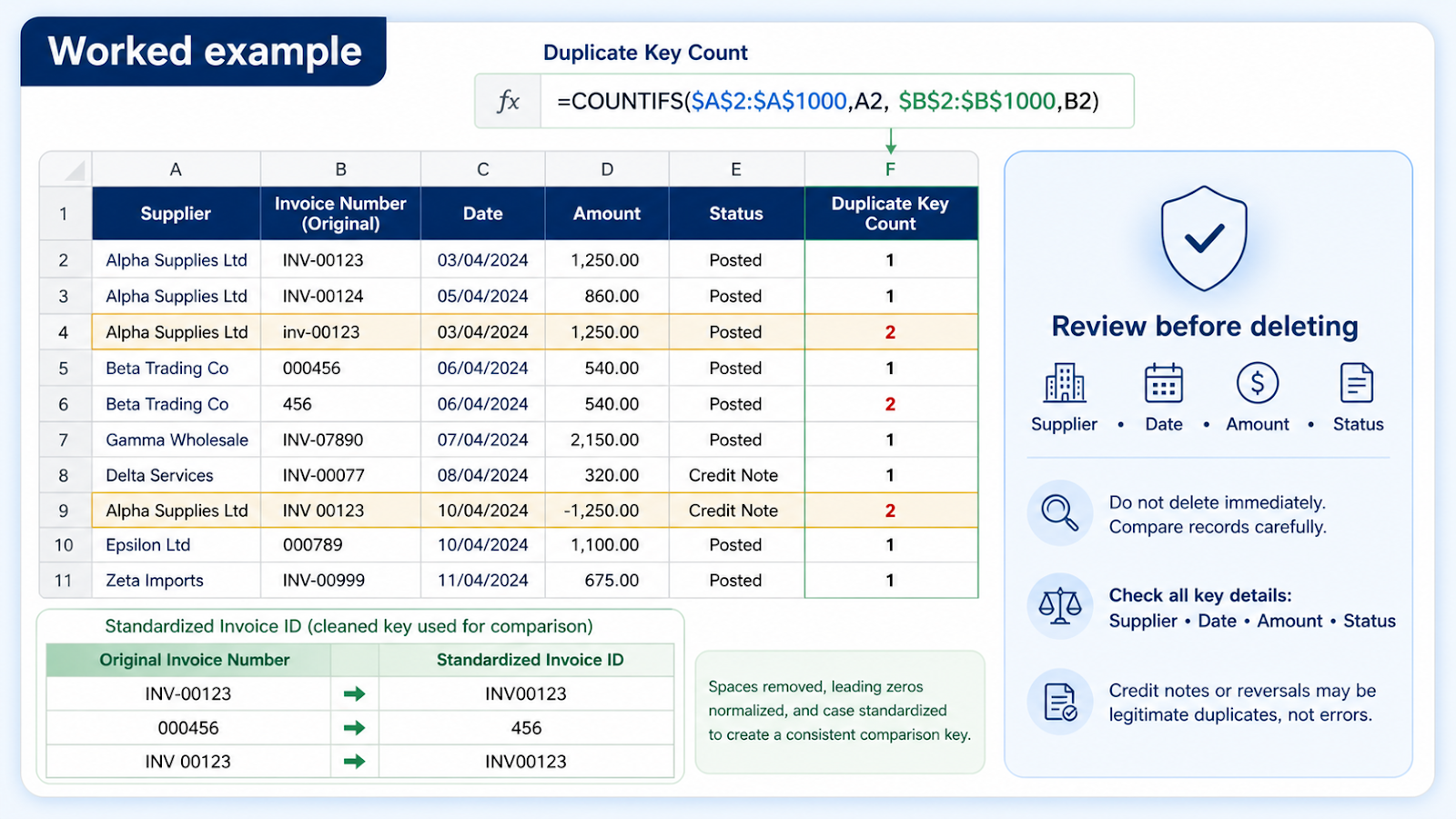
Verification steps
- Compare duplicate counts with source reports.
- Check supplier, amount, and date.
- Confirm whether one record is a reversal or correction.
- Document the resolution.
- Re-run the duplicate check after updates.
Build the duplicate key that matches your accounting rule
If Supplier A and Supplier B can both issue invoice 1001, invoice number alone is not a unique key. Use both fields in the check, for example =COUNTIFS($A$2:$A$1000,A2,$B$2:$B$1000,B2) where A is Supplier and B is Invoice Number. A result greater than one flags a repeated supplier-invoice combination.
Before comparing, normalize the invoice number carefully. Leading zeros, spaces, and text-versus-number storage can cause equivalent references to miss each other. The extra-spaces and hidden-characters cleanup guide covers the text-normalization check. Then investigate the full record: supplier, invoice date, amount, currency, credit-note status, and source-system ID. A repeated key may be a true duplicate, a correction, or a legitimate document relationship. The spreadsheet should flag the exception; the accounting source should determine the resolution.
Separate a repeated key from a duplicated transaction
A duplicate invoice number is a warning, not proof of duplicate expense. Two records may represent a reversal, credit note, split posting, or the same supplier number used in different entities. Build the key from the fields that should uniquely identify the transaction, then compare amount, date, supplier, currency, and source-system ID before deciding what to correct.

Frequently asked questions
How do I exclude blanks?
Add a nonblank test to the conditional-formatting formula or helper formula.
Can I highlight the entire row?
Yes. Use a formula rule that locks the key column and applies to the full record range.
Why are similar invoice numbers not matched?
Check spaces, text-versus-number storage, and leading zeros.
Should duplicates be removed automatically?
No. Financial identifiers should be investigated and resolved using the business source.
Continue building reliable Excel workflows
Browse more lessons in the OneXcel Tutorial Hub or explore free Excel resources.