
SHORTCUTS & FASTER WORKFLOWS
How to Fill Down and Right with Ctrl D and Ctrl R
Use Ctrl D and Ctrl R to fill formulas or values down and right in Excel, then confirm that relative references adjusted correctly.

What Ctrl + D and Ctrl + R does
Ctrl + D copies the top row of the selected range downward. Ctrl + R copies the leftmost column across to the right.
Use the shortcut step by step
- Place the correct source value or formula at the top or left edge.
- Select the source cell together with all destination cells.
- Press Ctrl + D for a vertical fill or Ctrl + R for a horizontal fill.
- Inspect how relative references changed.
- Check formats and data-validation rules if the source cell contained them.

Common shortcut mistakes
| Mistake | Risk |
|---|---|
| Leaving the source cell outside the selection | Excel has nothing reliable to fill from. |
| Selecting in the wrong direction | Fill Down uses the top cell; Fill Right uses the left cell. |
| Copying a formula with incorrect locking | References may move when they should remain fixed. |
| Overwriting existing destination values | Review the selected range before filling. |
| Assuming the command creates a series | It copies; use a series command when values should increment. |

Test relative references after the fill
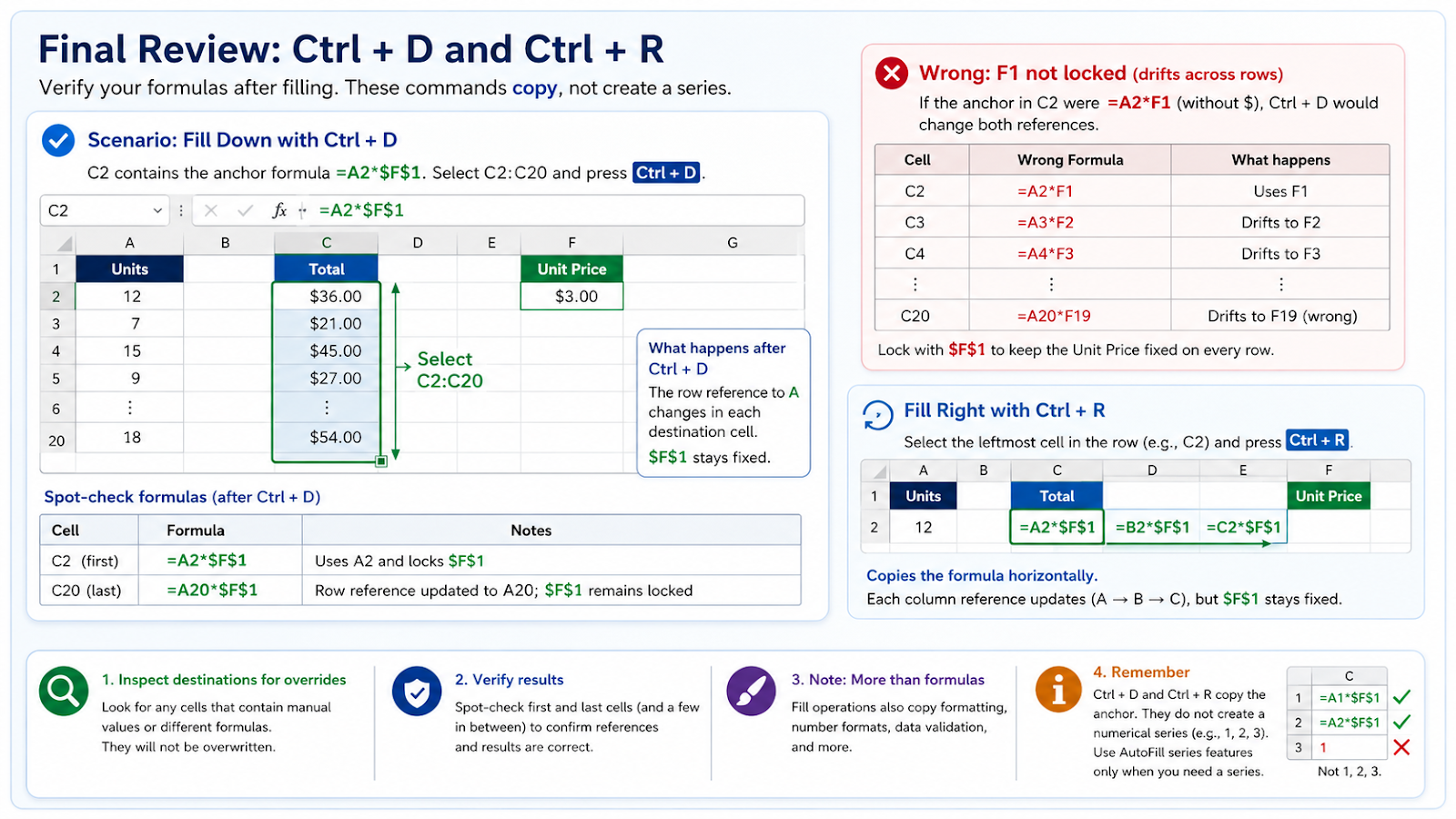
Assume C2 contains =A2*$F$1 and you select C2:C20 before pressing Ctrl + D. The row reference to A changes in each destination while the assumption in F1 remains fixed. If F1 was not locked, the formula would drift to F2, F3, and later cells as it filled down.
Ctrl + R follows the same idea horizontally, using the leftmost selected cell as the source. These commands copy; they do not create a numerical series. If you need 1, 2, 3 or consecutive dates, use a series or formula designed for that pattern. Before filling a large range, inspect the destination for manually entered overrides that should not be overwritten, then spot-check the first and last formulas after the operation.
Fill commands can copy more than the formula
Ctrl + D and Ctrl + R behave like fill operations, so formatting and other cell properties can follow the source in ways a user may not expect. When the destination already has deliberate formatting or validation, test a small range first. If only formulas or values should move, Paste Special may provide more control. The fastest shortcut is only useful when the copied cell is an appropriate template for the entire destination range.
Frequently asked questions
Does Fill Down copy formatting too?
It generally copies the cell content and associated formatting like a normal fill; verify the workbook behavior.
How do I fill upward or left?
Use other fill commands or copy and paste; Ctrl + D and Ctrl + R are specifically down and right.
Why are all results identical?
The formula may use absolute references or the source itself may be a fixed value.
Can I fill several columns at once?
Yes, if each selected column has the intended source in its top row.
Continue building reliable Excel workflows
Browse more lessons in the OneXcel Tutorial Hub or explore free Excel resources.