
TEMPLATES & BUSINESS WORKFLOWS
How to Create an Employee Leave Tracker in Excel
Create an Excel employee leave tracker for requests, approvals, used days, remaining balances, and team availability.

Recommended tracker fields
| Field | Purpose |
|---|---|
| Employee ID | Stable employee key used to connect requests with the correct entitlement and balance record. |
| Employee | Employee display name used for readable request and coverage views. |
| Team | Team or department used to review overlapping leave and staffing coverage. |
| Leave Type | Controlled leave category used for the correct entitlement and reporting rule. |
| Start Date | First requested leave date used in the working-day calculation. |
| End Date | Last requested leave date used in the working-day calculation. |
| Working Days | Calculated leave days after approved weekend and holiday rules are applied. |
| Approval Status | Controlled request state such as Pending, Approved, Cancelled, or Rejected. |
| Approved By | Approver responsible for the decision when the request requires authorization. |
| Balance Before | Available leave balance before an approved request is deducted. |
| Balance After | Projected remaining balance after the approved working days are deducted. |
| Coverage Notes | Operational handoff or staffing note needed to cover the employee’s absence, without unnecessary sensitive detail. |
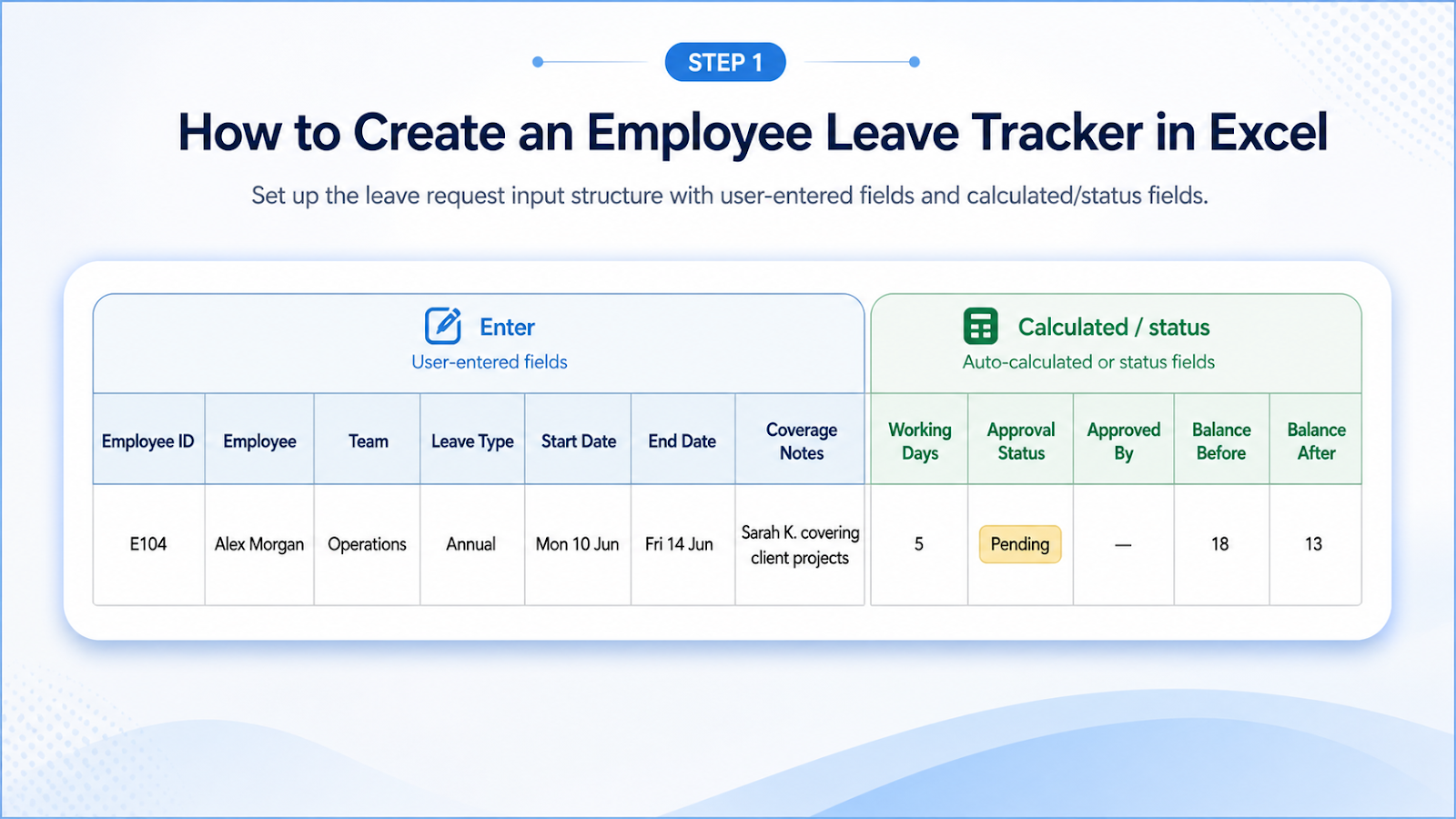
Build the workflow
- Maintain a separate employee entitlement table.
- Record one row per leave request.
- Use real start and end dates.
- Calculate working days using the correct weekend and holiday rules.
- Approve through a controlled status field.
- Update balances only for approved requests.
- Review overlapping leave by team and period.
Useful formulas
Working days: =NETWORKDAYS([@[Start Date]],[@[End Date]],HolidayList)Balance after: =[@[Balance Before]]-[@[Working Days]]
Common tracker mistakes
| Mistake | Impact |
|---|---|
| Counting calendar days | Weekends and holidays may not consume leave. |
| Updating balances before approval | Available leave is understated. |
| Ignoring half days | The tracker needs a consistent fraction rule. |
| Sharing sensitive details broadly | Limit fields to operational needs. |
| Using names as the only key | Employees can share names or change names. |
Worked leave-balance example
Assume an employee has 12 days available and requests leave from Monday through Friday with no holidays. NETWORKDAYS returns 5 working days, so the projected balance after approval is 7. If Wednesday is in the holiday list, the request consumes 4 days instead. That difference is why the holiday range should be maintained centrally instead of typed into individual formulas.
Keep Requested, Approved, and Cancelled records distinct. A pending request can be shown in team coverage, but it should not reduce the official balance until the approval rule says so. For half days, add a quantity or fraction field rather than forcing NETWORKDAYS to represent partial days. Finally, restrict the tracker to operational information; sensitive medical details normally do not belong in a shared leave-planning workbook.
Build coverage reporting from approved leave only
A separate daily or weekly summary can count approved absences by Team and Date using the leave-request table. Keep pending requests visible for planning but distinguish them from confirmed coverage gaps. Where overlapping leave creates a staffing risk, show the affected team and period rather than exposing sensitive leave reasons. This keeps the tracker operationally useful while respecting that leave data can contain personal information.

Frequently asked questions
How do I handle half-day leave?
Add a Days field or fraction adjustment with a documented rule.
Can the tracker show team coverage?
Yes. Summarize approved leave by date and team.
Should sick leave reasons be stored?
Only when policy and privacy requirements permit it.
How do I prevent negative balances?
Use validation, warnings, and an approval review rather than only a formula.
Continue building reliable Excel workflows
Browse more lessons in the OneXcel Tutorial Hub or explore free Excel resources.