
TEMPLATES & BUSINESS WORKFLOWS
How to Create an Inventory Reorder Tracker in Excel
Create an Excel inventory reorder tracker that flags low stock, considers lead time, and calculates a practical reorder quantity.
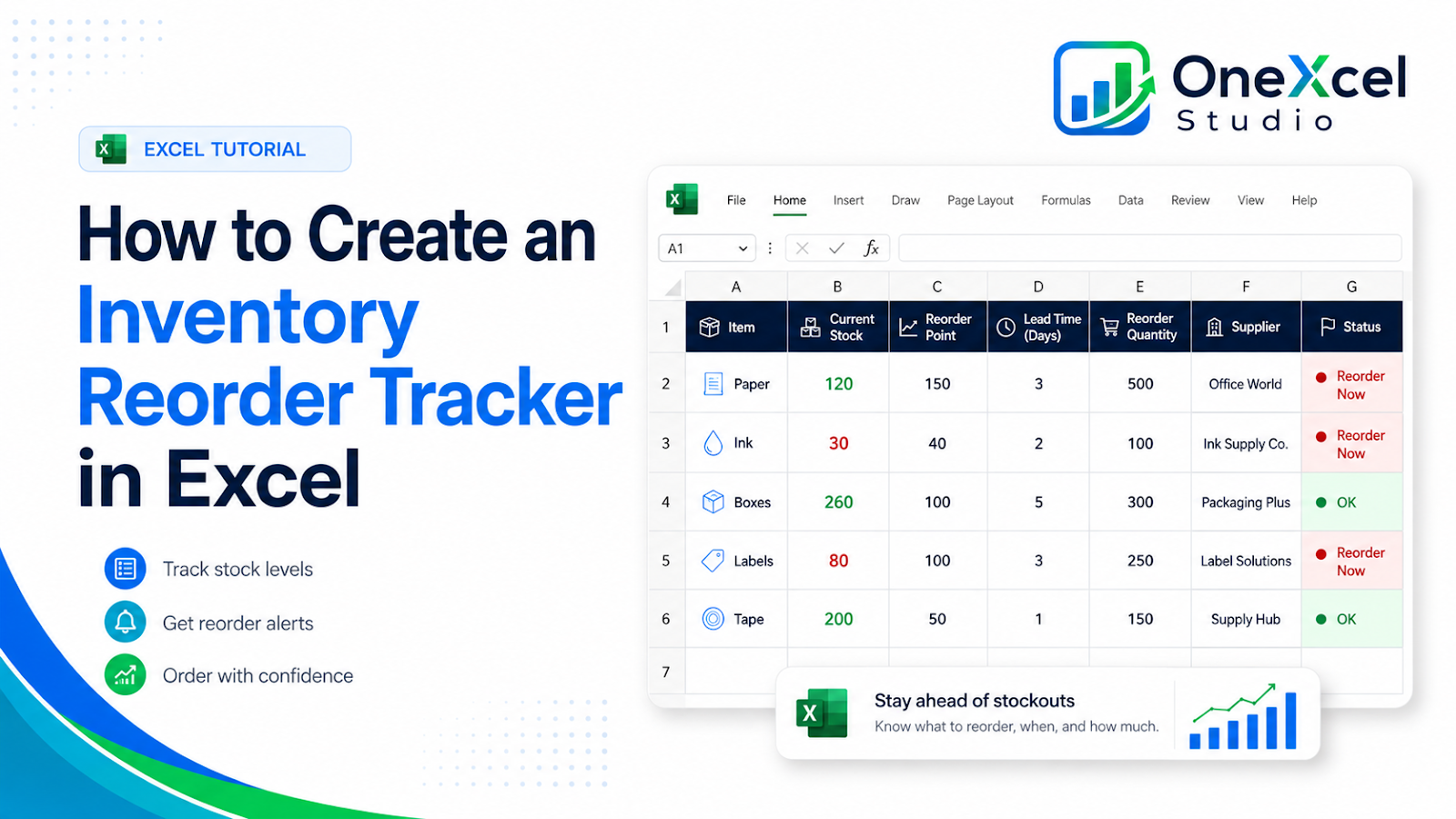
Recommended tracker fields
| Field | Purpose |
|---|---|
| SKU | Unique stock identifier used to match counts, purchase orders, and item history. |
| Item | Plain-language item description so the SKU and unit of measure can be verified quickly. |
| Supplier | Primary replenishment source used for lead-time and purchasing decisions. |
| Current Stock | Latest verified on-hand quantity before open orders or commitments are considered. |
| Reorder Point | Stock threshold that triggers a replenishment review. |
| Lead Time Days | Expected number of days between ordering the item and receiving it. |
| Average Daily Use | Normal demand rate used to estimate consumption during lead time. |
| Safety Stock | Extra buffer kept for demand or delivery uncertainty. |
| Recommended Order | Calculated quantity suggested after demand, lead time, safety stock, and current stock are considered. |
| Status | Action label such as OK or Reorder that tells the buyer which items need attention. |
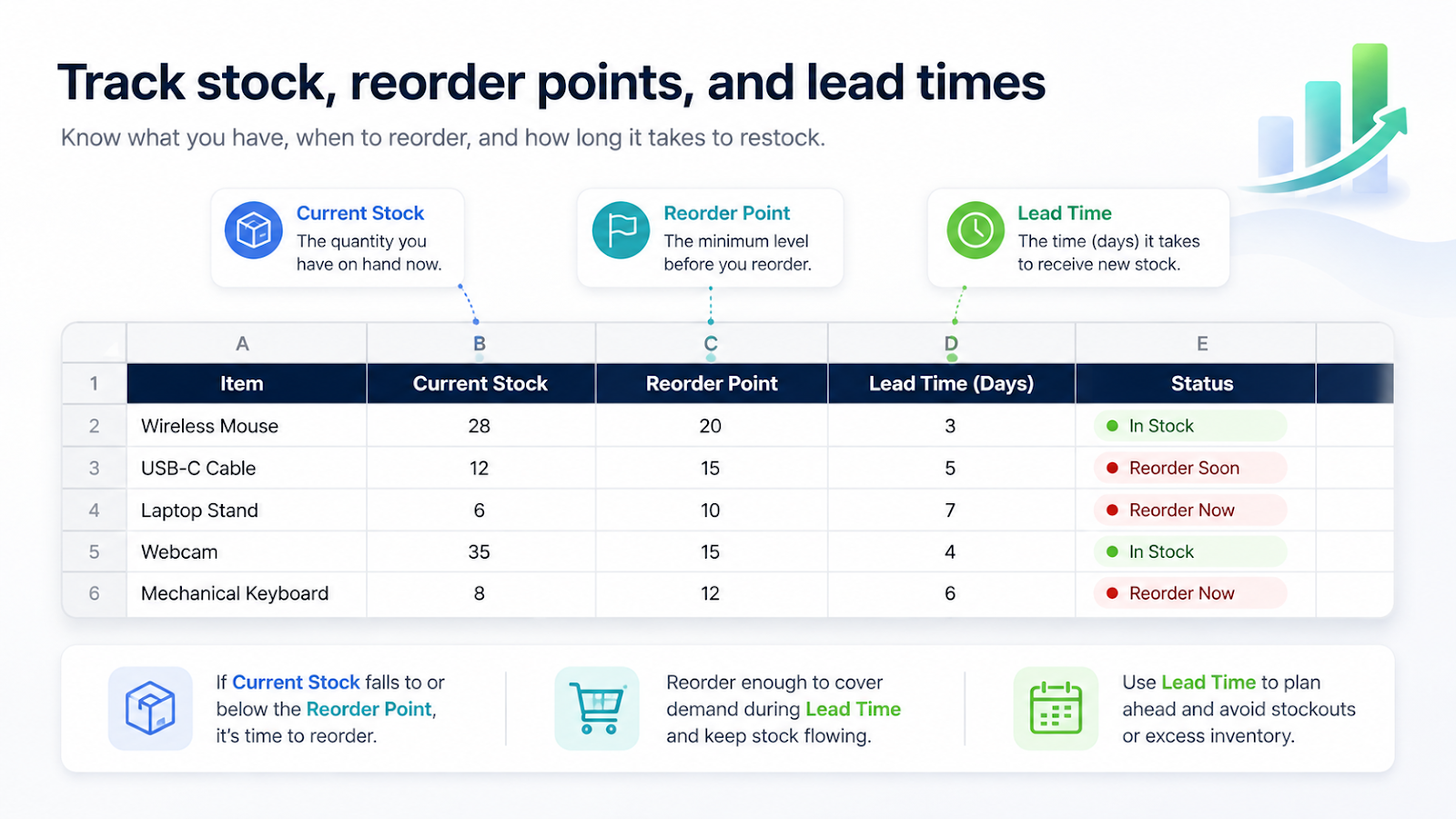
Build the workflow
- Create a unique SKU for every stock item.
- Record current on-hand quantity from a controlled source.
- Calculate or approve average usage and lead time.
- Set safety stock and reorder point.
- Calculate a recommended order quantity.
- Flag items at or below the reorder point.
- Review open purchase orders before placing another order.
Useful formulas
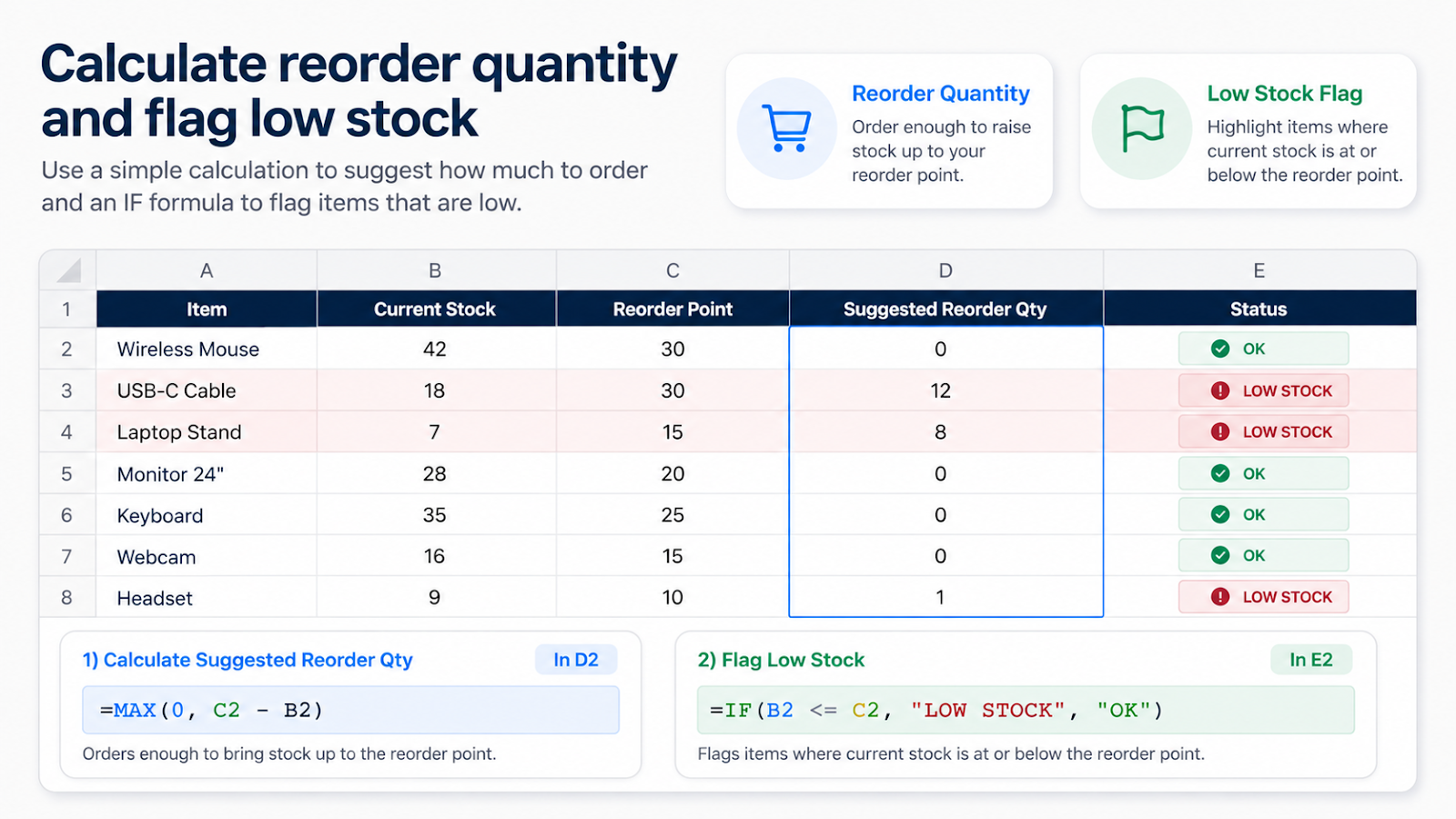
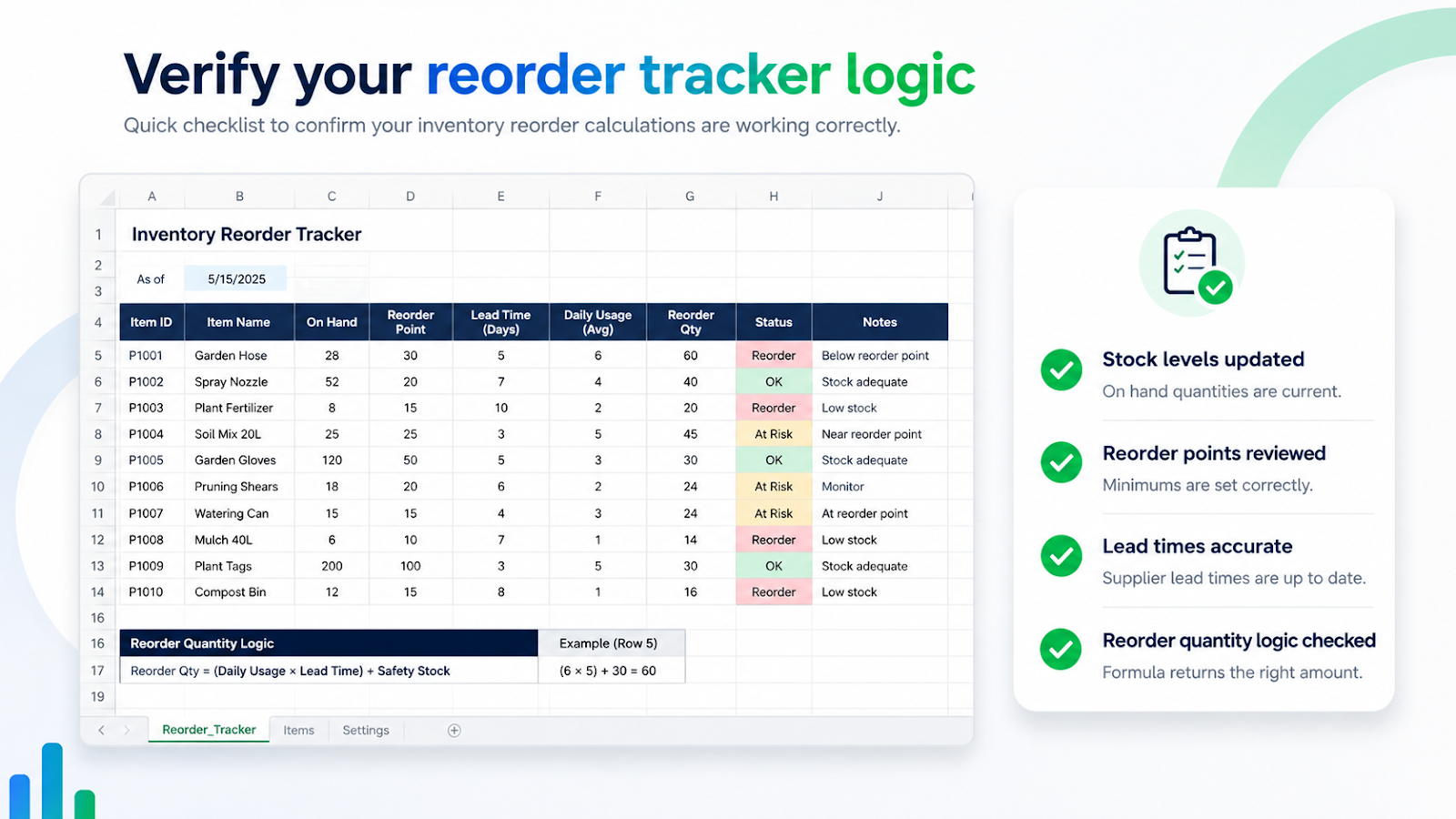
Reorder status: =IF([@[Current Stock]]<=[@[Reorder Point]],"Reorder","OK")Suggested quantity: =MAX(0,([@[Average Daily Use]]*[@[Lead Time Days]]+[@[Safety Stock]])-[@[Current Stock]])For more complex status rules, extend the same pattern with an IF formula using AND and OR.
Common tracker mistakes
| Mistake | Impact |
|---|---|
| Using current stock without open orders | The recommendation can overstate needs. |
| Using one lead time for every supplier | Risk differs by item and supplier. |
| Ignoring unit of measure | Cases and individual units can be mixed. |
| Treating all demand as stable | Seasonality and promotions need overrides. |
| Not recording stock-count date | Old balances look current. |
Worked reorder example
Suppose an item has 42 units on hand, average daily use of 8, lead time of 5 days, and safety stock of 20. Expected demand during lead time is 40 units, so demand plus safety stock is 60. The suggested order from the formula is MAX(0,60-42), or 18 units. If 12 units are already on an open purchase order, the additional recommendation should be reduced accordingly.
For a related summary workflow, use SUMIFS to summarize stock movements across dates or item categories.
That example also shows why reorder logic should not use only Current Stock. Available inventory may need to consider committed customer orders, inbound purchase orders, minimum order quantities, case packs, or supplier constraints. Keep those adjustments visible in separate fields rather than burying them in one long formula. The goal is not a mathematically perfect order quantity; it is a recommendation that a buyer can review and trace back to current stock, demand, lead time, and safety stock.
Frequently asked questions
What is a reorder point?
It is the stock level that triggers replenishment, usually based on demand during lead time plus safety stock.
How do I include open purchase orders?
Subtract expected inbound quantity from the recommended order or add an Available After Orders field.
Can I track expiry dates?
Yes, but batch-level records may be required.
How often should the tracker update?
As often as stock movements and purchasing decisions require.
Continue building reliable Excel workflows
Browse more lessons in the OneXcel Tutorial Hub or explore free Excel resources.