
EXCEL AUTOMATION & VBA
How to Combine Multiple Workbooks with VBA
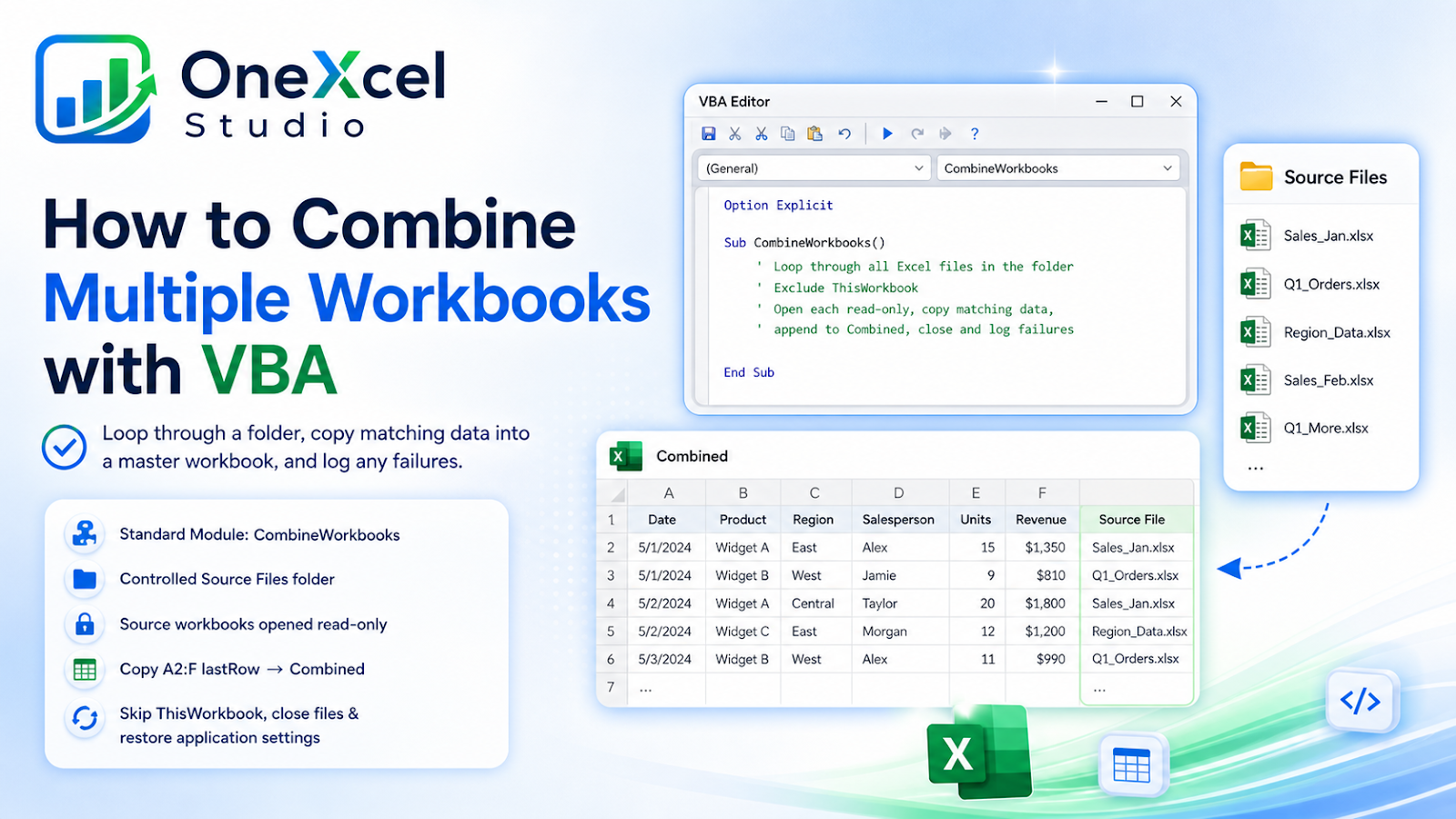
Combine multiple Excel workbooks with VBA by looping through a folder, copying matching data, and logging files that fail.
Core outcome: Teach readers how to loop through files in one folder and append matching data into a master workbook.
Plan the macro
Place the procedure in a standard module of the master workbook. Keep source files in a controlled folder and use consistent headers.
Public Sub CombineWorkbooks()
    Const DEST_SHEET As String = "Combined"
    Dim wsDest As Worksheet
    Dim wbSource As Workbook
    Dim wsSource As Worksheet
    Dim folderPath As String
    Dim fileName As String
    Dim nextRow As Long
    Dim lastRow As Long

    On Error GoTo CleanFail
    Set wsDest = ThisWorkbook.Worksheets(DEST_SHEET)

    folderPath = ThisWorkbook.Path & Application.PathSeparator & "Source Files"
    If Len(Dir(folderPath, vbDirectory)) = 0 Then
        Err.Raise vbObjectError + 200, , "Source Files folder was not found."
    End If

    Application.ScreenUpdating = False
    Application.EnableEvents = False
    Application.DisplayAlerts = False

    fileName = Dir(folderPath & Application.PathSeparator & "*.xls*")

    Do While Len(fileName) > 0
        If fileName <> ThisWorkbook.Name Then
            Set wbSource = Workbooks.Open( _
                folderPath & Application.PathSeparator & fileName, _
                ReadOnly:=True)
            Set wsSource = wbSource.Worksheets(1)

            lastRow = wsSource.Cells(wsSource.Rows.Count, "A").End(xlUp).Row

            If lastRow >= 2 Then
                nextRow = wsDest.Cells(wsDest.Rows.Count, "A").End(xlUp).Row + 1
                wsSource.Range("A2:F" & lastRow).Copy wsDest.Cells(nextRow, "A")
            End If

            wbSource.Close SaveChanges:=False
            Set wbSource = Nothing
        End If

        fileName = Dir
    Loop

CleanExit:
    On Error Resume Next
    If Not wbSource Is Nothing Then wbSource.Close SaveChanges:=False
    Application.DisplayAlerts = True
    Application.EnableEvents = True
    Application.ScreenUpdating = True
    Exit Sub

CleanFail:
    MsgBox "Combine failed: " & Err.Description, vbExclamation
    Resume CleanExit
End Sub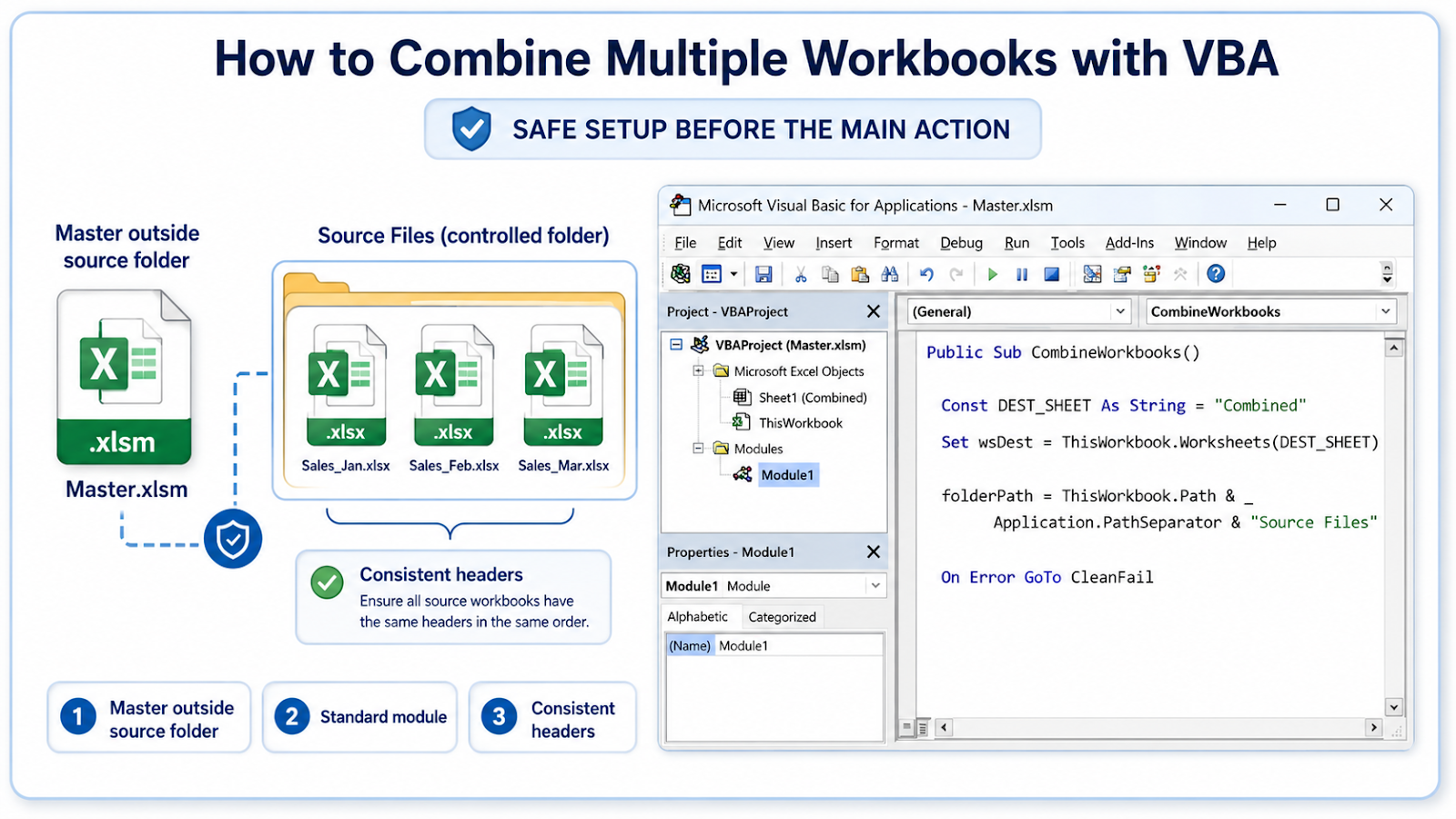
Implementation steps
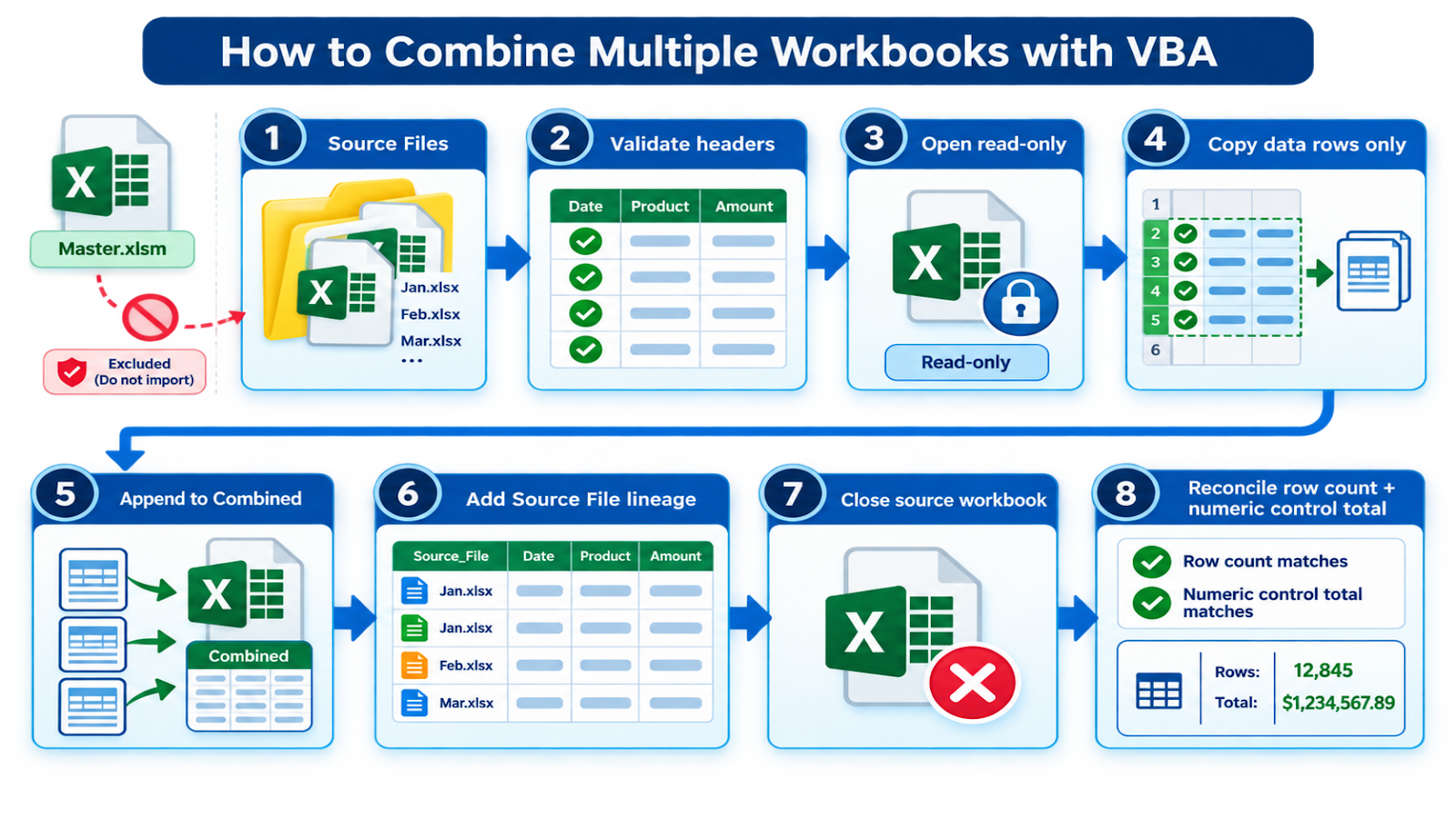
- Standardize source headers and column order.
- Create a dedicated source folder and keep the master workbook outside it.
- Clear or archive the previous combined output according to the workflow.
- Open each source read-only.
- Copy only the data rows, not repeated headers.
- Close every source workbook and restore application settings.
- Reconcile record counts and totals after the merge.
Common VBA mistakes
| Mistake | Impact |
|---|---|
| Combining inconsistent layouts | Values are appended under the wrong headers. |
| Including the master workbook | The macro can import its own output. |
| Using UsedRange without validation | Formatting can make the used range larger than the data. |
| Leaving a failed workbook open | Subsequent runs can lock files. |
| Appending twice without a reset rule | Duplicate records are created. |
Make the merge auditable
A useful consolidation macro should leave enough evidence to trace every imported row. Add a Source File column in the destination and populate it with fileName for the rows just appended. If files contain a reporting date or business unit, capture those fields too instead of relying only on the workbook name. This makes duplicate investigation and reconciliation much easier.
Before copying data, validate the expected headers rather than assuming the first worksheet always matches. If a source has a missing column, changed header, or no data rows, skip it and record the reason in a simple log sheet. On both Windows and Mac, avoid Windows API calls and keep folder handling based on ThisWorkbook.Path and Application.PathSeparator. After the run, compare the number of imported rows with the total source-row count and reconcile at least one numeric control total such as Amount or Quantity.

Frequently asked questions
Can it combine CSV files?
Yes, with a file pattern and import logic suited to CSV; test delimiters and data types.
How do I preserve source filename?
Add a source-file column during the append.
Does it work on Mac?
The core VBA is portable, but folder access permissions must be granted and tested.
How do I handle different sheet names?
Validate the expected sheet name in each workbook and log files that do not match.
Continue building reliable Excel workflows
Browse more lessons in the OneXcel Tutorial Hub or explore free Excel resources.