
EXCEL AUTOMATION & VBA
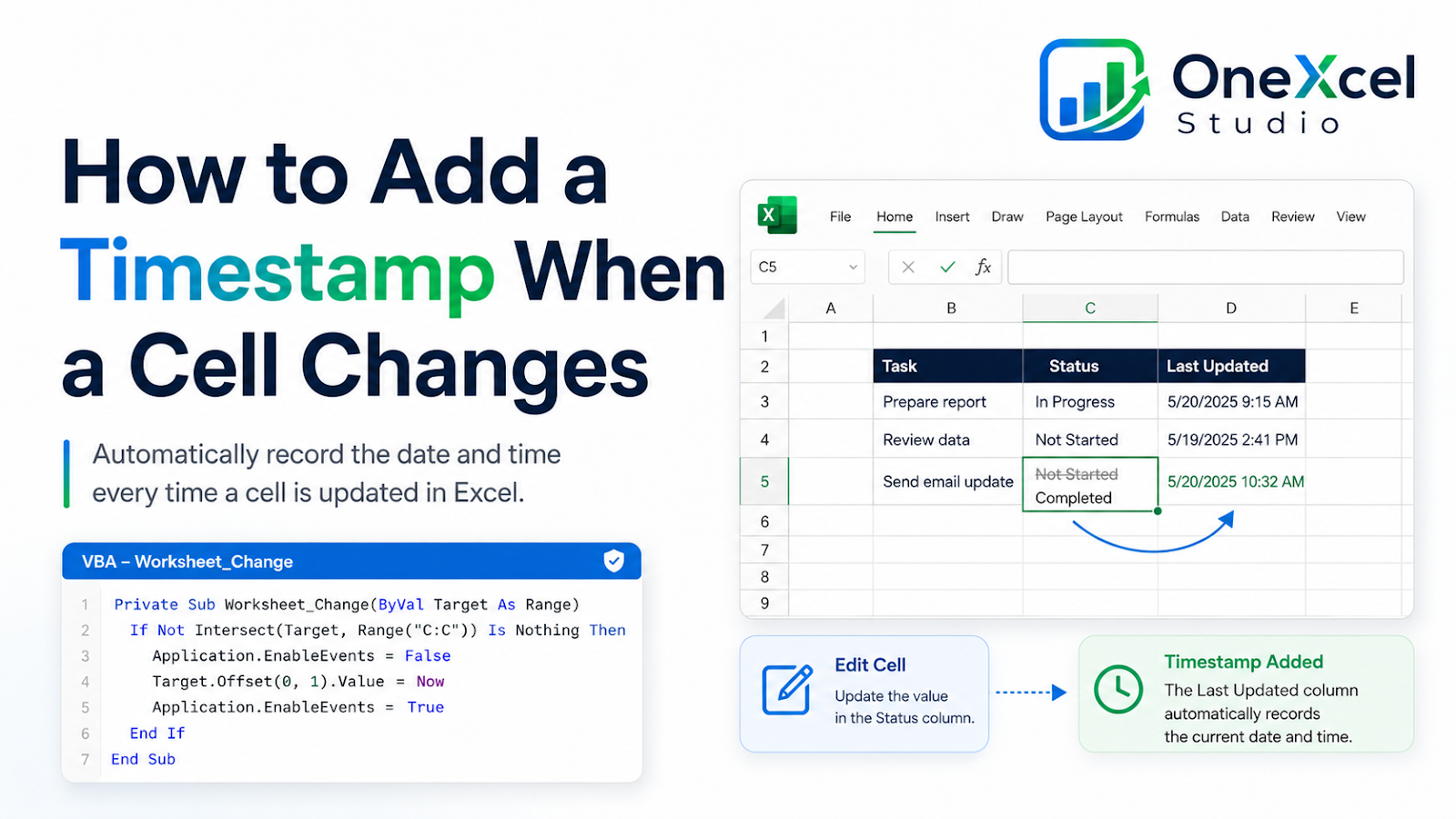
How to Add a Timestamp When a Cell Changes
Add a fixed timestamp in Excel with VBA whenever a monitored cell changes, while preventing repeated event triggers.
Core outcome: Explain how to use the Worksheet_Change event to record a fixed timestamp without creating a circular formula.
Plan the macro
Place the event procedure in the code module of the worksheet being monitored, not in a standard module.
Private Sub Worksheet_Change(ByVal Target As Range) Dim watched As Range Dim changed As Range On Error GoTo CleanExit Set watched = Me.Range("B2:B500") Set changed = Intersect(Target, watched) If changed Is Nothing Then Exit Sub Application.EnableEvents = False Dim cell As Range For Each cell In changed.Cells If Len(cell.Value2) > 0 Then Me.Cells(cell.Row, "C").Value = Now Else Me.Cells(cell.Row, "C").ClearContents End If Next cell CleanExit: Application.EnableEvents = True End Sub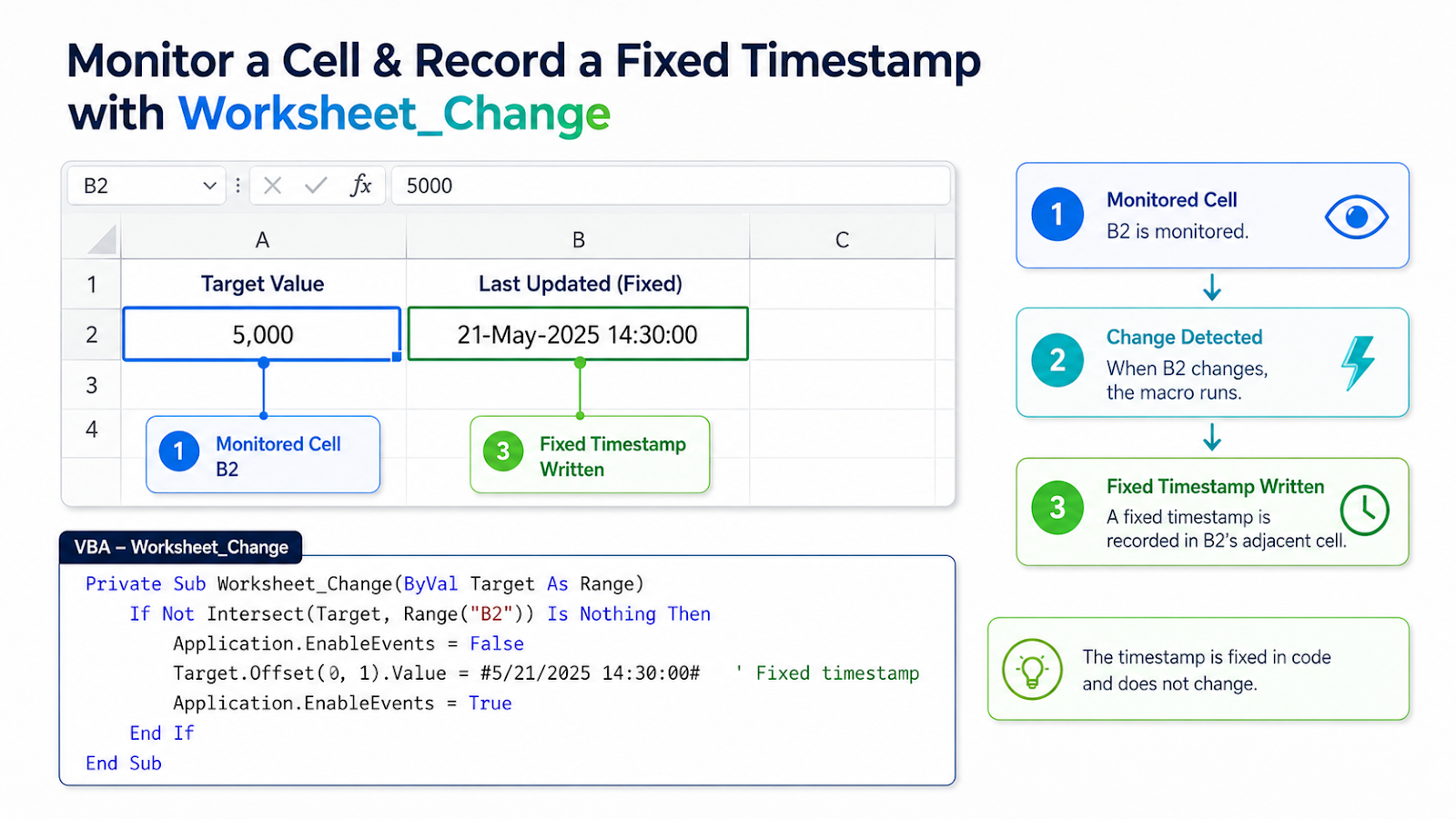
Implementation steps
- Choose the exact input range to monitor.
- Choose a separate timestamp column that does not contain formulas.
- Limit Intersect to the monitored cells.
- Disable events before writing the timestamp.
- Decide whether clearing the input should also clear the timestamp.
- Restore events even when an error occurs.
- Test single-cell edits and multi-cell paste operations.

Common VBA mistakes
| Mistake | Impact |
|---|---|
| Using NOW in a worksheet formula | It recalculates and does not preserve the original time. |
| Writing to the watched cell | The event can trigger itself repeatedly. |
| Handling only Target as one cell | Pasting several records can fail. |
| Leaving events disabled after an error | All workbook events stop. |
| Monitoring the entire worksheet | Unrelated edits create timestamps and slow the workbook. |
Test the event with real editing patterns
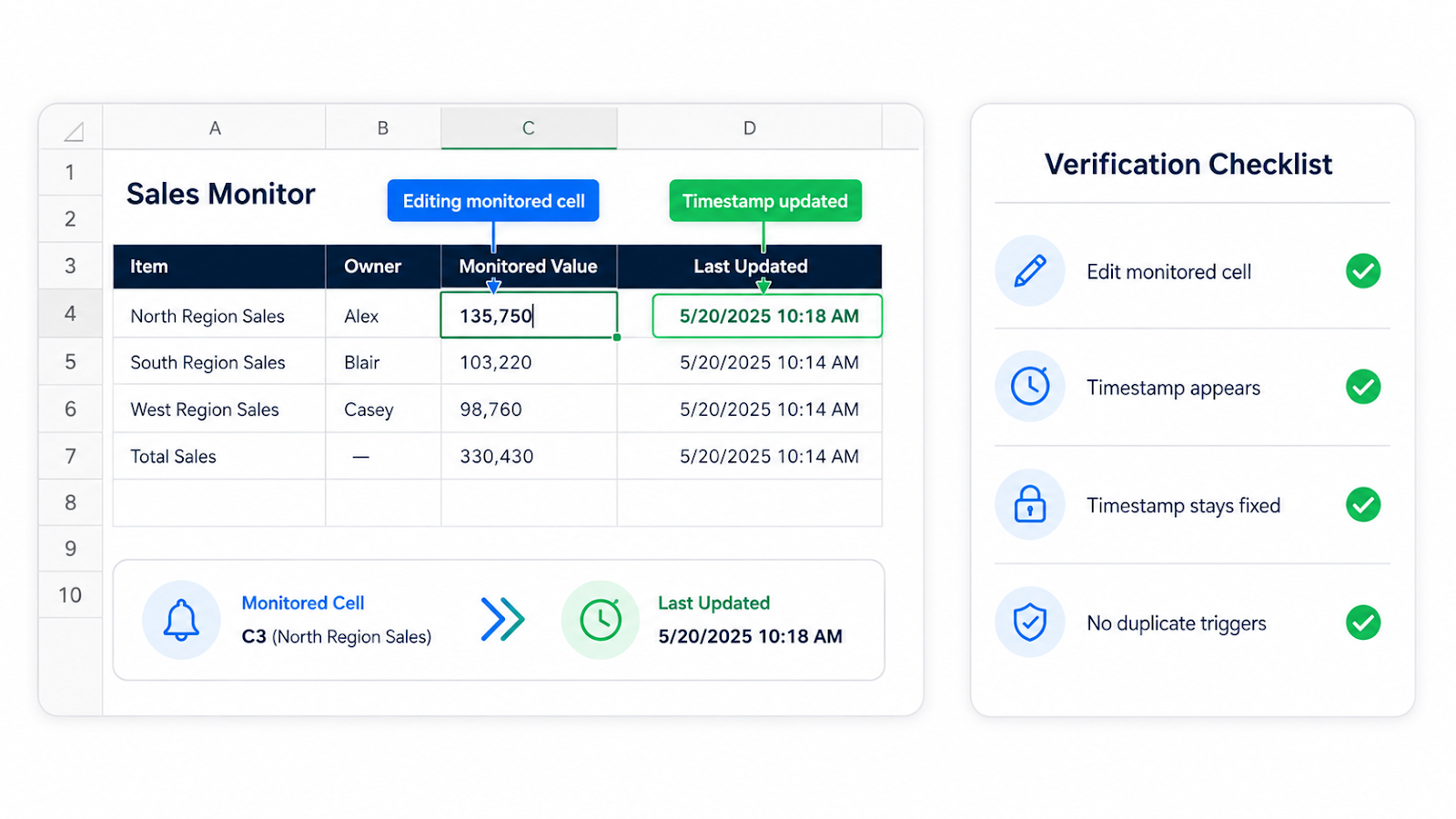
A timestamp event must work for more than a single typed value. Paste three values into B10:B12 and confirm C10:C12 receives three fixed timestamps without an event loop. Then clear one watched value and verify the timestamp follows the intended policy. If the timestamp is an audit record, you may want to retain it instead of clearing it.
Keep the monitored range narrow. Watching an entire worksheet causes unrelated edits, formatting-driven changes, or pasted blocks to trigger unnecessary code. The event should also avoid selecting cells or moving the user. Most importantly, restore Application.EnableEvents = True on every exit path. If an error leaves events disabled, other workbook automation can appear broken until Excel is reset or events are manually re-enabled.
Decide whether a timestamp is an audit trail or convenience field
If the timestamp is only a convenience field, clearing it when the input is cleared may be appropriate. If it is an audit record, the original timestamp should normally remain and a separate Updated At field may be better for later changes. Document that behavior before coding the event. Also test pasting formulas, clearing several cells at once, and editing a cell back to its previous value so users understand exactly what counts as a change.
Frequently asked questions
Can the timestamp remain when the input is cleared?
Yes. Remove the ClearContents branch if the audit trail should be retained.
How do I record the user name?
A second column can store Application.UserName, but that value is user-configurable and should not be treated as secure authentication.
Does this work on Mac?
The worksheet event and Now function are cross-platform.
Why did the event not run?
Check that macros are enabled, events are enabled, and the code is in the correct worksheet module.
Continue building reliable Excel workflows
Browse more lessons in the OneXcel Tutorial Hub or explore free Excel resources.