
DATA CLEANUP & ERROR CHECKS
How to Find Nonprinting Characters in Excel Data
Find and remove nonprinting characters in Excel data that cause failed lookups, duplicate values, and inconsistent text comparisons.

Use character-code inspection safely
Use helper columns to measure and inspect suspicious text instead of editing the source directly.
- Compare LEN values for records that look identical.
- Use CODE or UNICODE on individual characters when the position is known.
- Use MID to extract suspicious characters.
- Apply CLEAN for standard nonprinting characters and SUBSTITUTE for known characters such as CHAR(160).
- Re-run comparisons and duplicate checks after cleaning.
- Preserve intentional punctuation and line breaks.
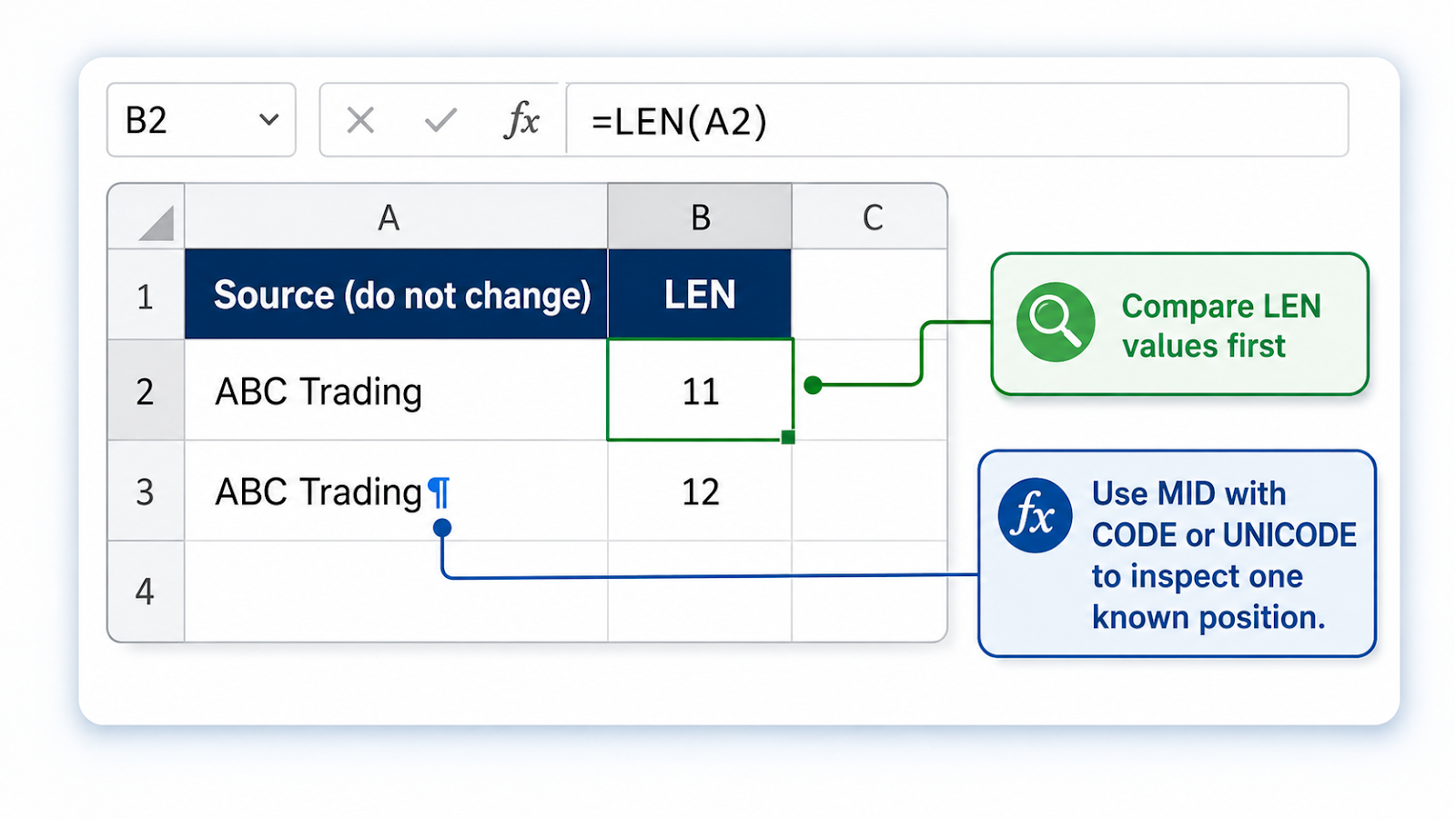
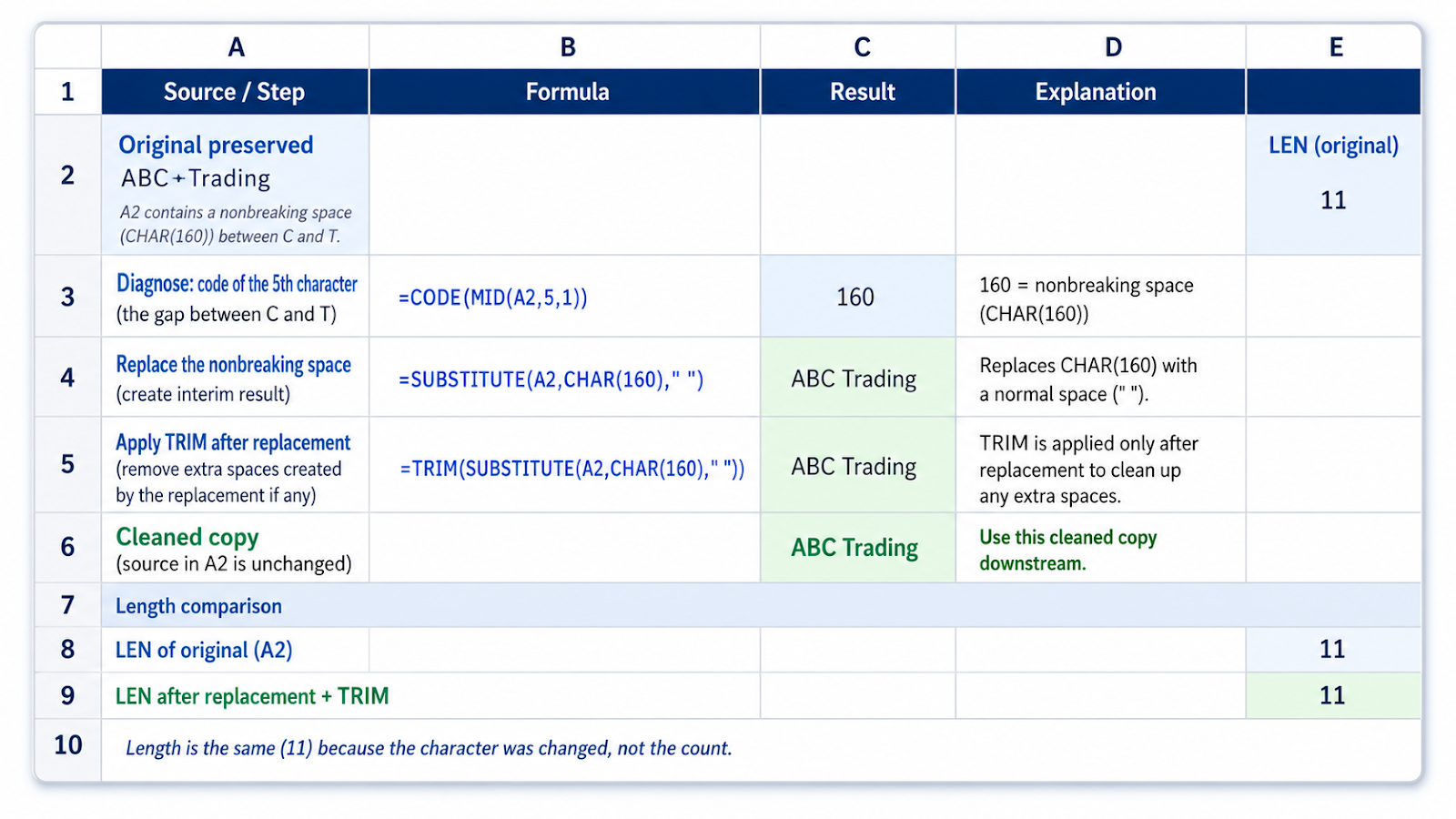
Worked example
`=CODE(MID(A2,5,1))` returns the code of the fifth character. `=SUBSTITUTE(A2,CHAR(160),” “)` replaces a common nonbreaking space before TRIM is applied.
Common cleanup mistakes
| Mistake | Why it matters |
|---|---|
| Deleting every unusual character | Some symbols and accented letters are valid data. |
| Assuming CLEAN handles Unicode | It does not remove every character that can break a match. |
| Using visual inspection only | Invisible characters require length or code tests. |
| Cleaning only one side of a comparison | Both source lists should be normalized consistently. |
| Pasting cleaned values without a backup | The original data may be needed for audit. |
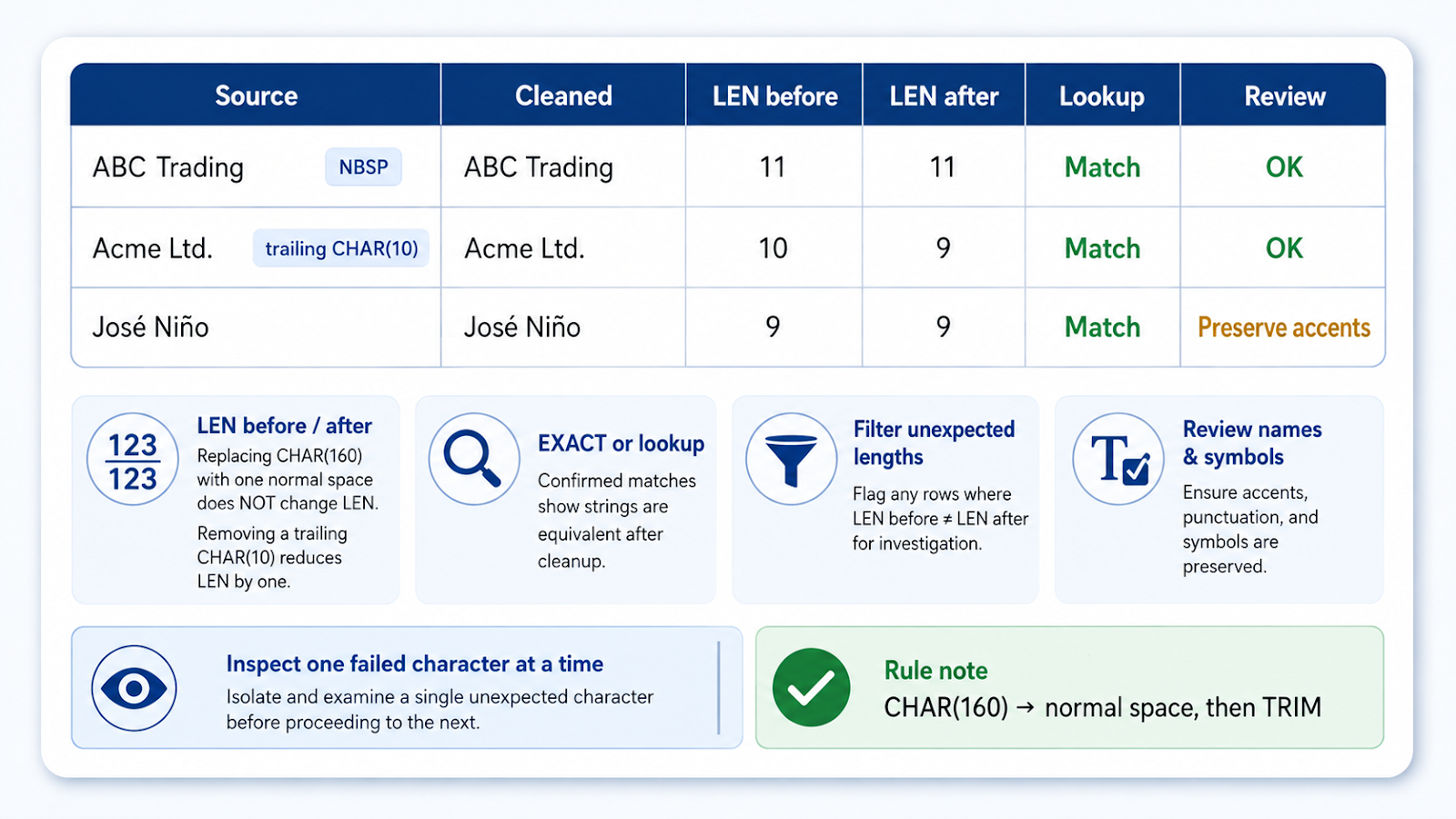
Verification steps
- Compare LEN before and after.
- Test EXACT or a lookup on known pairs.
- Filter for remaining unexpected lengths.
- Review multilingual names and symbols.
- Document the cleanup formula for future imports.
Inspect one failed character at a time
If a lookup fails for one record, do not start by stripping every unusual character from the whole column. Compare the source and expected value with LEN, then inspect the suspicious position using MID with CODE or UNICODE. This turns an invisible-data problem into something measurable.
For example, two customer names may both display as ABC Trading while one contains CHAR(160) between the words. Replacing that specific character and then applying TRIM is safer than removing punctuation or accented characters broadly. For repeated imports, document the exact characters found and apply the same cleanup in Power Query or a helper column. The verification step is not visual appearance; it is that exact comparisons, duplicate checks, and lookups now return the expected result.
Use a known-good value as the comparison control
When diagnosing invisible characters, keep one value that is known to work and compare the failing value against it. Check LEN, then inspect the first position where characters differ. This is faster than trying CLEAN, TRIM, and SUBSTITUTE blindly on an entire column. Once the exact character is identified, build the narrowest cleanup formula that removes or replaces only that problem and verify the previously failing lookup now succeeds.
Frequently asked questions
What is CHAR(160)?
It is a common nonbreaking space found in copied web data.
Why do two cells look the same but not match?
They may contain different spaces, hidden characters, or data types.
Can Power Query remove these characters?
Yes, with Trim, Clean, Replace Values, and custom transformations.
Should I use CODE or UNICODE?
UNICODE is more useful for characters outside the standard code set.
Continue building reliable Excel workflows
Browse more lessons in the OneXcel Tutorial Hub or explore free Excel resources.