
FORMULAS & FUNCTIONS
How to Count Overdue Items with COUNTIFS in Excel
Count overdue tasks in Excel with COUNTIFS by testing the due date, completion status, and blank cells in one practical formula.
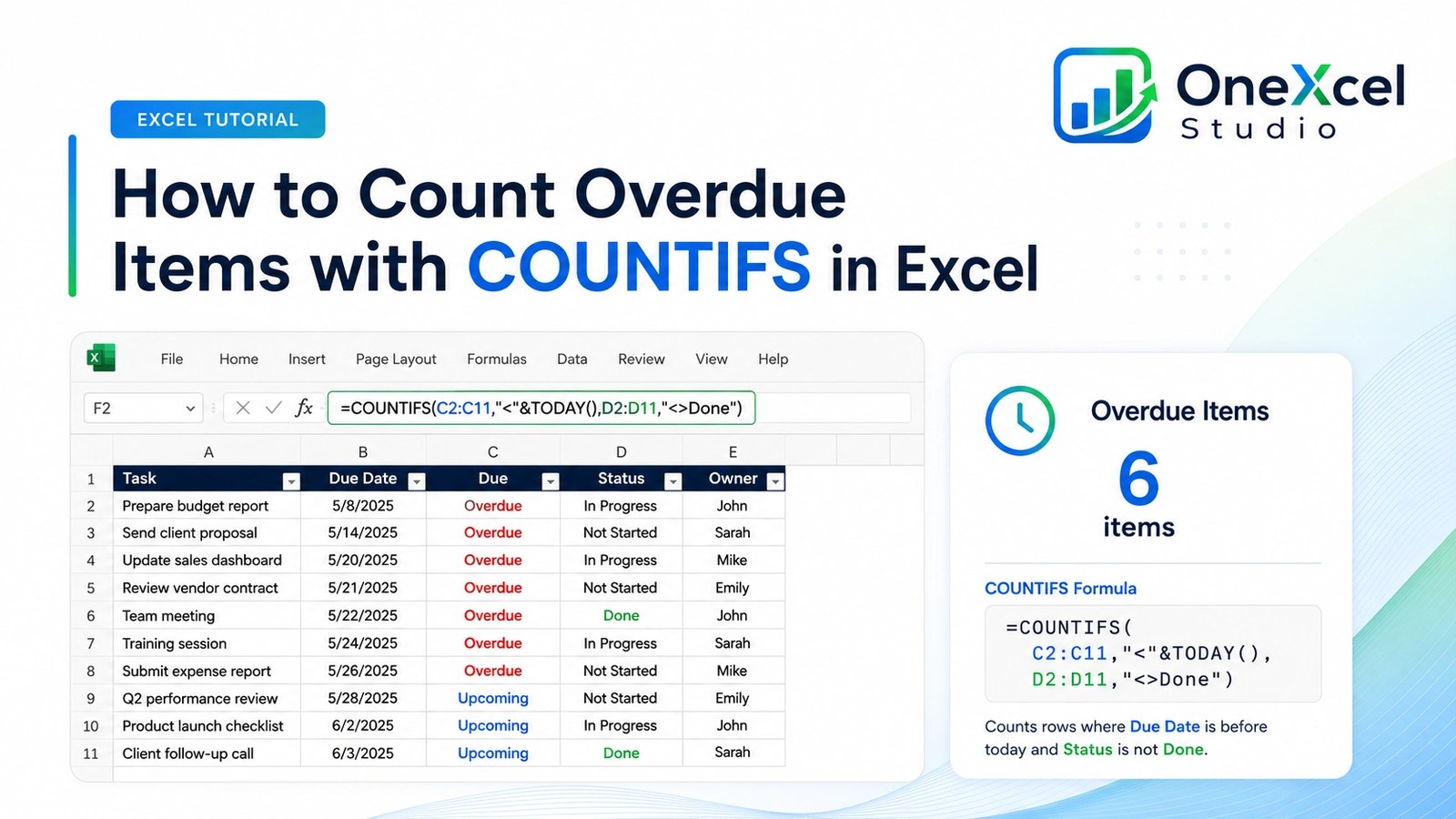
Build the COUNTIFS overdue-item count formula
Assume due dates are in B2:B500 and task status is in C2:C500.
=COUNTIFS($B$2:$B$500,"<"&TODAY(),$B$2:$B$500,"<>",$C$2:$C$500,"<>Complete")A second useful version is:
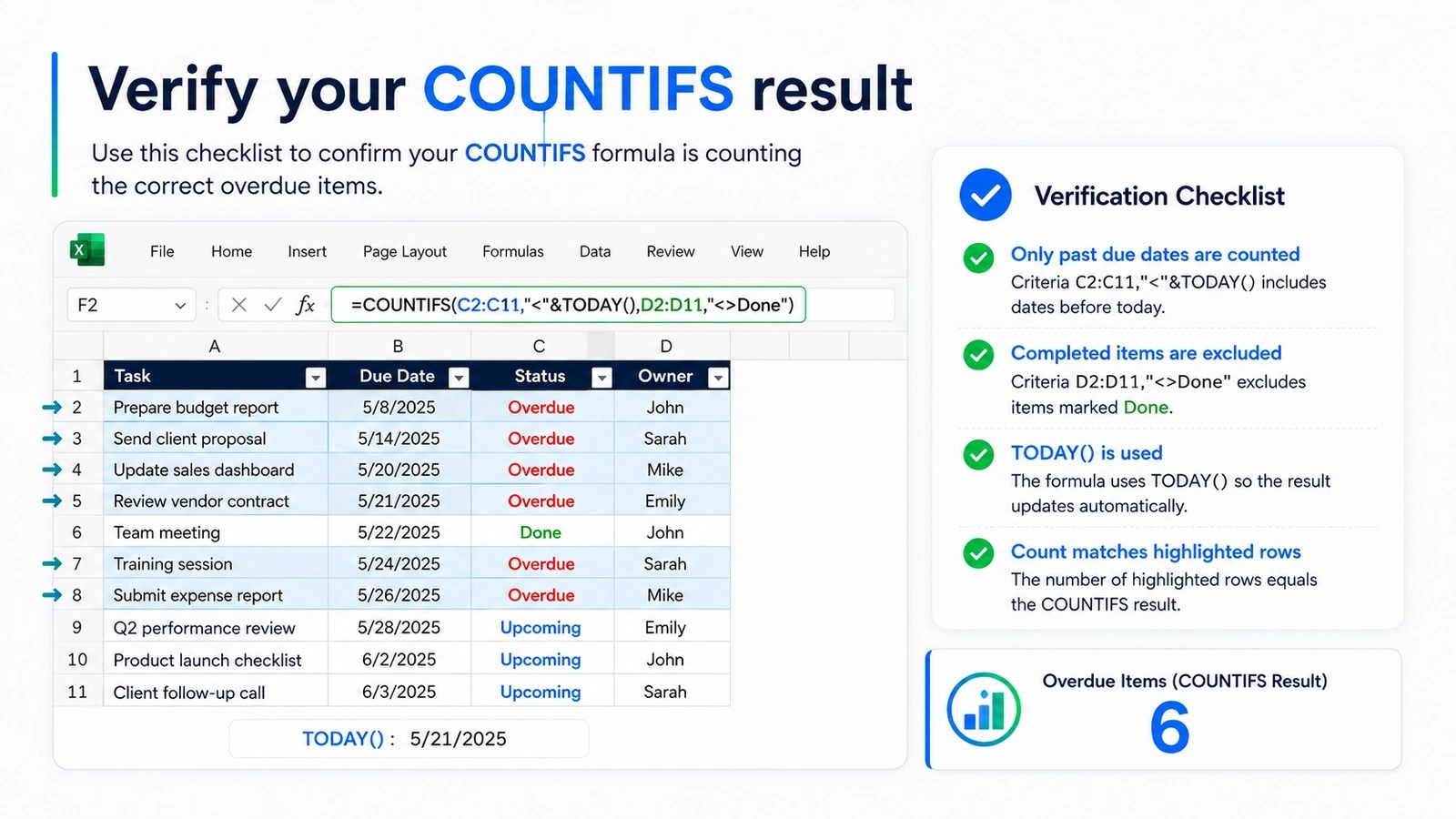
=COUNTIFS(tblTasks[Due Date],"<"&TODAY(),tblTasks[Due Date],"<>",tblTasks[Status],"<>Complete")The formula counts records with a due date before today, excludes blank due dates, and excludes completed items. Adjust the completion text to match the exact status values used in the tracker.
Step-by-step formula workflow
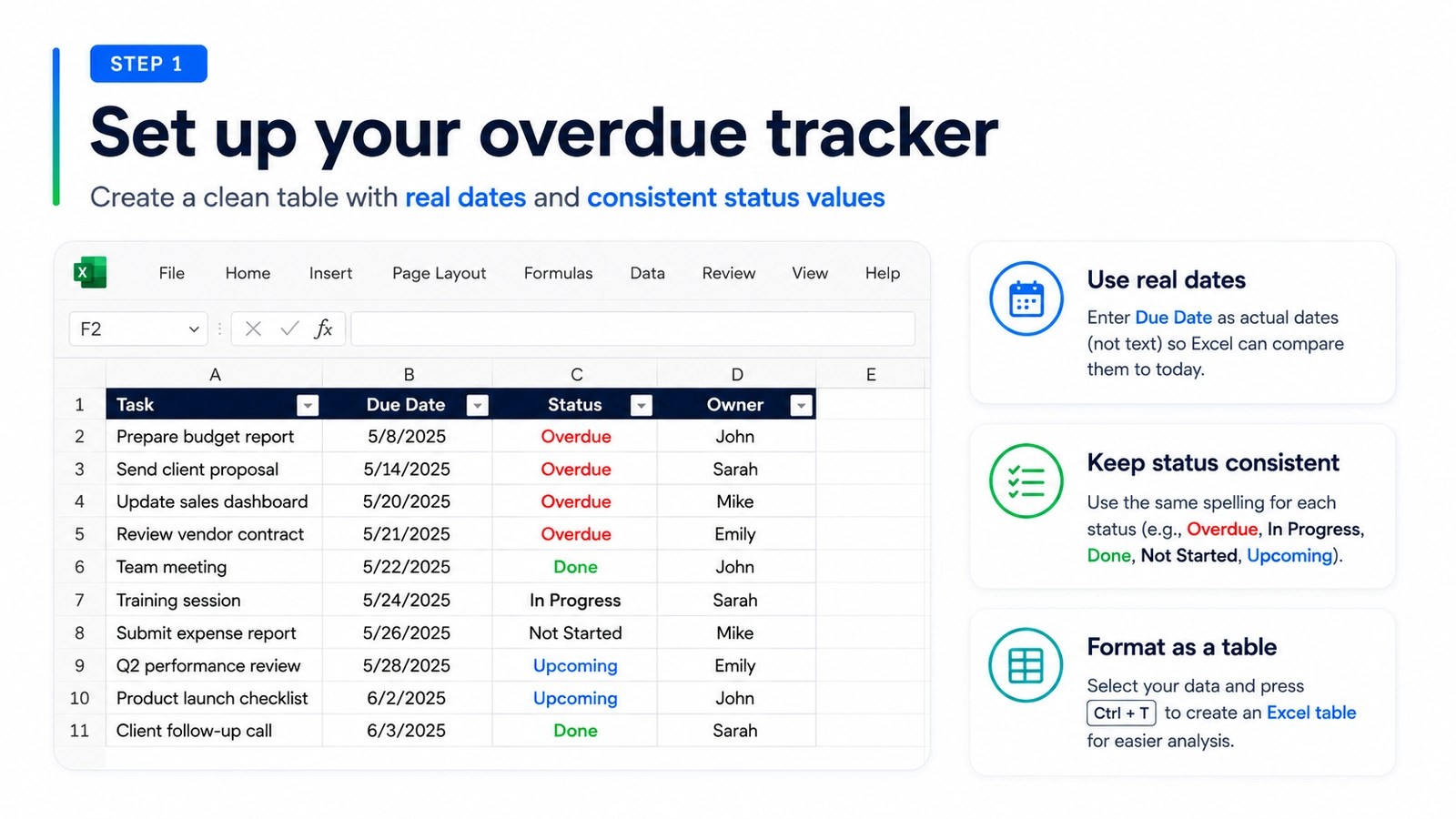
- Confirm the due-date column contains real dates.
- List the exact status values used by the workflow.
- Count dates earlier than TODAY.
- Exclude blank due dates so incomplete records are not treated as overdue.
- Exclude completed or cancelled statuses as required.
Common formula mistakes
| Mistake | Why it matters |
|---|---|
| Not excluding blanks | Blank cells can satisfy a less-than date test because Excel treats them like zero. |
| Using inconsistent completion labels | Complete, Completed, and Done need a controlled rule. |
| Counting today as overdue | Use less than TODAY for items due before today; use less than or equal for a stricter rule. |
| Using whole columns in a large workbook | Bounded ranges or Tables can calculate more efficiently. |
| Ignoring time values | A date-time due later today needs a clearly defined policy. |
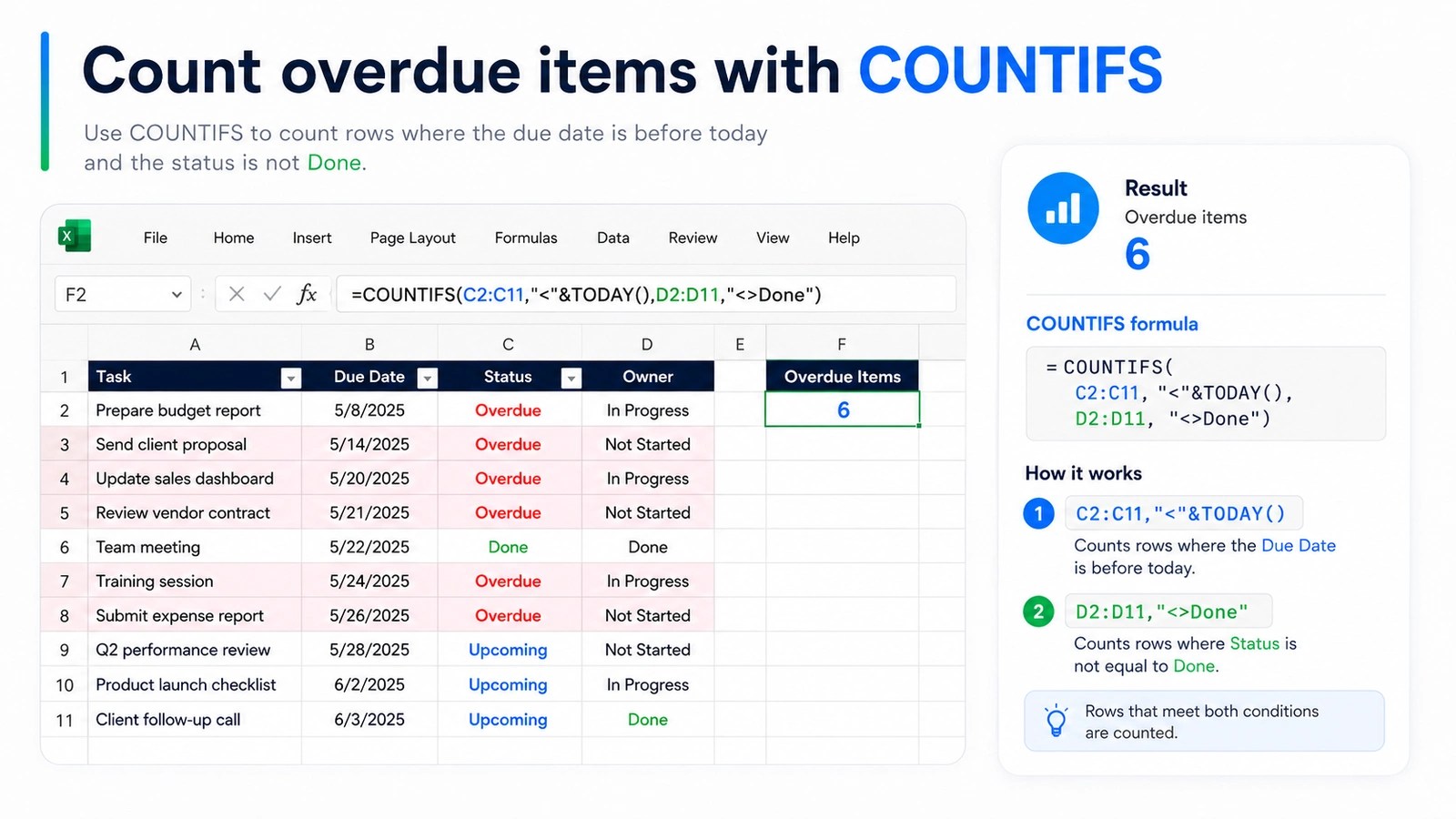
Extend the overdue count without hiding the rule
If the team also wants a count for one owner, add the owner range as another criterion instead of creating a separate helper count. For example: =COUNTIFS(tblTasks[Due Date],"<"&TODAY(),tblTasks[Due Date],"<>",tblTasks[Status],"<>Complete",tblTasks[Owner],$F$2). This keeps the definition visible and lets F2 drive a small owner summary.
Decide the overdue policy before finalizing the formula. An item due today is not overdue when the rule is strictly due before today, so use <TODAY(). If the business considers today’s uncompleted items overdue at the start of the day, use <=TODAY() instead. Also decide how Cancelled, On Hold, or Not Applicable statuses should behave. A correct COUNTIFS formula can still produce a misleading KPI if the status vocabulary is uncontrolled.
Frequently asked questions
How do I count items due today?
Use an equals criterion with TODAY or a start-and-end date-time test when times matter.
Can I exclude several statuses?
Add another status criterion or use a helper column when the exclusion list is long.
Why are blanks counted?
Add a separate nonblank criterion for the due-date range.
Can the formula count one owner only?
Yes. Add the owner column as another criteria range and the selected owner as its criterion.
Continue building reliable Excel workflows
Browse more lessons in the OneXcel Tutorial Hub or explore free Excel resources.